Appearance
Survey overview
eWizard Survey is a custom (created by agreement) educational presentation. The Surveys allow not only learning, but also collecting the efficiency statistics.
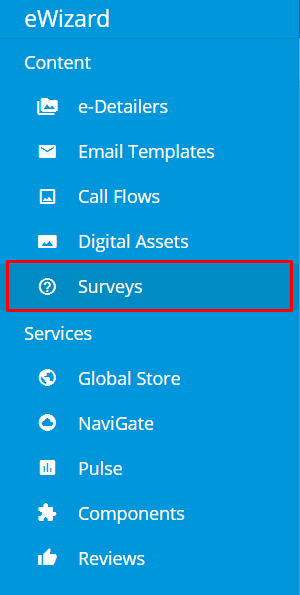
To open the Surveys section, unfold the burger menu and select Surveys:
Creating a survey
Go to the Survey section, click Add new and select either Create new survey or Upload from your device:
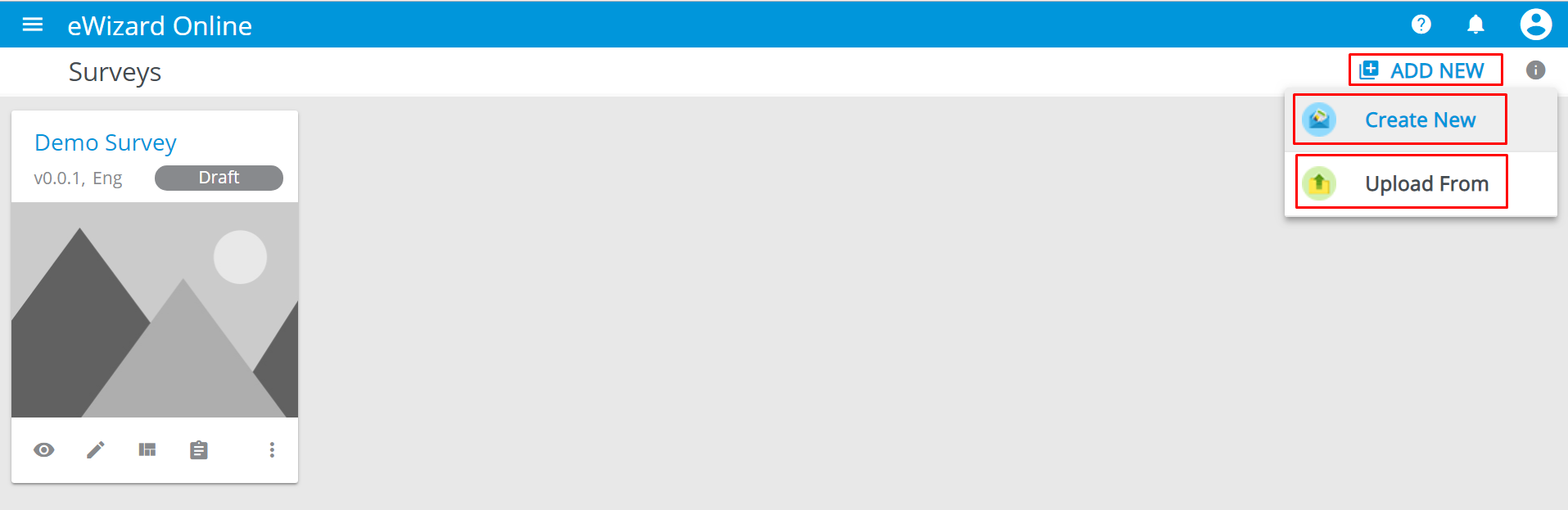
The status of the survey created is Draft.
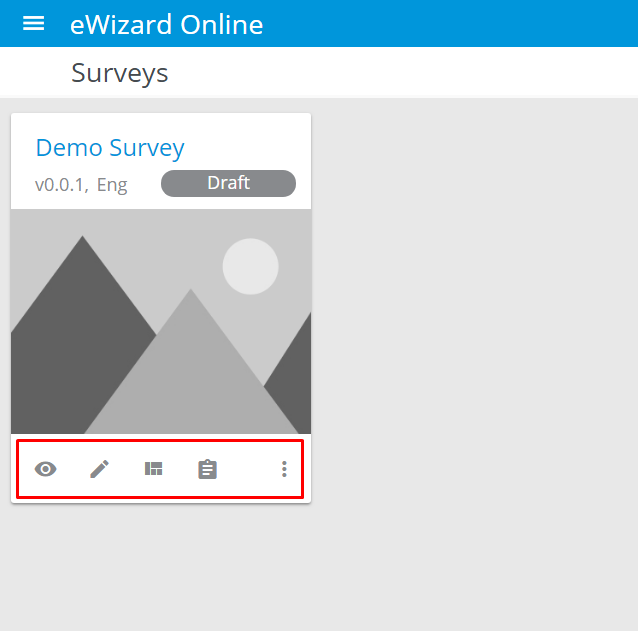
You can find the following icons on its thumbnail:

View – runs the survey (allows to check how it works on the device).

Edit – redirects to the editing page.

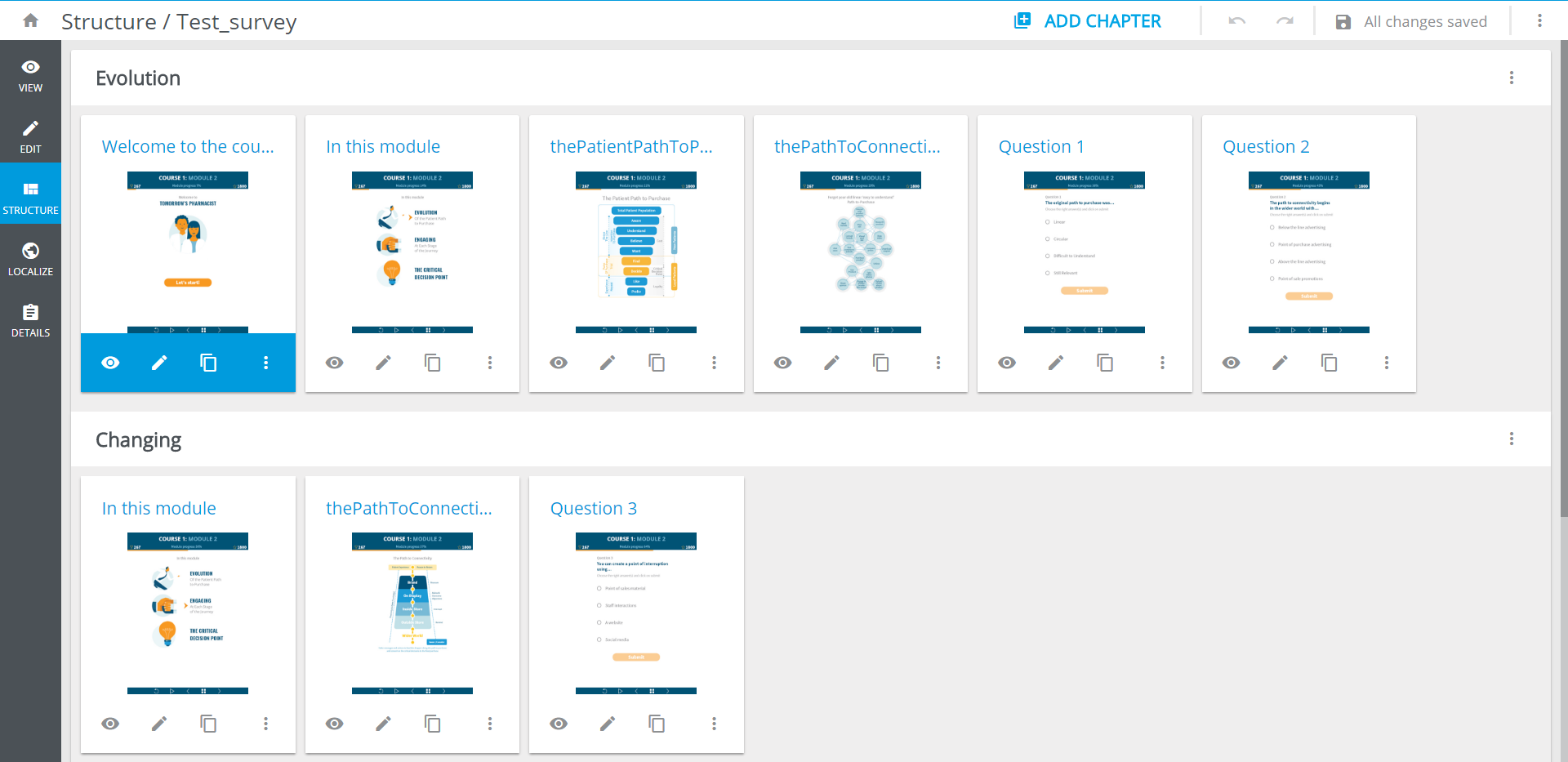
Structure – redirects to the structure page (as well as the survey thumbnail double-click).

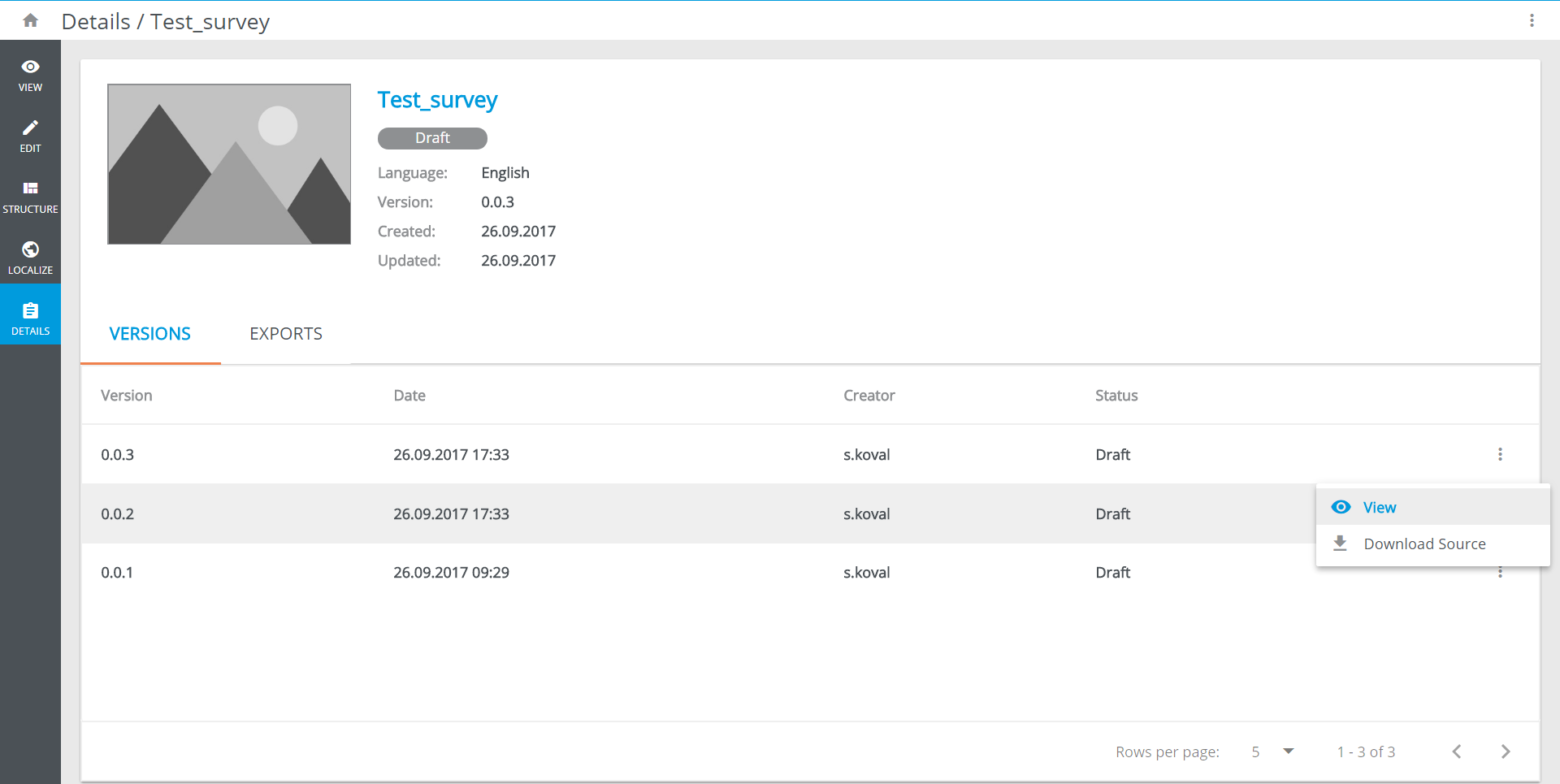
Details redirects to the Details page:
The Structure page contains the structure editing options:
The Details page contains the survey's Versions and Exports history. Under the Versions tab, via More options menu you can View and download (Download source) survey's versions: