Appearance
Image
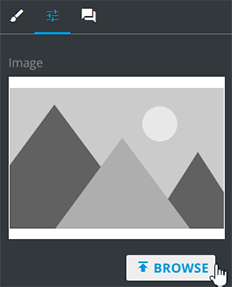
You can add the Image component to your email. To select an image, click Properties → BROWSE.
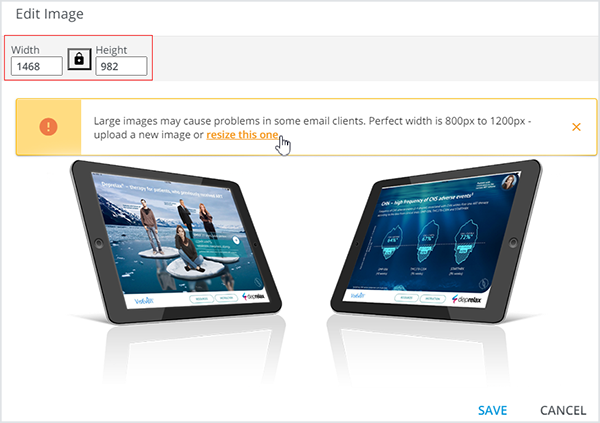
If the width of a selected image exceeds the recommended values, you can click resize this one in the notification to avoid problems in some email clients. Then, click SAVE to apply your changes.
Multiple choice is available for Veeva Vault assets. For this, select the checkboxes of the required files in the Digital Assets pop-up and find them all under the Properties tab.
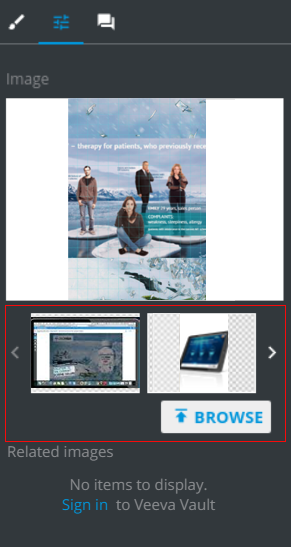
eWizard supports Veeva Vault images relation. For example, some images are inter-linked in Veeva Vault. So, when you insert any of them to the layout, the related ones are pulled to the layout automatically.
As a result, the whole image group can be found in the Related images section.
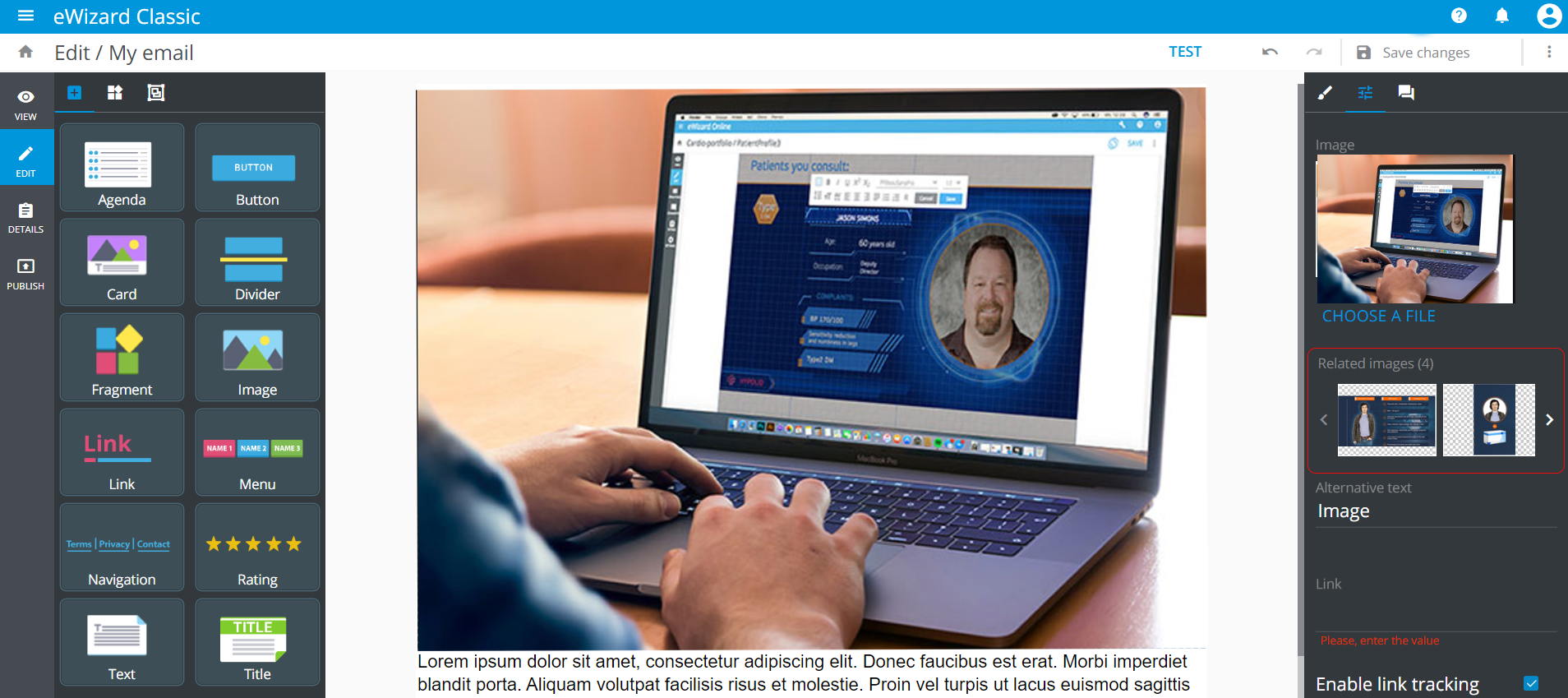
The Alternative text field contains the text that will be displayed if the image doesn't appear in the target email client.
When the Link field contains URL, the Image becomes clickable and directs to that URL.
Align allows for setting the image alignment.