Appearance
Overview and common steps
You can add customizable components to your email in eWizard Editor. For this, use the elements panel on the left of the page:
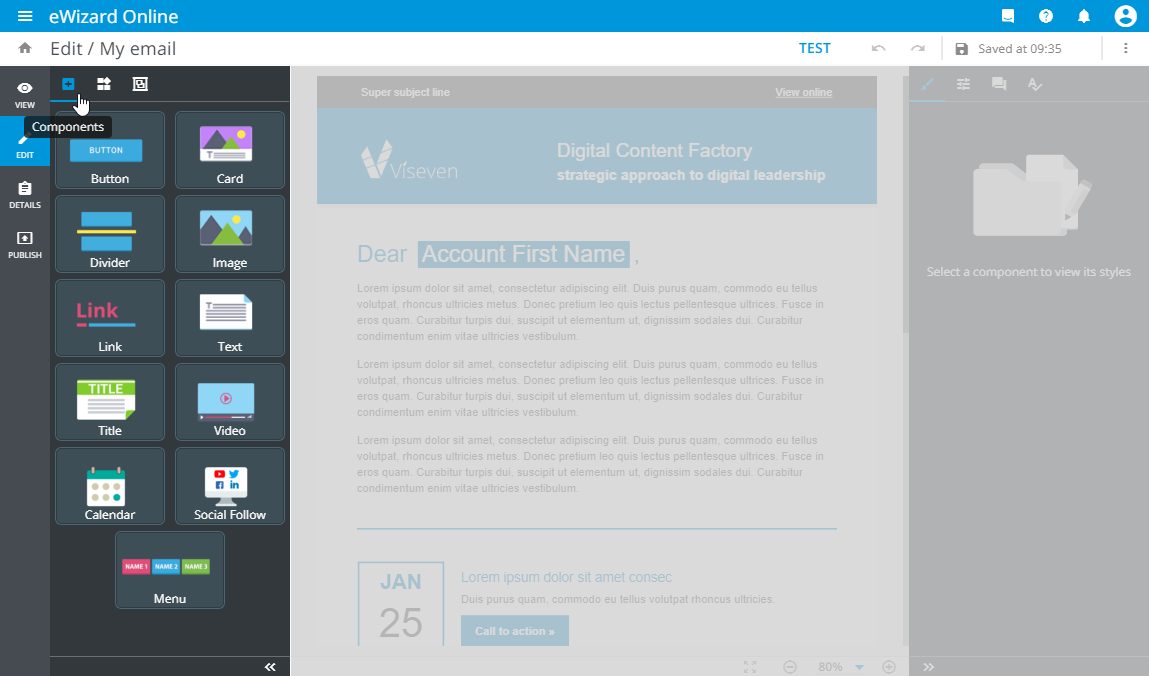
Click the Components tab to find the list of components available for your template. The standard list includes the following components:
To customize a component, drag it to the email layout. Then select the component on the layout to activate its styles and properties on the tools panel to the right.
Styles are identical for all components and differ only by their value. You can set the following styles for the component:
Size: width, height, and width percentage relating to the component's parent block.Background colorBorder: color, width, radius, style, and side. The side setting refers to the component's side with the radius applied.Paddingfor each component side. To modify all paddings at a time, click before changing the padding value.
The properties list varies depending on the component selected. Every component properties are described in the dedicated articles of this section.
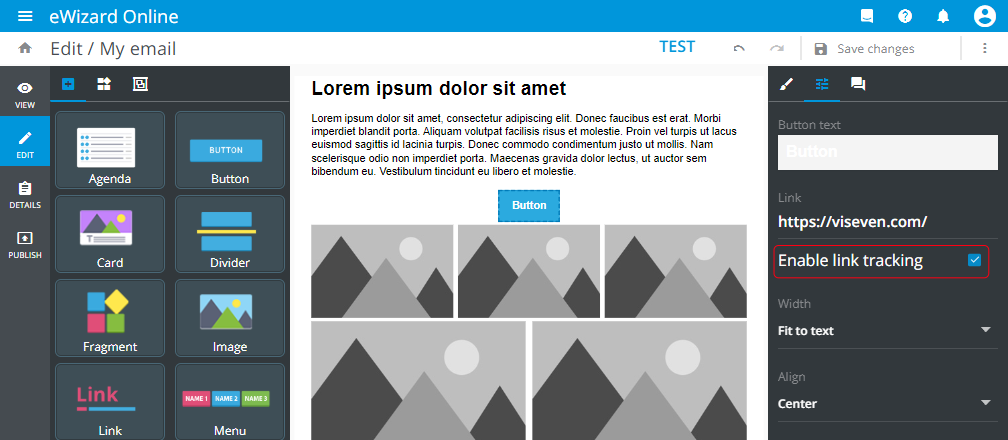
For navigation components – Button, Link, Menu, Navigation, and Rating – the link tracking property is available. To activate it, do the following:
Select the required component on the layout.
Go to the component properties.
Select the
Enable link trackingcheckbox.
All components can be added to the layout only within blocks or modules. Also, the components' width is customized in percent according to the block's parameters in pixels.