Appearance
Create an e-Detailer
There are two ways to create a presentation compatible with eWizard:
via Cobalt CLI, with further upload to eWizard;
from a template via the
Create Newoption of theADD NEWmenu.
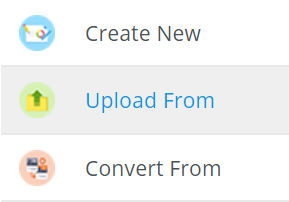
ADD NEW opens the available options: Create New, Upload From (your device), or Convert From Veeva Vault (PDF or InDesign) file:
Create New opens the Create new e-Detailer form:
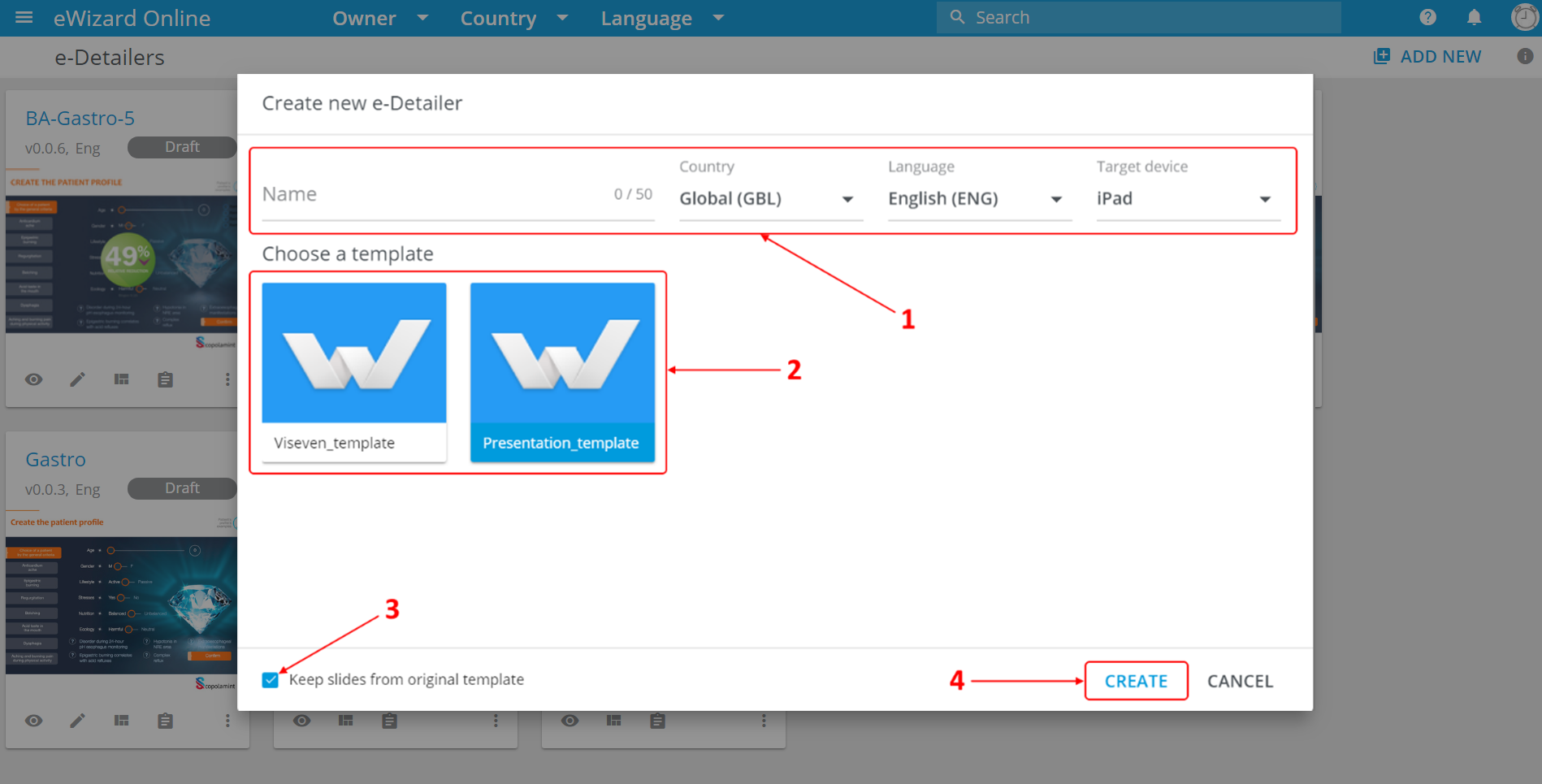
Enter the presentation Name, select Country, Language and Target device (this defines the resolution and size of slides) [1]. If you want to create a presentation based on a particular template, choose the template [2]; otherwise the Default template will be used. If you only want to use the chapters structure (without slides) – uncheck Keep slides from original template [3]. Press CREATE [4] to complete the presentation creation.
The Target device options list can be configured via Admin panel.
The new presentation will be displayed in the e-Detailers list (top left).
Content creation aids
Some presentations contain unique template slides, i.e. the preset group of components. Each slide is designed to highlight the information or data representation that you want to point out to the audience. The types and number of the template slides depend on the presentation.
The template slides are not available in the Gallery. However, you can use them in your presentation and customize them at your discretion.
To add a template slide:
Go to the
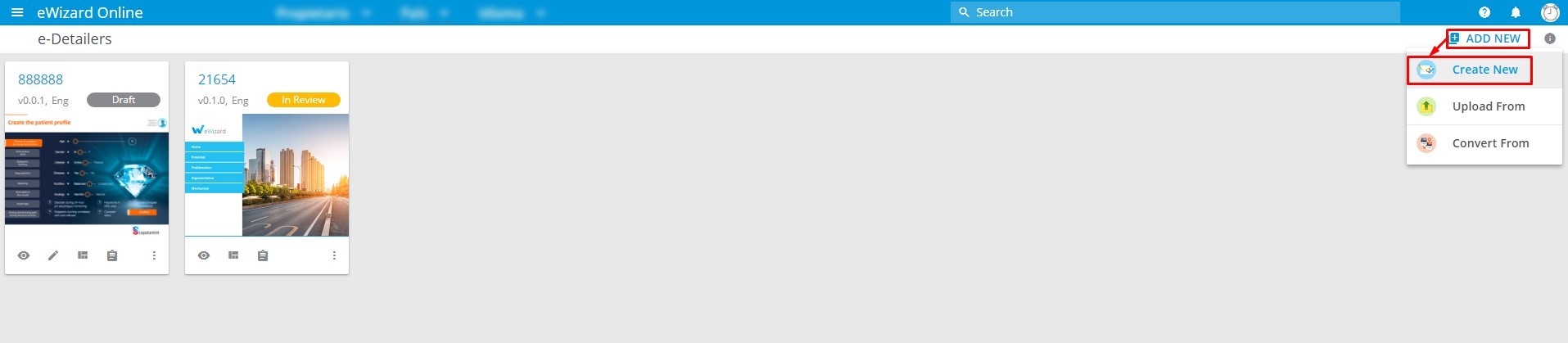
e-Detailersmain page.Open the
Add newmenu.Choose
Create new:
- Make sure the
Keep slides from the original presentationbox is checked:
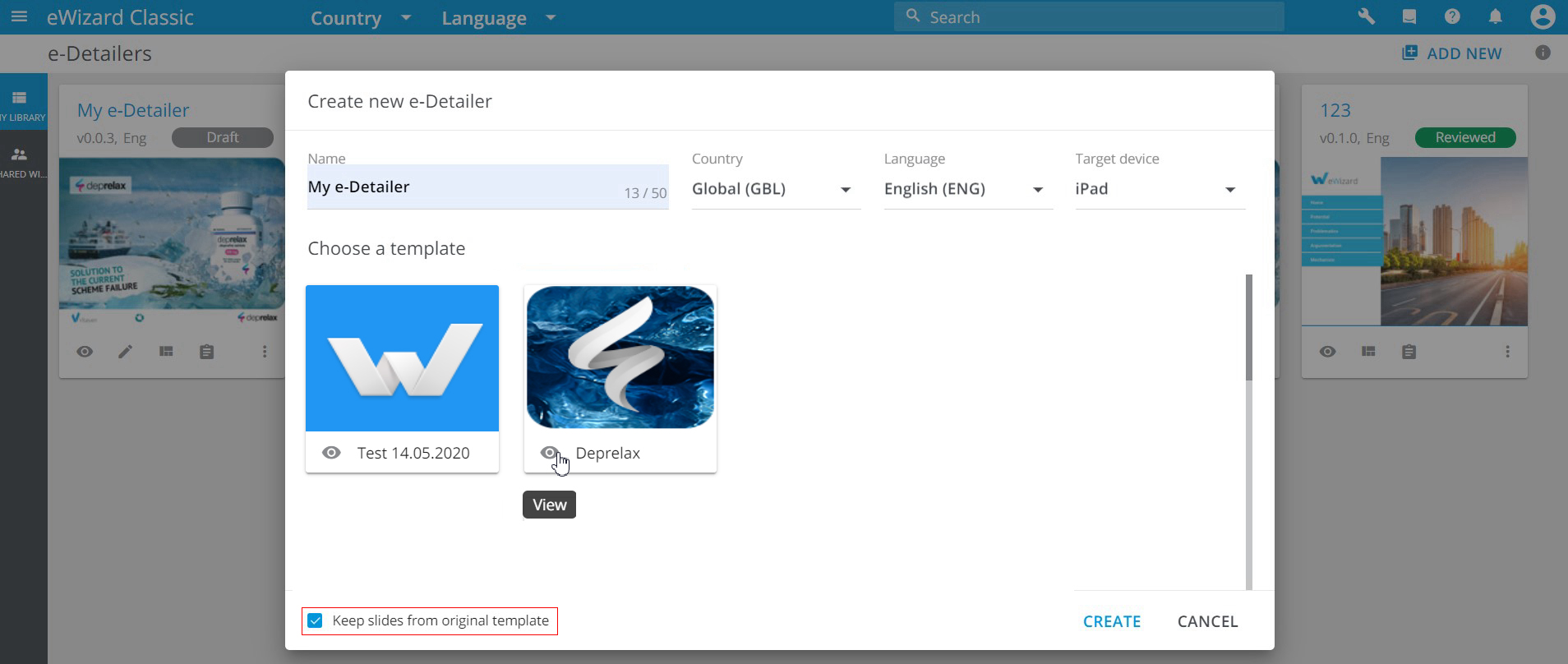
Click
Create.On the e-Detailers list page, click
Structurefor the desired e-Detailer:
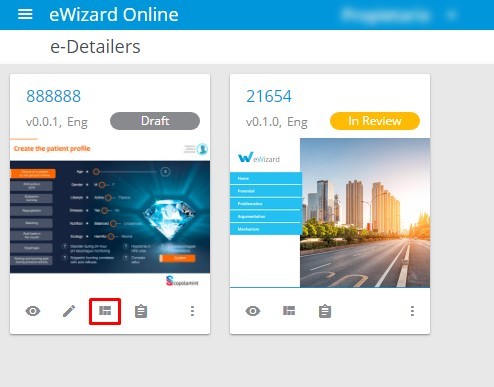
- Click
+to add a slide:
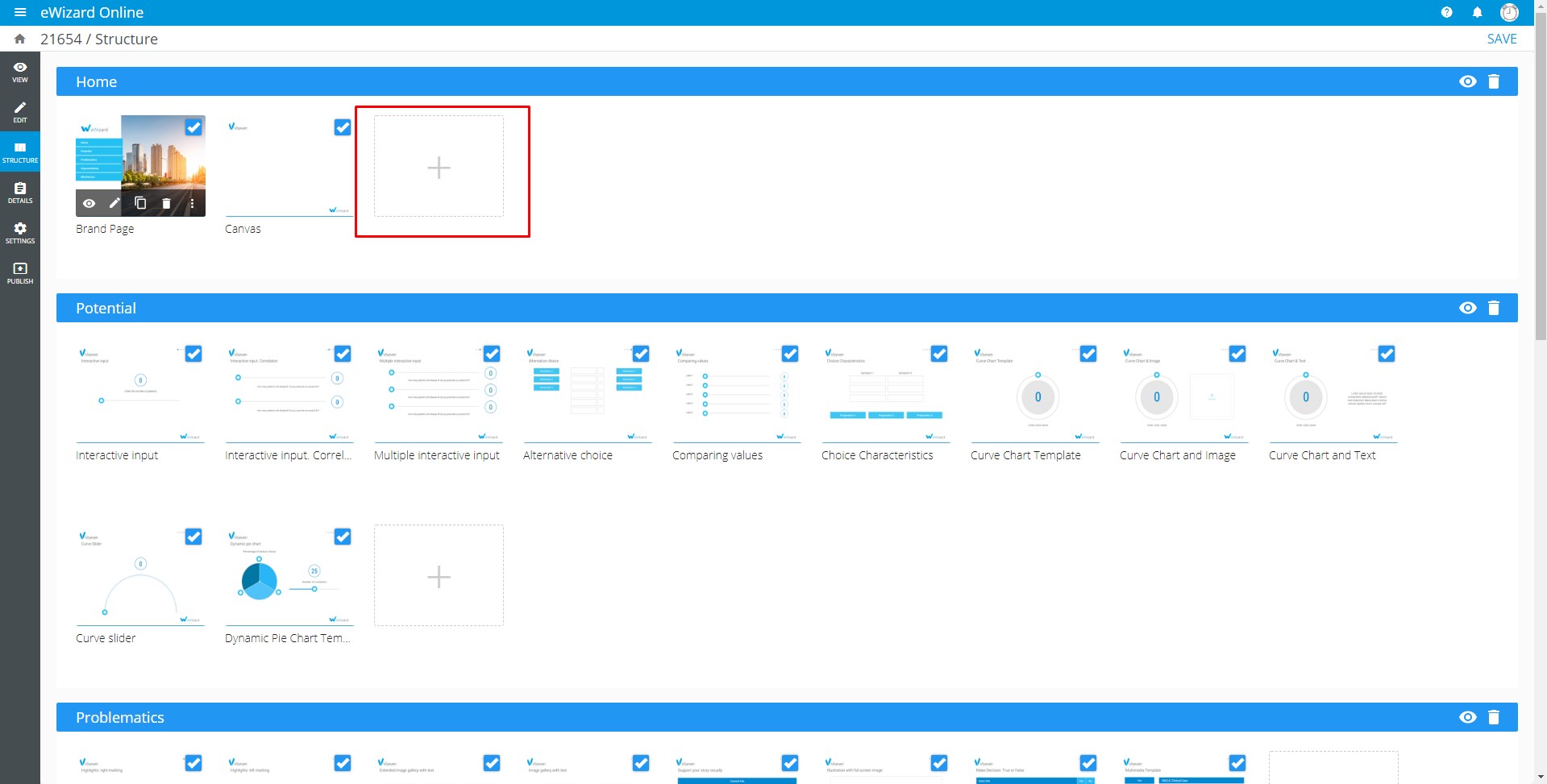
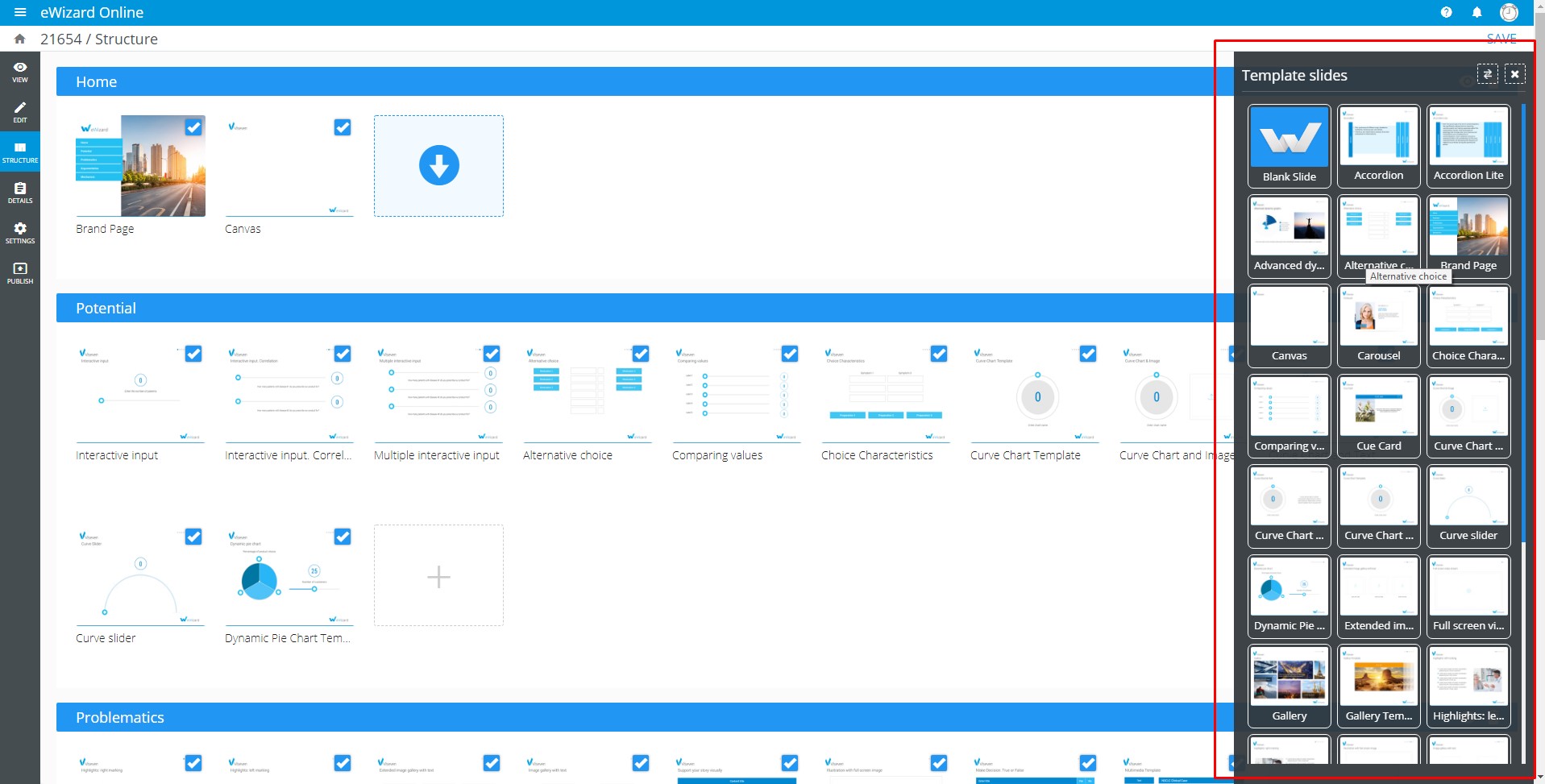
You will see the vertical menu panel with various template slides.
By default, the Template slides panel is displayed on the right, but you can move it to the left via the Toggle view button.
Choose the slide that matches your purposes and customize it as needed: