Appearance
Veeva Vault assets
Media Connector Vault allows you to use approved media from your Veeva Vault account.
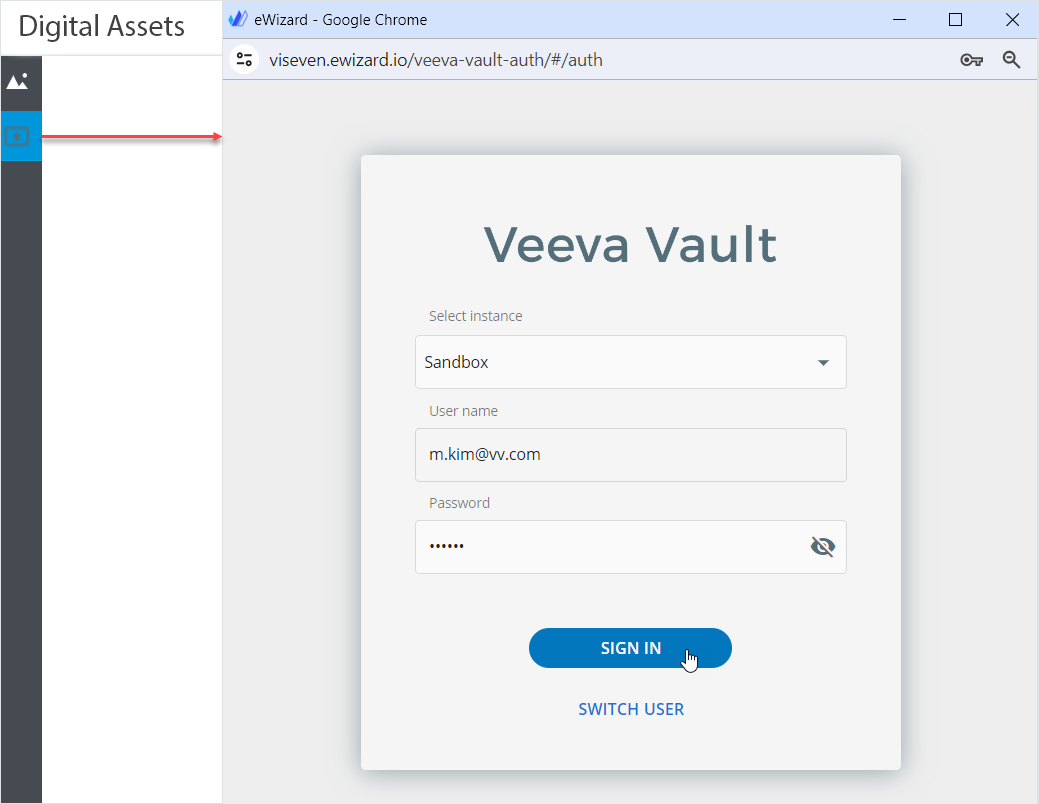
In Digital assets, select Vault on the left, enter your credentials, and click SIGN IN:
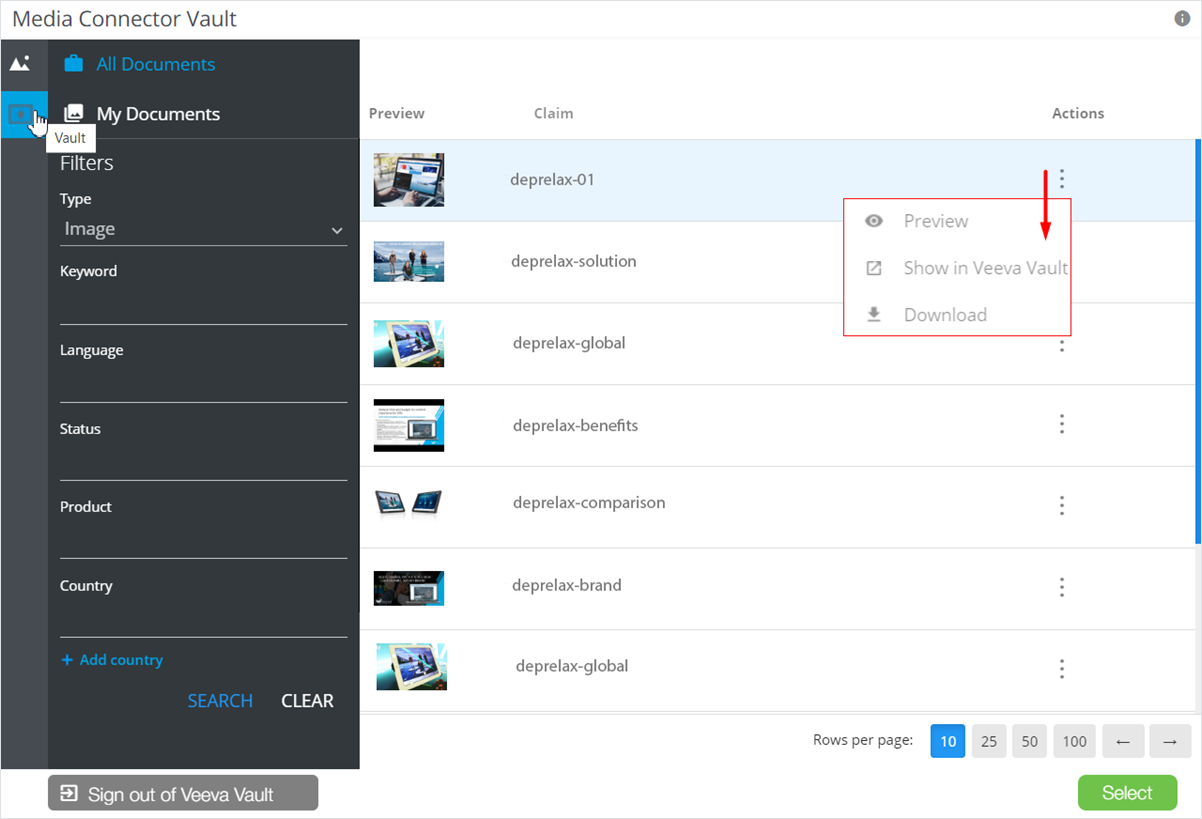
Then, you can select a file. Vault allows you to select files from the All Documents / My Documents locations and search assets by various parameters. In the main area, you can find asset records themselves. Each asset can be previewed, shown in Veeva Vault, or downloaded via the corresponding action of the more options menu:
To facilitate the item size, much lighter renditions are used instead of the large source assets. You can upload them from the Screen resolution section in Veeva Vault.
Moreover, the system uses different renditions for e-Detailers and emails.
To get more information in the Digital assets pop-up, ask your administrator to configure the following fields:
Expiration date– the validity period of the asset set in Veeva Vault.Rights managed– the restriction details for the selected asset.
Veeva Vault assets for emails
For emails, you can upload Veeva Vault assets through the Digital assets pop-up when the VAULT tab is selected. To find the asset, enter its name in the Search field. Additionally, you can narrow the asset records list using the Filters menu in the top right corner:
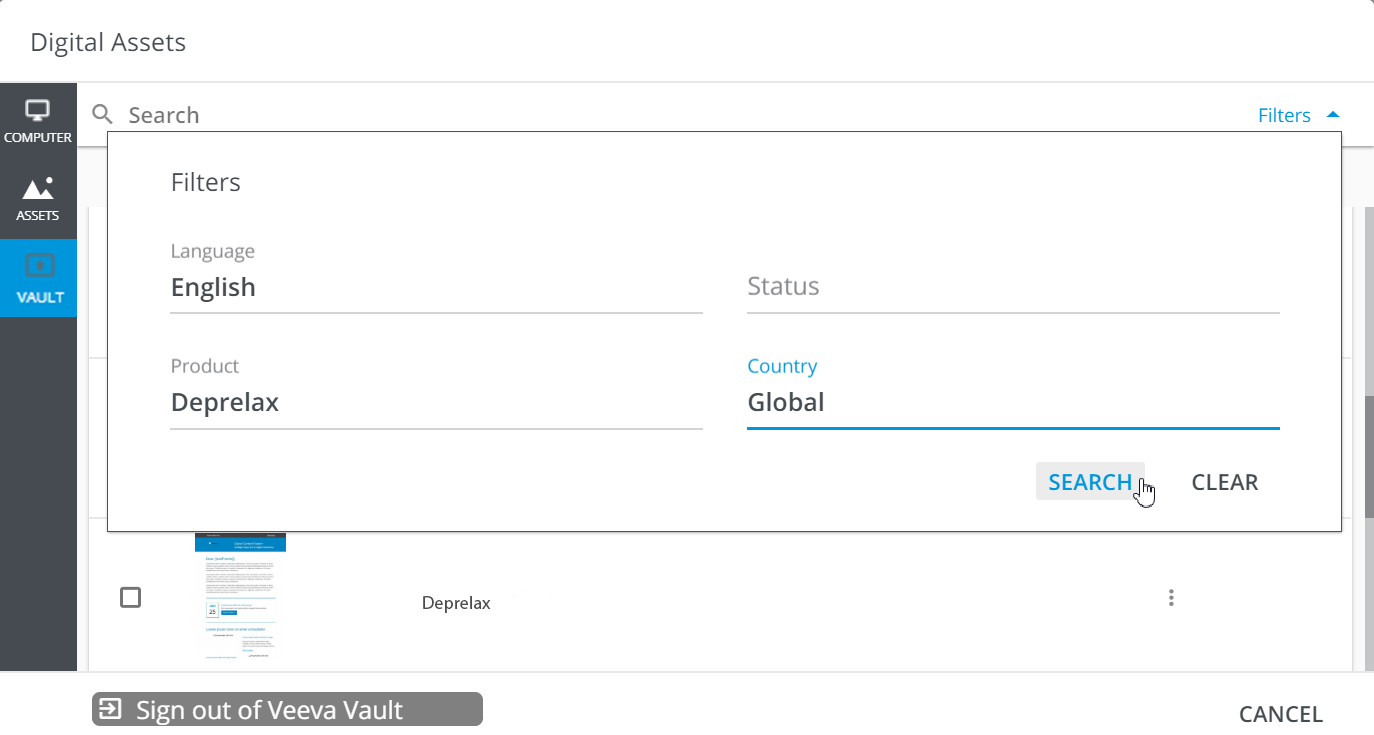
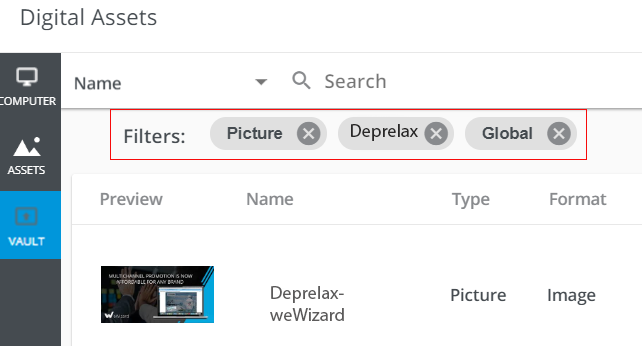
Filters applied for Veeva Vault assets search are saved during the session and can be further used in Editor of other emails:
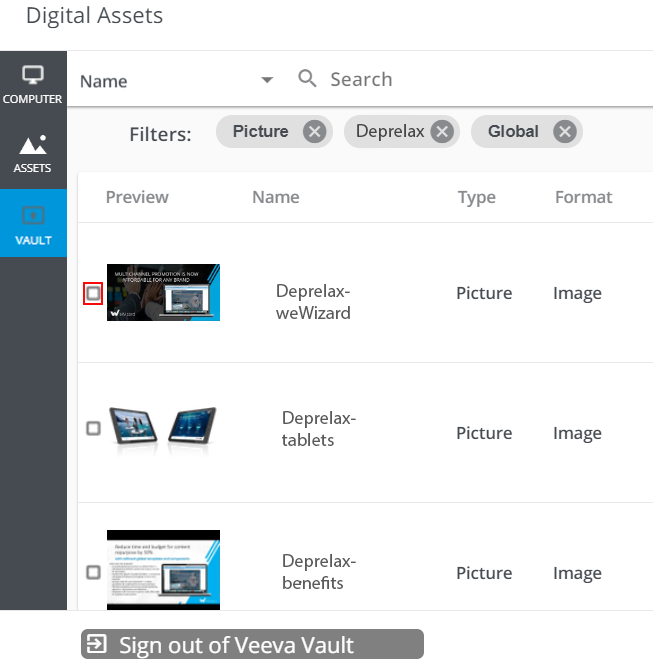
For multiple choice, select the checkbox of the assets you want to use in Editor. All the files selected are placed under the Properties tab of your email: