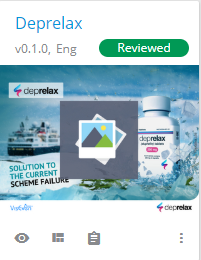
Appearance
Review workflow
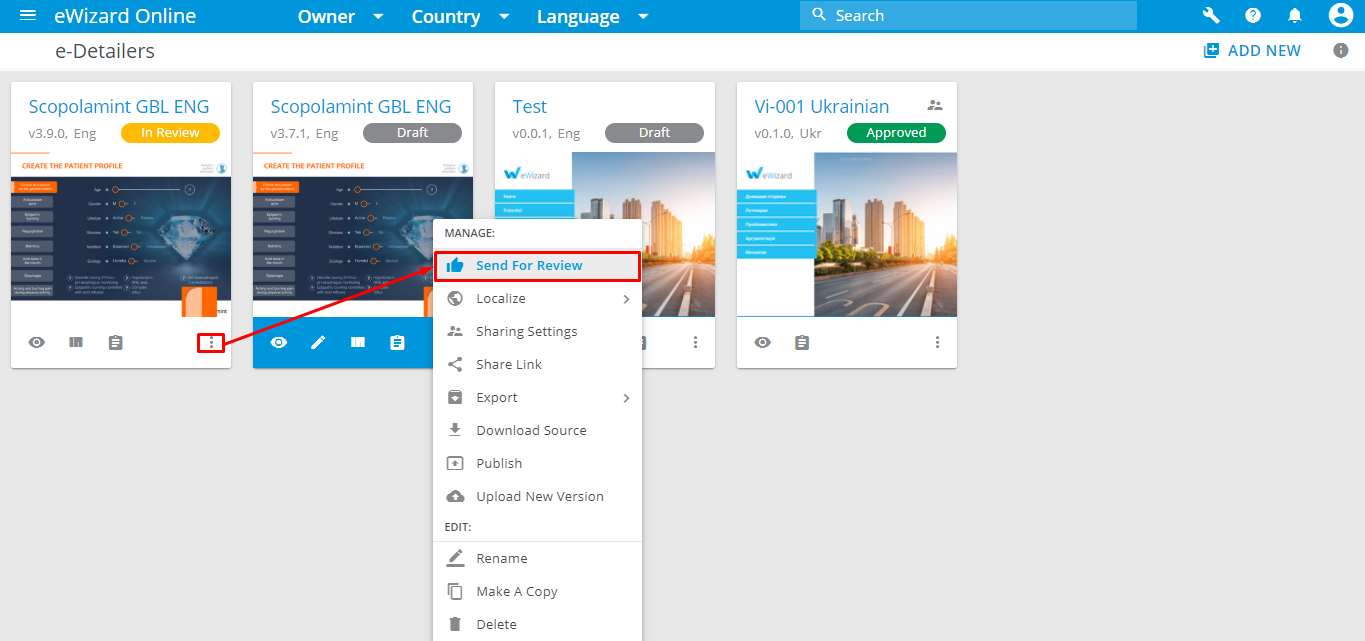
To send an item for review, a Content Creator must do the following:
- Unfold
More optionsof the required item. - Click
Send for Review.
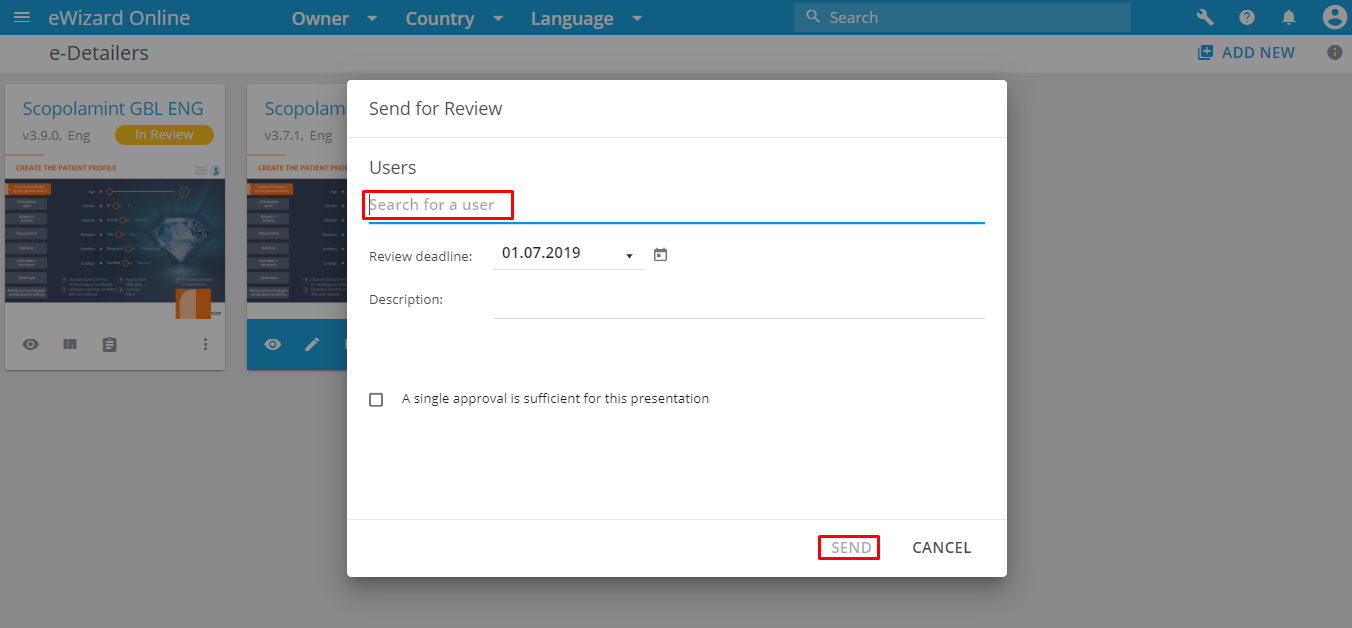
- Enter the Reviewer's email in the Users field.
- Click
Send.
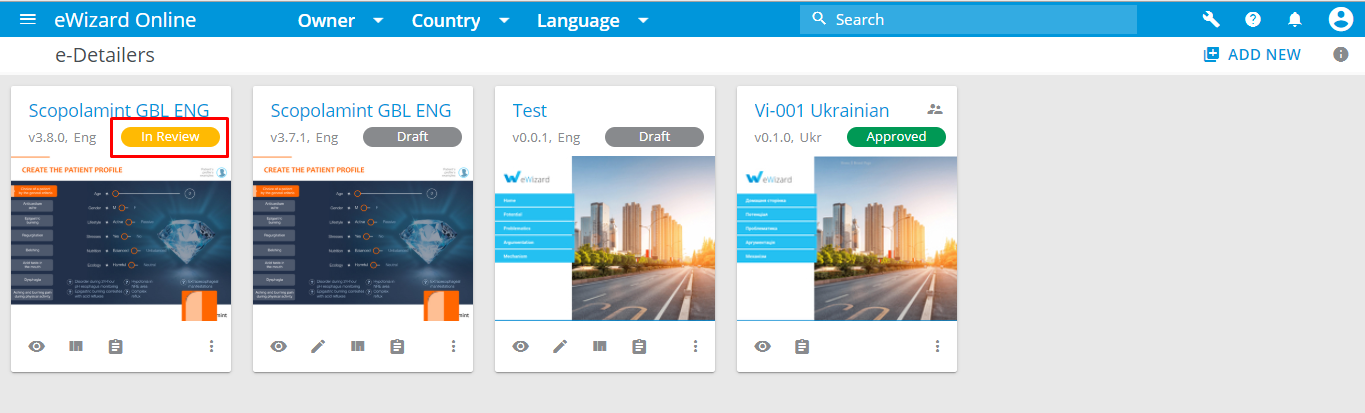
The item's status changes to In Review:
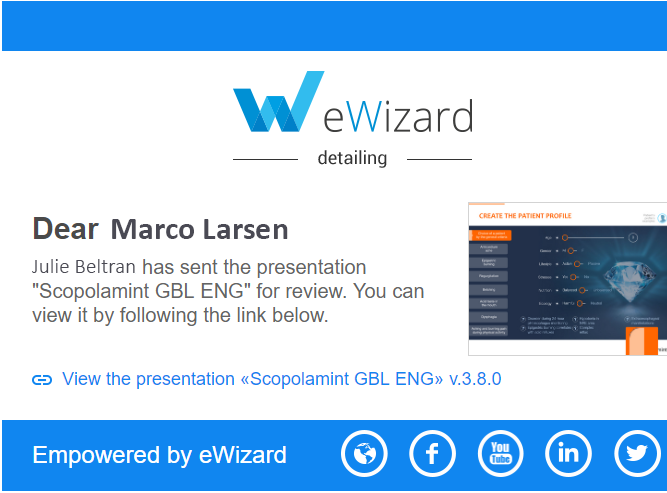
The Reviewer receives the email notification and must do the following:
- Click
View the presentation
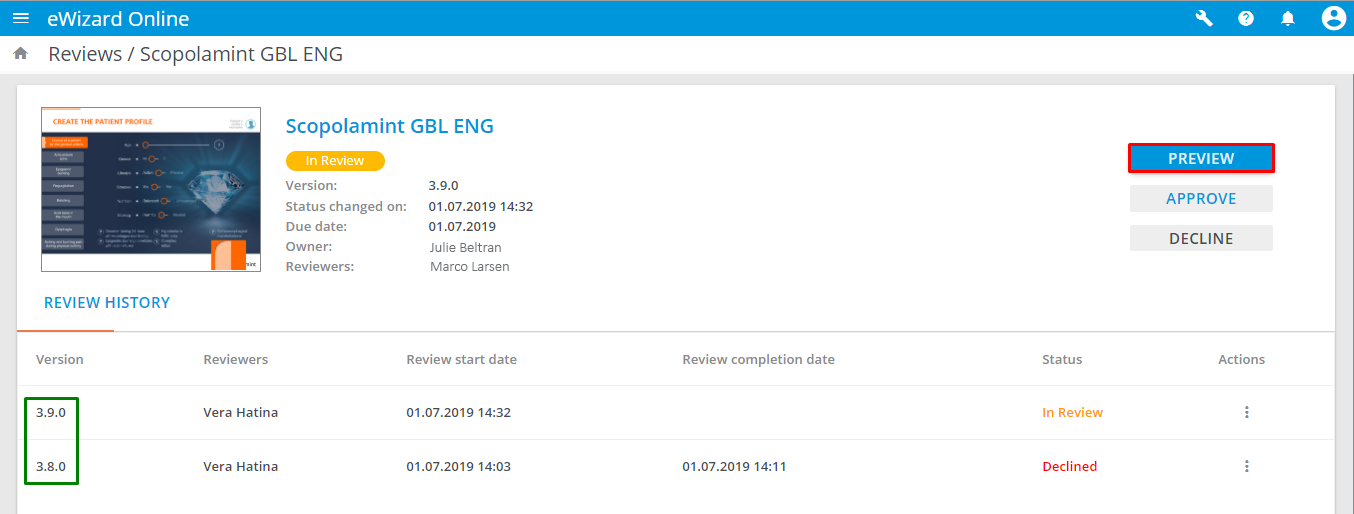
- Click
Preview.
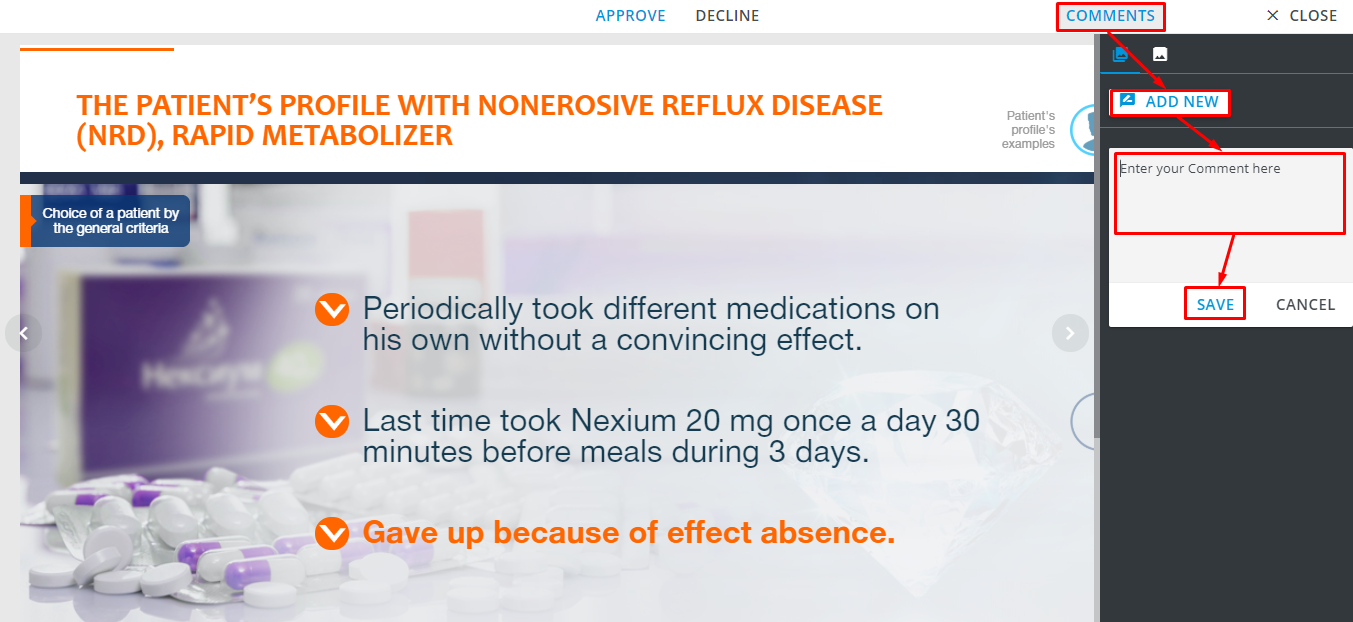
- Review the item. When there is anything to be changed, comment it:
- Click
Comments. - Click
Add new. - Enter the comment.
- Click
Save.
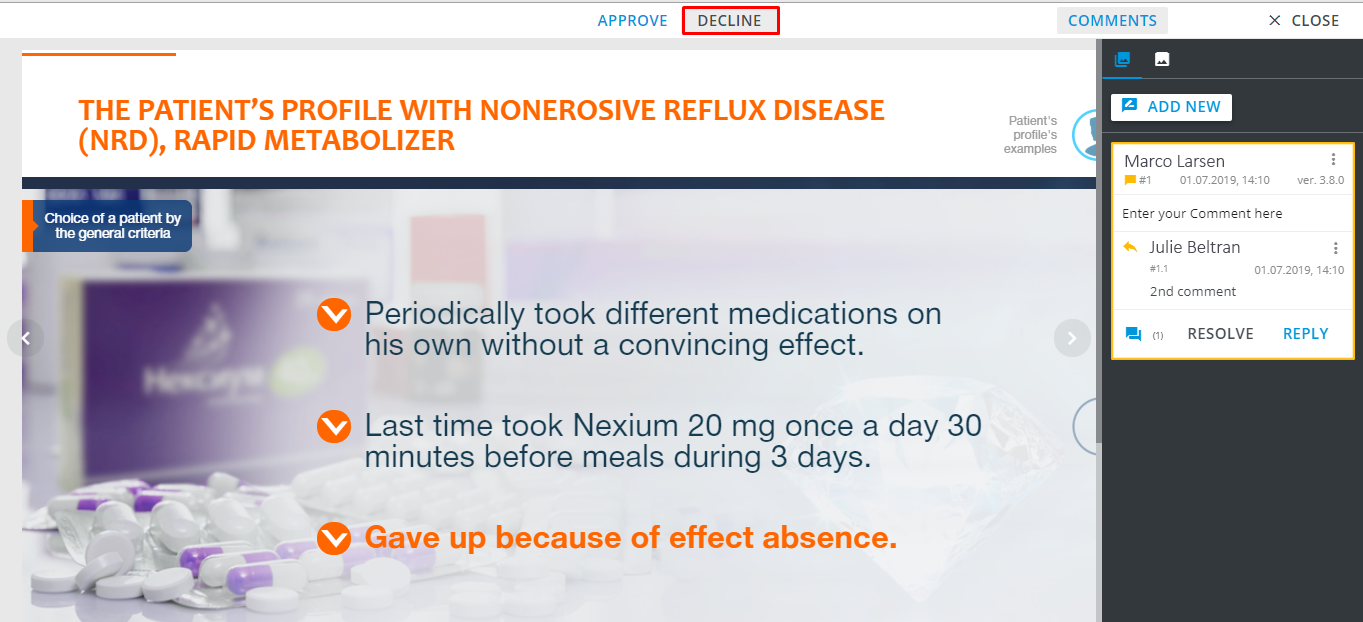
- When the issues must be fixed, click
Decline.
The Content creator receives the email notification and must do the following:
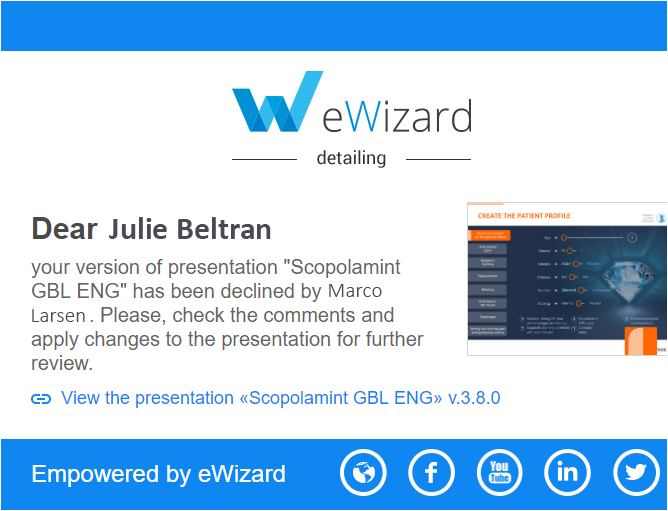
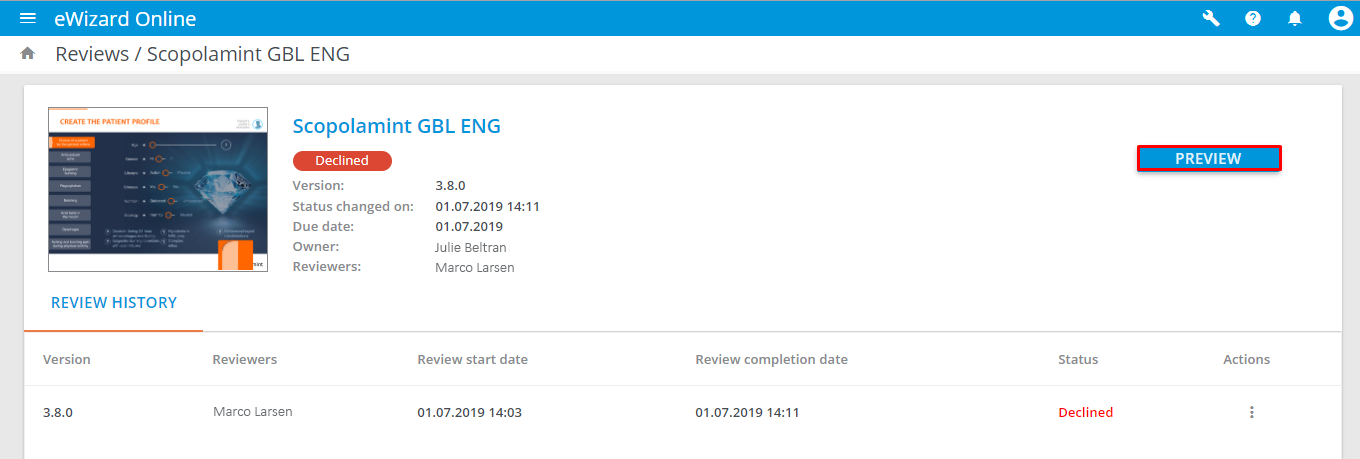
- Click
Preview.
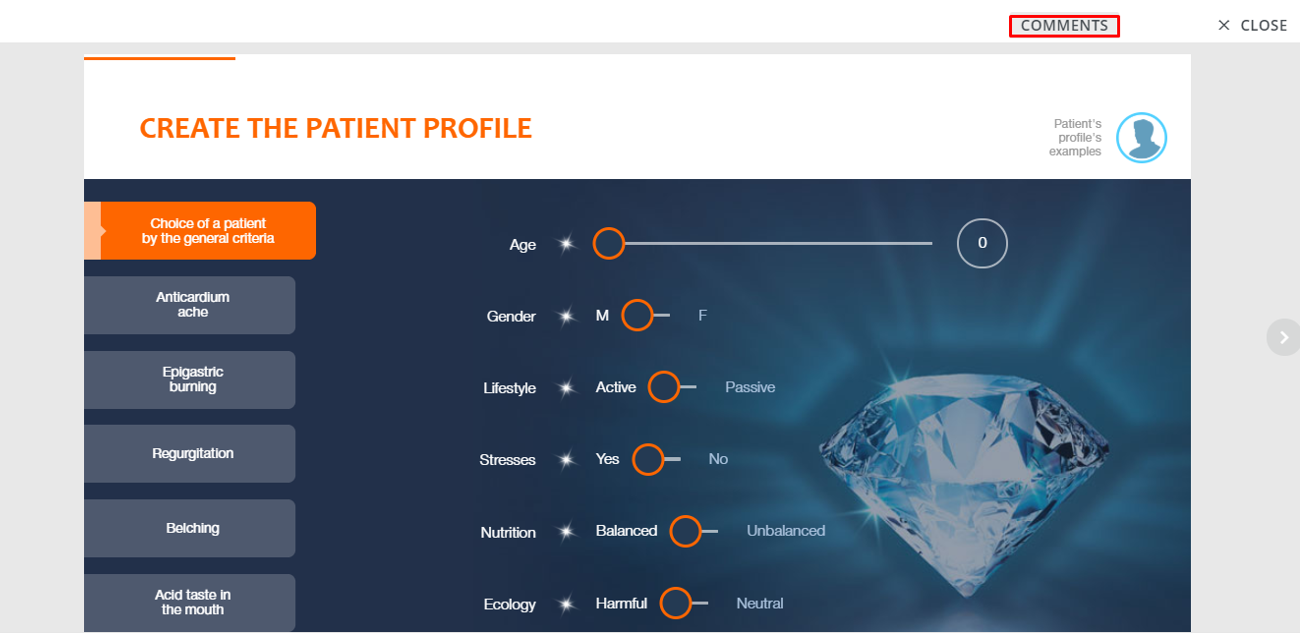
- Click
Commentsto review the Reviewer's comments.
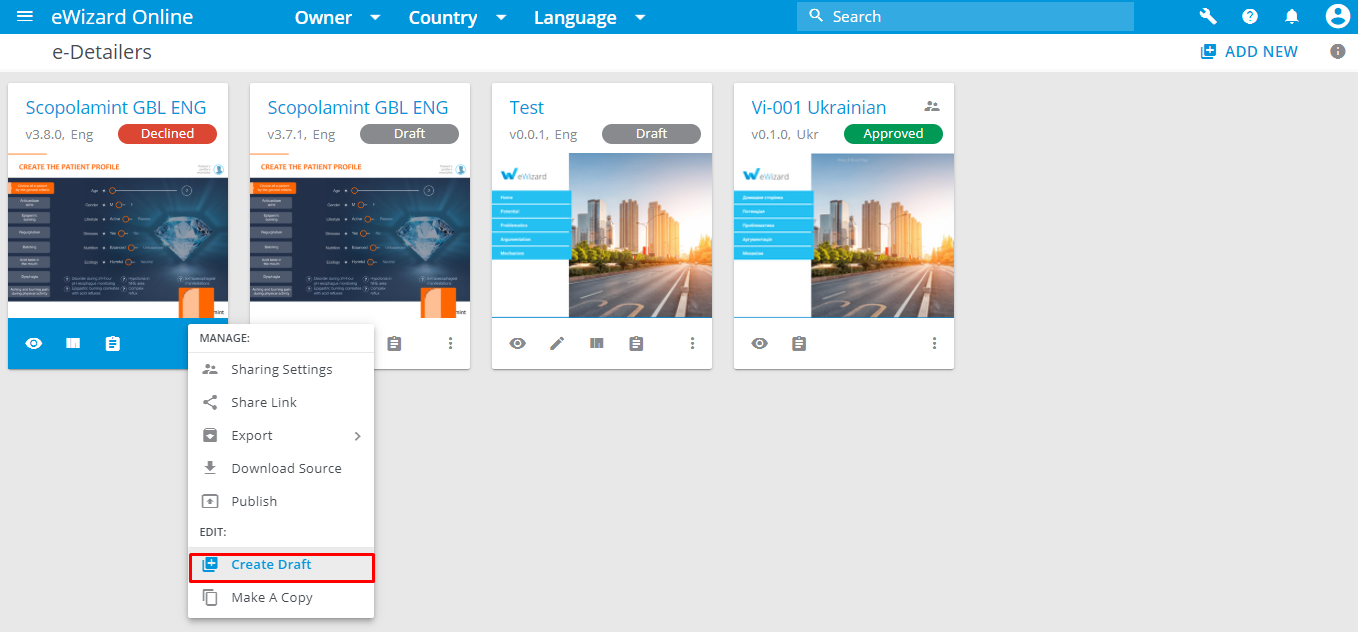
- Find this item (with the Declined status) in the library.
- Unfold its
More Options. - Click
Create Draft.
- Click
Draft.
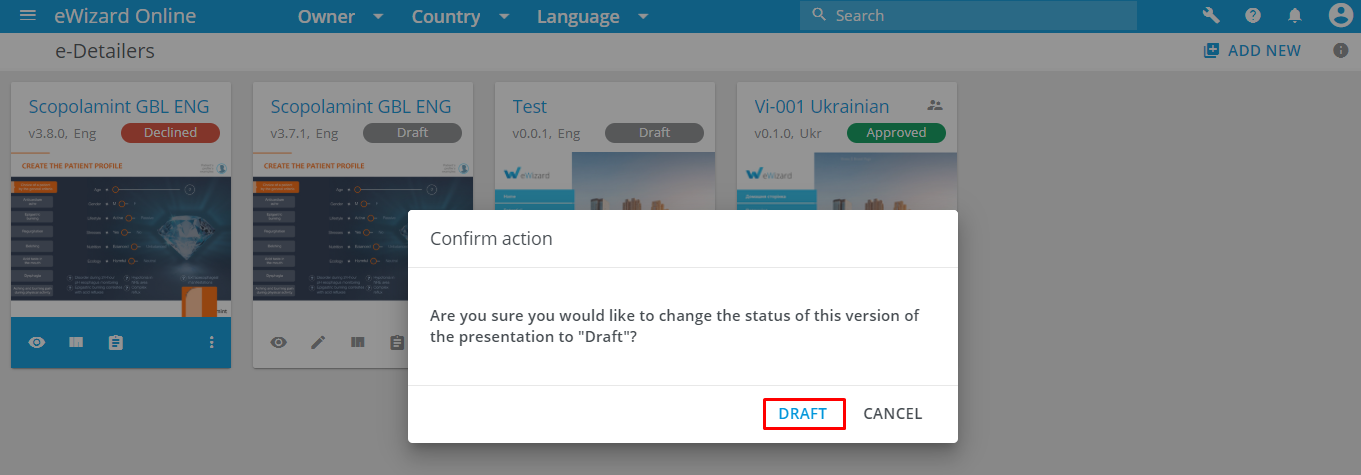
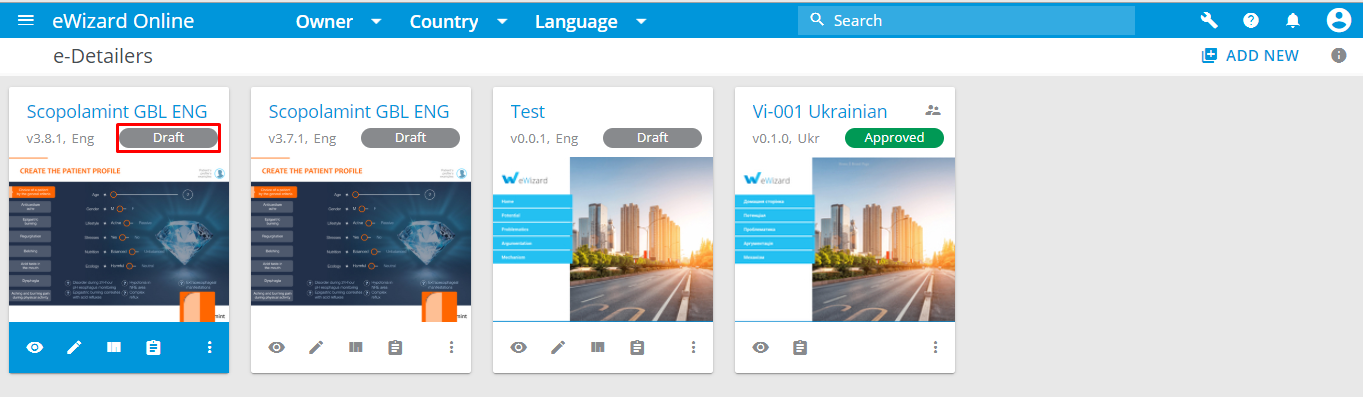
The item's status changes to Draft. The item's version changes too.
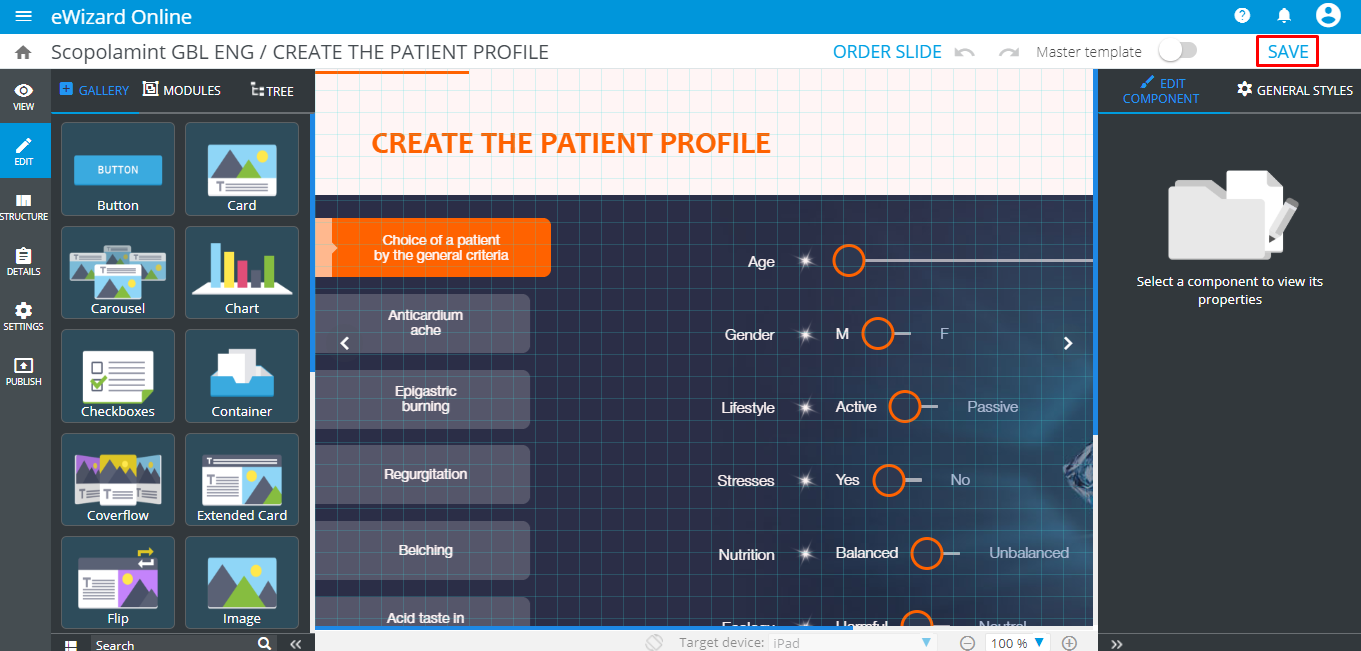
- Make all required changes via the Edit mode and click
Save.
- Once done, send the item for review again.
The Reviewer receives the email notification and must do the following:
- Click
View the presentation
- Click
Preview.
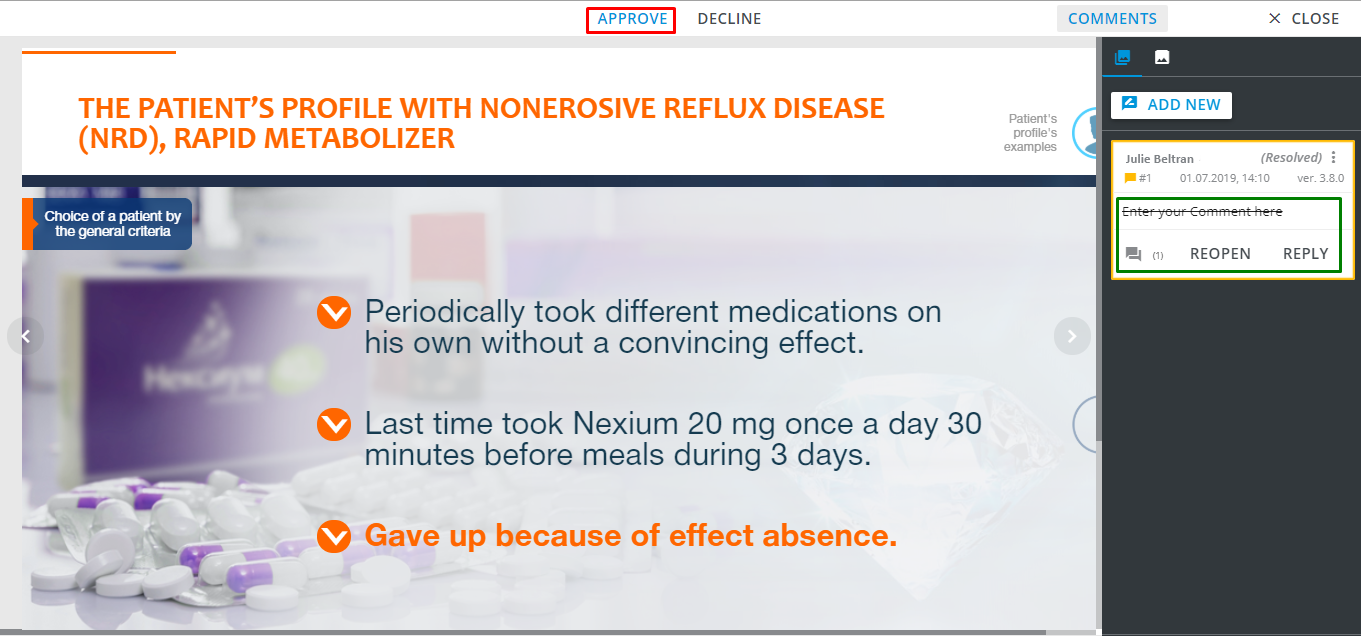
- Review the item.
- Click
ApproveorDeclineagain (then repeat the declining step).
The Content creator receives an email notification.
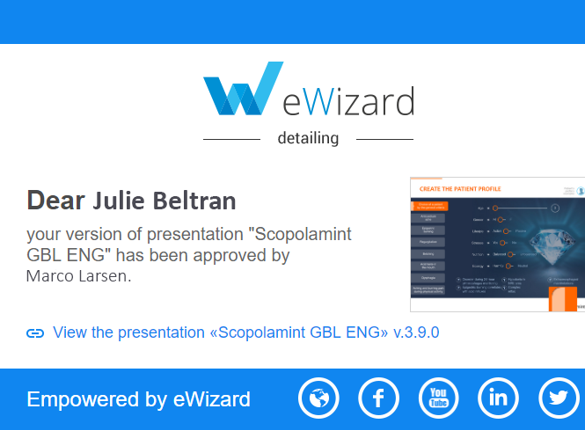
The e-Detailer's status changes to Reviewed.