Appearance
e-Detailers sharing
You can share a presentation with other users via the e-Detailers section:
Open
More options.Click
Share link:
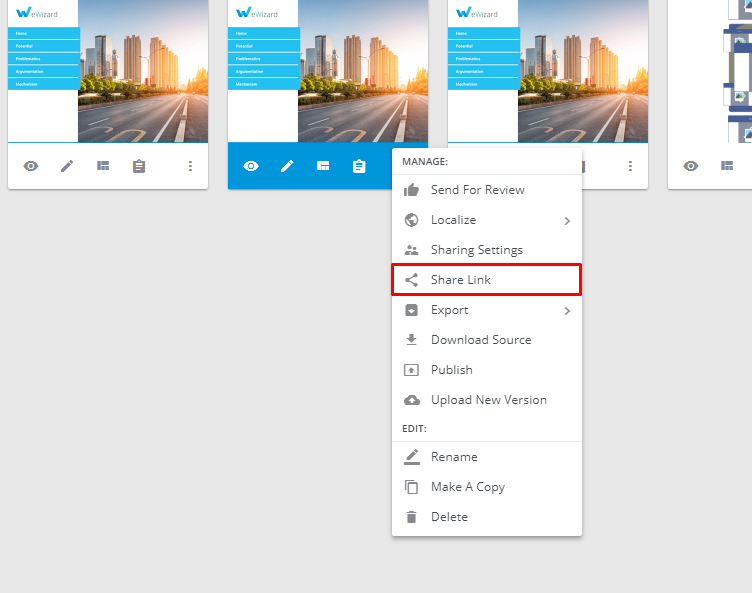
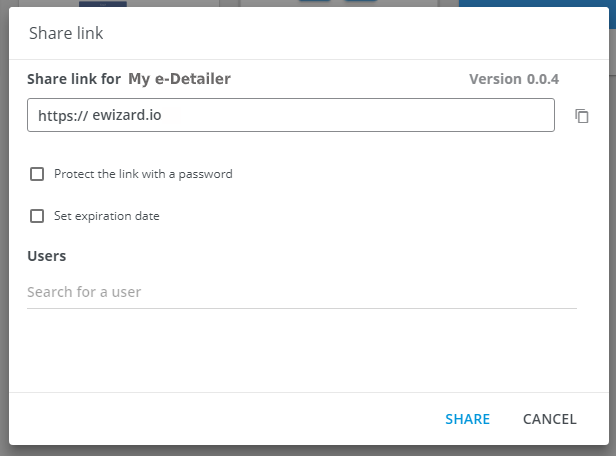
- Enter the user's email in the pop-up.
You can set a password to protect the link, as well as set the expiration date to determine the life duration of your link:
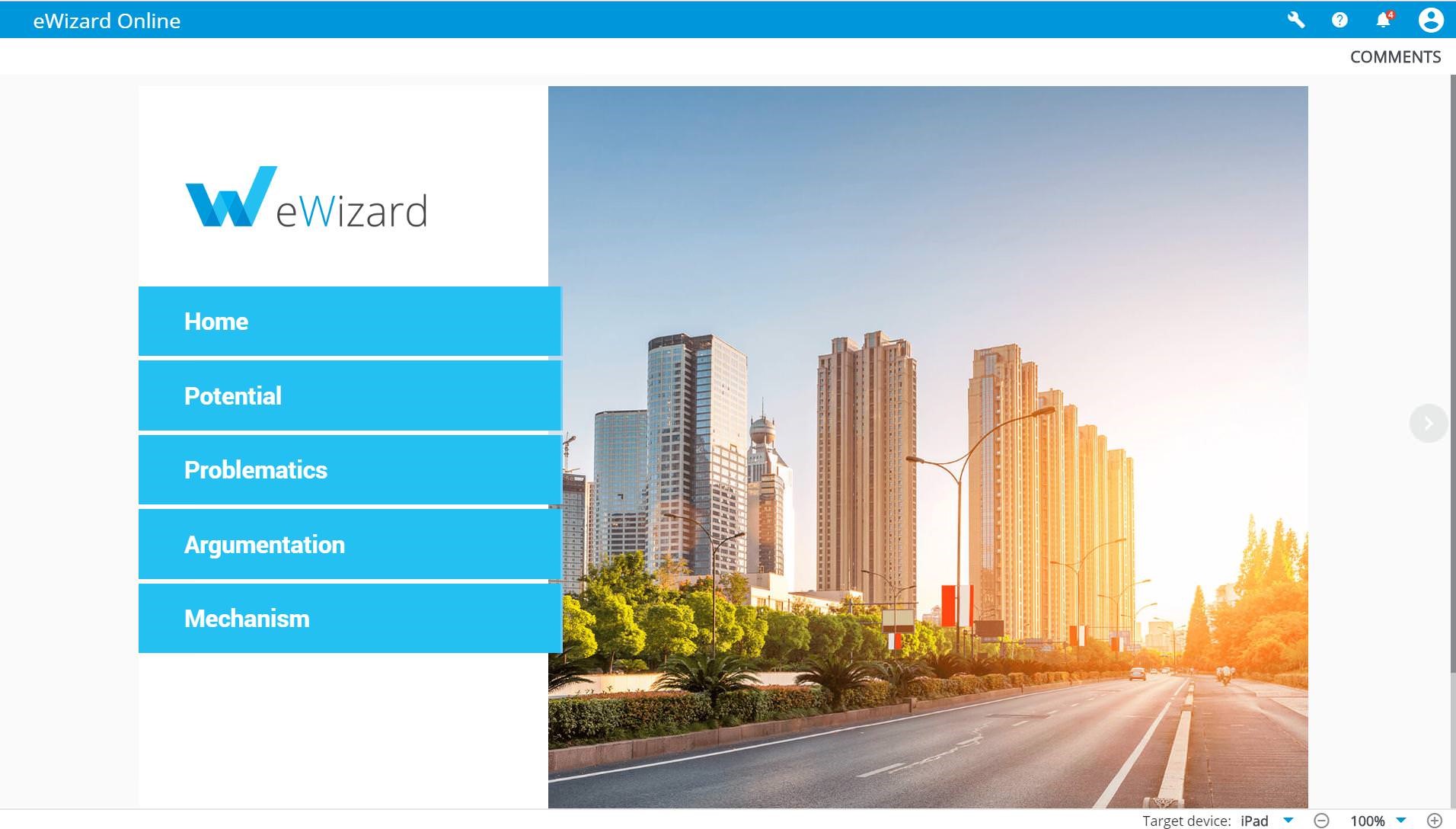
- Send the link copied to your collaborators. When they follow it, the presentation will open in the view mode:
When an Owner deletes an e-Detailer from their Library, it becomes unavailable for a collaborator.
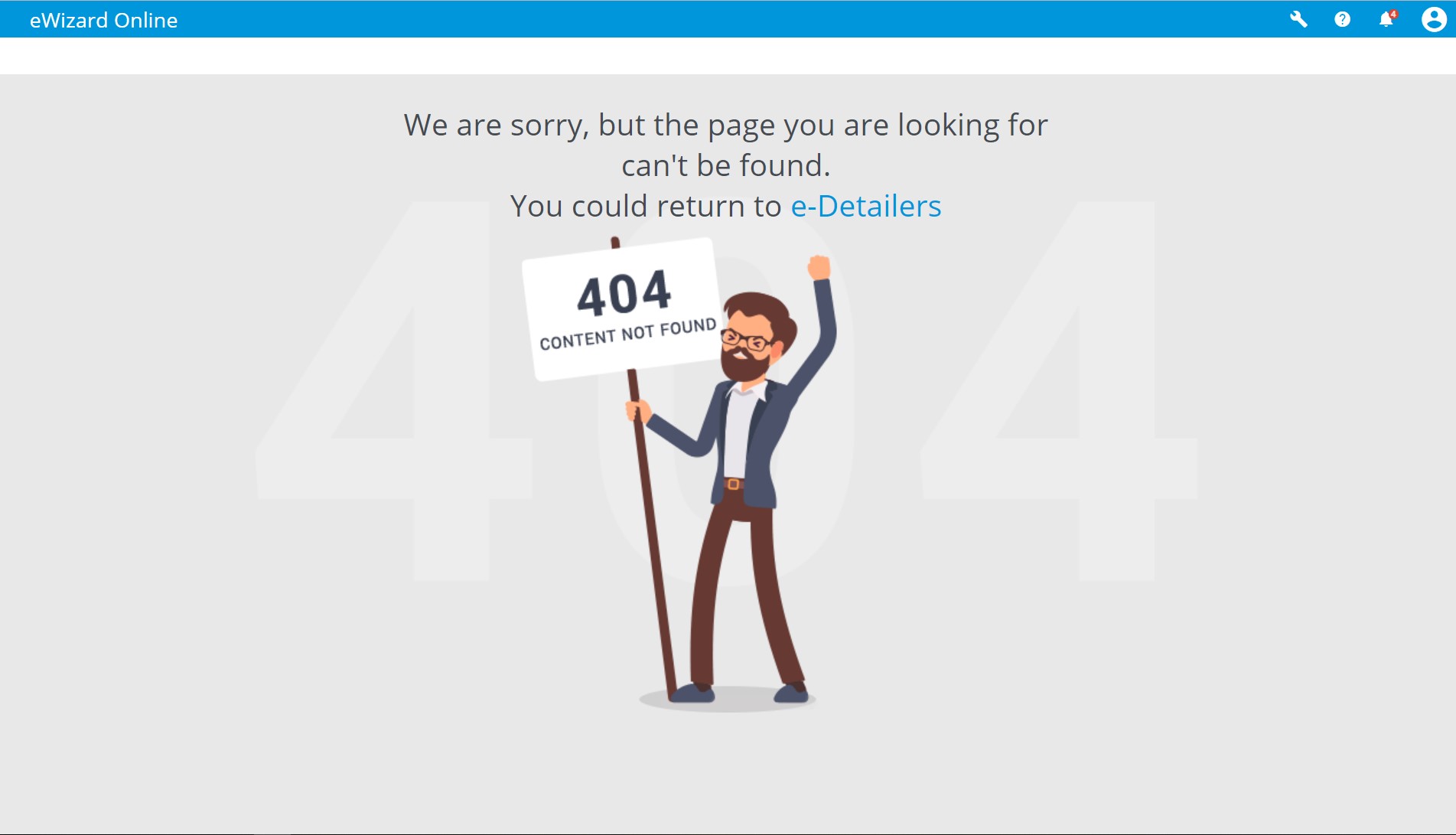
Unlike Share, the Cancel button discards the link copied. Your collaborators will not be able to open the presentation, they will be redirected to the 404 page instead. That is because you have discarded the link by clicking the Cancel button. The link will be copied, but it will be inactive.
So, if you copy the link in the Share link pop-up either via the copy icon, or with pressing ctrl+c on the link itself, and then, instead of the Share button, you click the Cancel button, the person who you mean to co-work on the presentation with, will be redirected to the 404 page when they follow the link you've sent:
So, for proper work of the Share link option, use the Share and Cancel buttons only the way they are designed.
Sharing settings
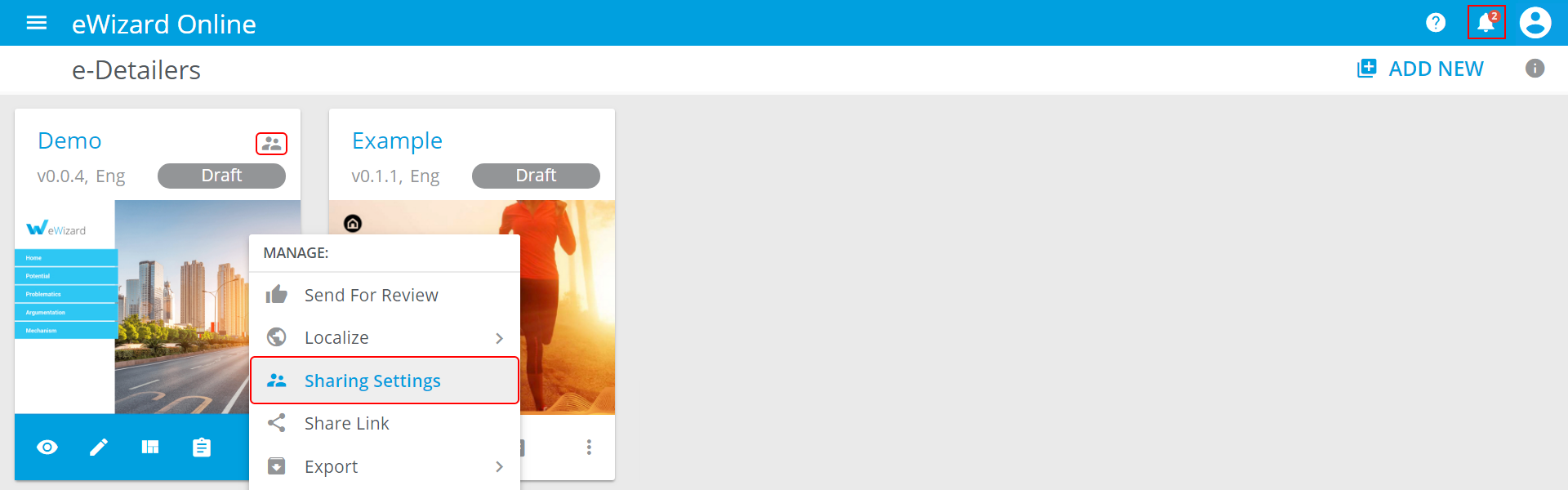
Alternatively, you can go to the Sharing Settings tab of the Details page. To get there, go to the Details page or go there directly from the presentation's thumbnail (More → Sharing Settings).
To add the collaborators to the already shared presentation, click its status label ( ) in the top right corner of the presentation's thumbnail.
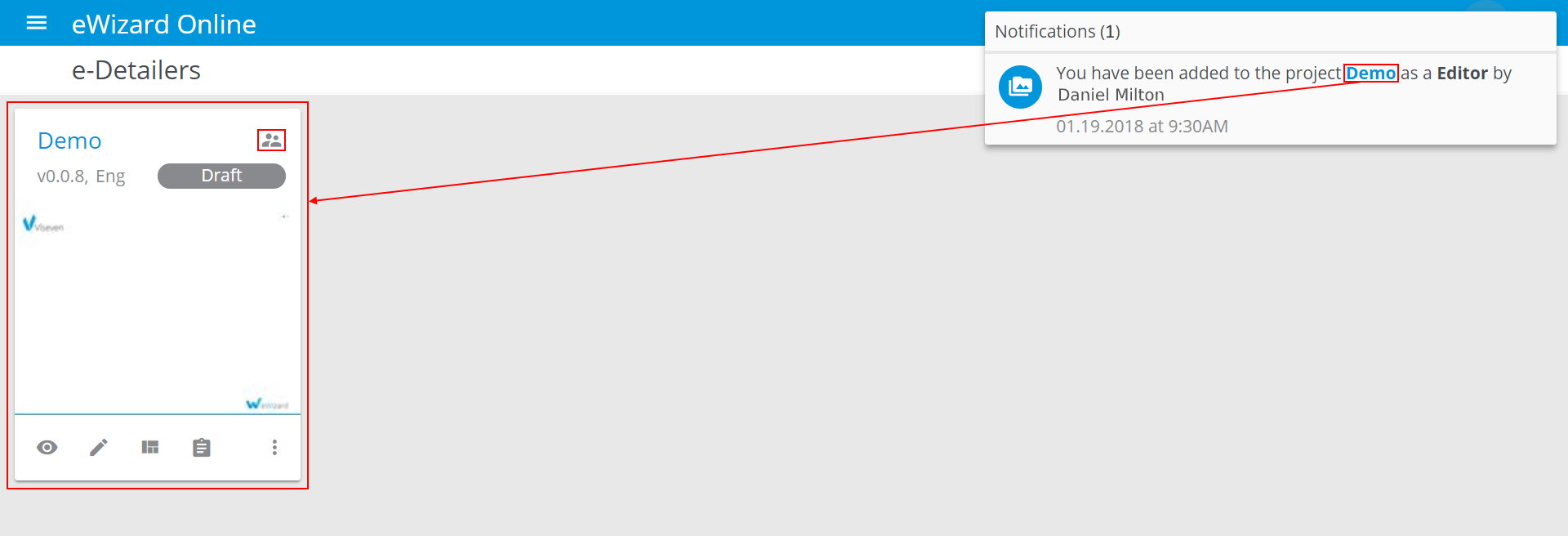
Any changes in the presentation will be reflected in the Notification pop-up.
The presentation's SHARING SETTINGS tab includes the list of collaborators (the users who can perform the operations with the presentation in their eWizard accounts), their roles, and emails:
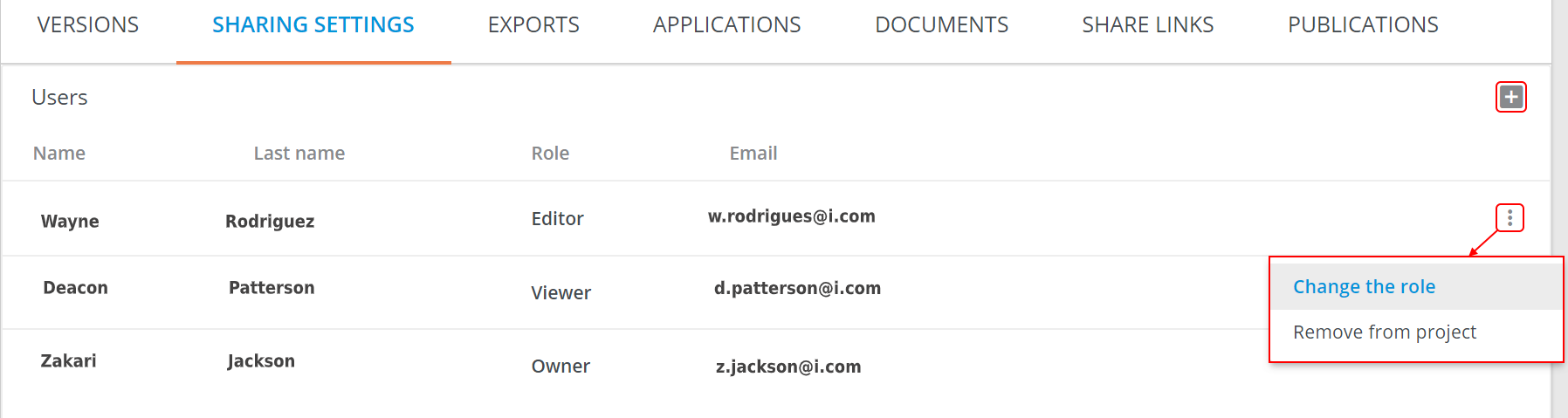
Unfold more options ( ) of the required user's row to change their role (
Change the role) or deny their access to the e-Detailer (Remove from project).
 – opens
 Assign users pop-up:
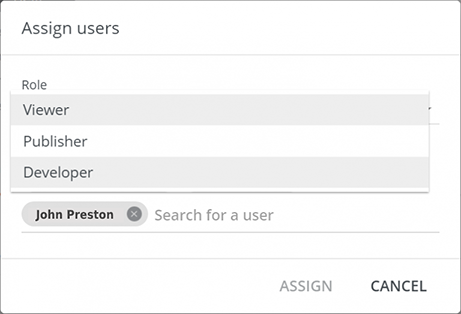
The form allows you to set the user(s) and select their Roles. The Role list is configured via the Admin panel.
When you share your e-Detailer with collaborators, they are notified about it. Your e-Detailer appears under their Shared with me and e-Detailer sections with the Shared label ():
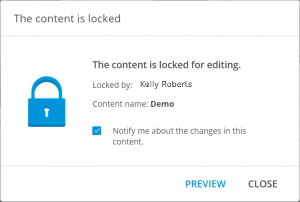
The e-Detailer is available for editing only for one user at a time. If other users start editing the locked content, they are offered to receive the notification once the e-Detailer becomes available for editing:
The item is unavailable for the collaborators when the Owner removes them from the project or deletes the e-Detailer.