Appearance
Veeva Vault (Interactive)
To publish the e-Detailer to Veeva Vault as interactive, perform the first steps and proceed to the following:
- Select
Send for distribution (interactive)on the target system selection page:
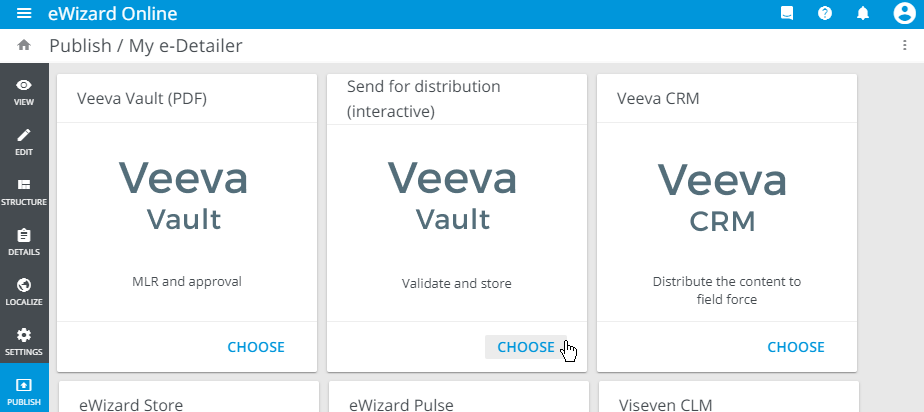
It's recommended to publish the e-Detailer as a PDF for approval first and then proceed with the interactive publication.
- to your Veeva Vault account and select the environment in the pop-up that appears.
The publishing preparation page opens.
- Select the required option:
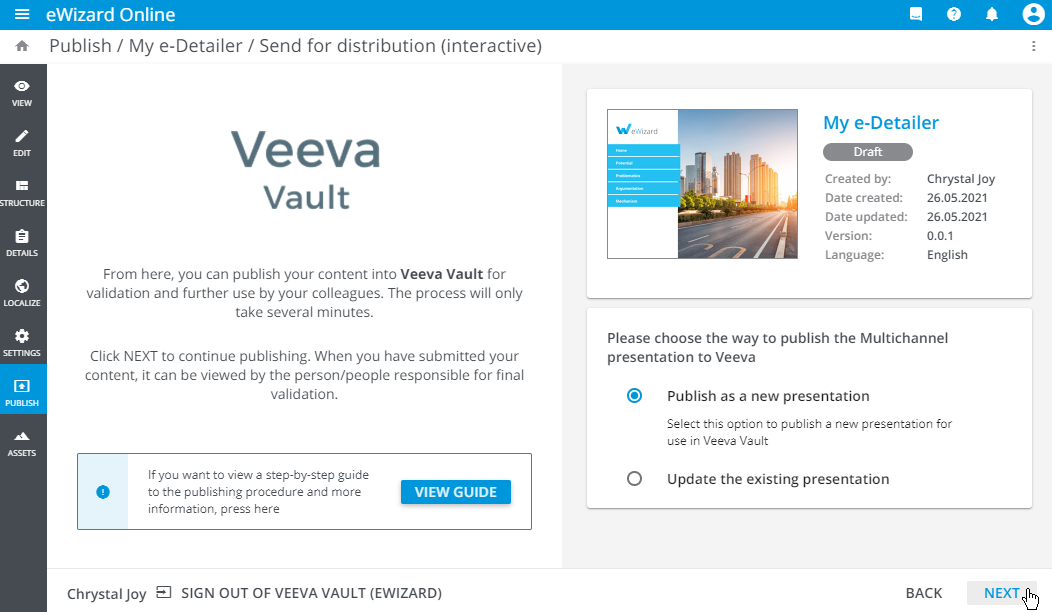
Publish as a new presentationto publish the e-Detailer as new to Veeva Vault.Update the existing presentationto upgrade the existing Veeva Vault document with the new one. This operation overwrites the target document. For this, enter the Veeva Vault document title or number in the dedicated field that appears.
Then, click NEXT.
- Fill in the required metadata fields for the e-Detailer:
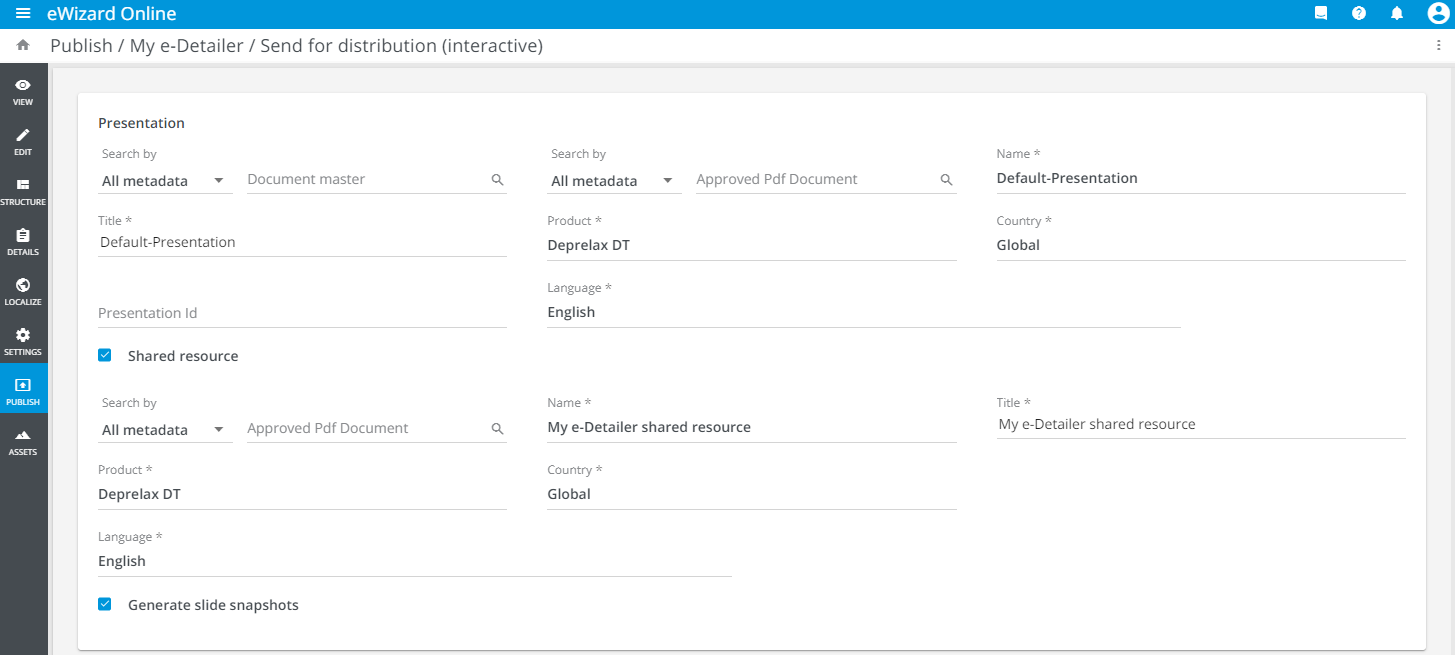
- Insert the Veeva Vault document number to the
Approved Pdf Documentfield to link the e-Detailer with any document previously published to Veeva Vault as PDF. As a result, the metadata fields are automatically filled in with the metadata of the published PDF document.
Change the values of the available checkboxes, if required:
The
Shared resourcecheckbox is selected by default to optimize the space the e-Detailer is taking. In this case, all common media are archived in one place, and every e-Detailer slide refers to theShared resourcecontaining the required common media (background images, logos, etc.). Deselect this checkbox to store all common media in each slide archive.The
Generate slide snapshotscheckbox is selected by default to activate the slide preview generation in Veeva Vault.The
Retain Veeva Vault statuses for slidescheckbox is available when you update the approved Veeva Vault document with the draft e-Detailer. The checkbox is selected by default to save the status of the existing approved Veeva Vault document. Deselect this checkbox to update the Veeva Vault document status.
To configure fields visibility and dependencies, contact your administrator.
- Find all the e-Detailer slides selected for publication in the
Multichannel slidesblock. Here, you can fill in the metadata for an individual slide, if required.
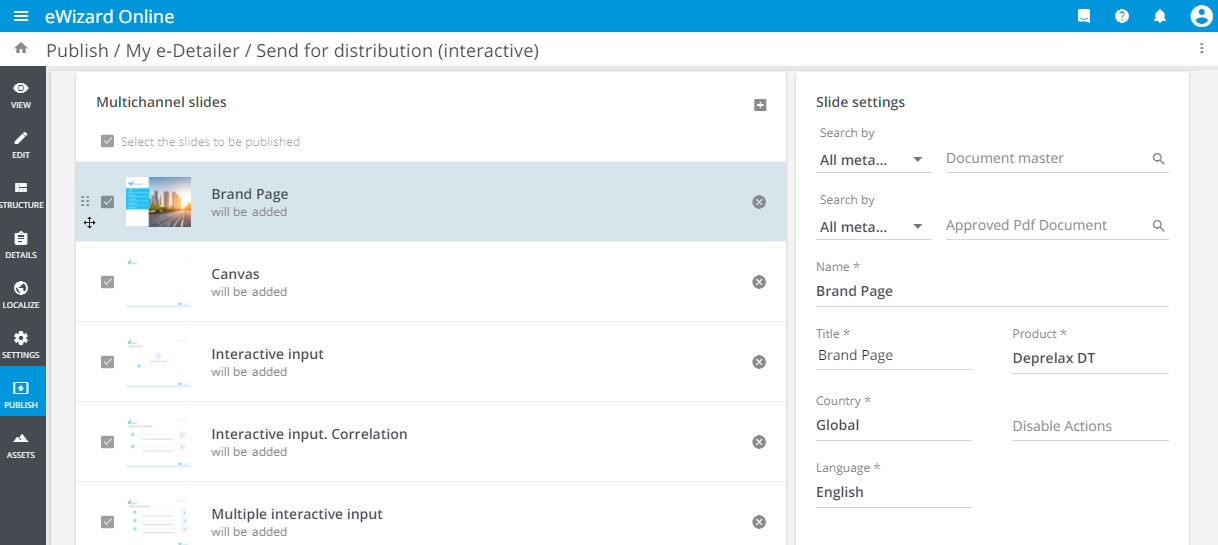
To manage the e-Detailer slides, use the following controls:
| Control | Action |
|---|---|
 | Change the slides order with the  button that appears button that appears |
 | Add the slides to the publishing list |
 | Delete the slide |
Click
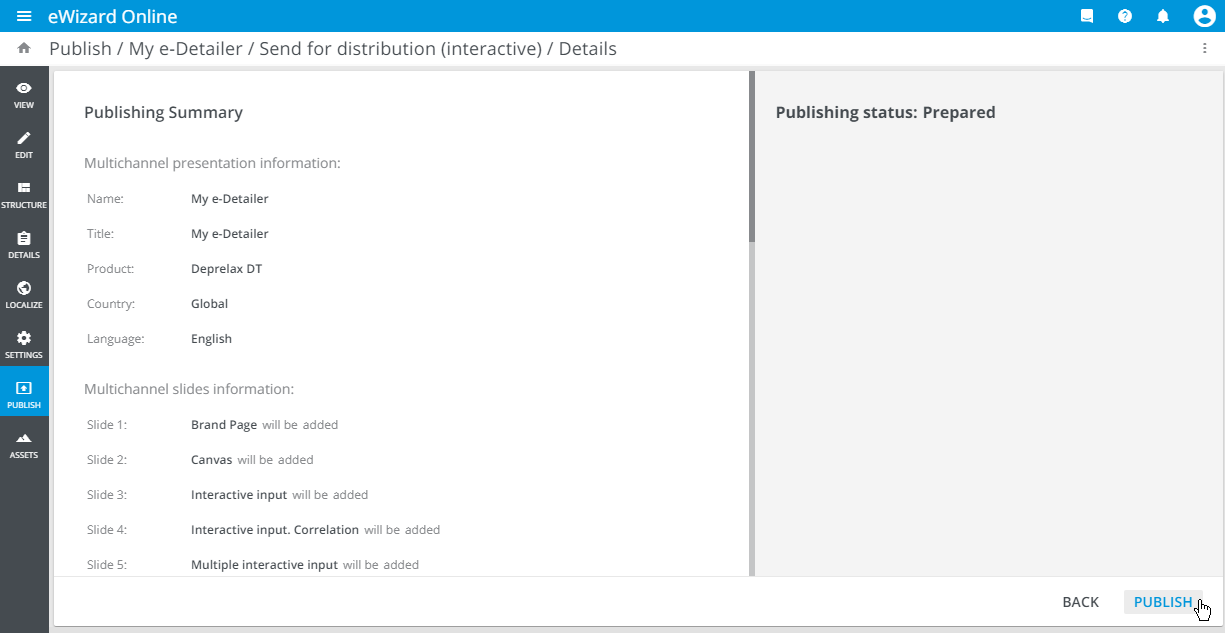
NEXT.Check the publishing summary and click
PUBLISH:
- Upon successful publication, click
Show in Veeva Vaultto view the published e-Detailer in Veeva Vault.