Appearance
Adding dynamic groups
To add Dynamic groups to your call flow:
- Click
 at the required slide.
The Add dynamic group popup opens.
Click
ADD GROUP.Enter the name of the dynamic group.
Its key is generated randomly and you do not usually need to change it.
Drag and drop the required slides from the left part of the
Add dynamic grouppopup to the right.Click
ADD.
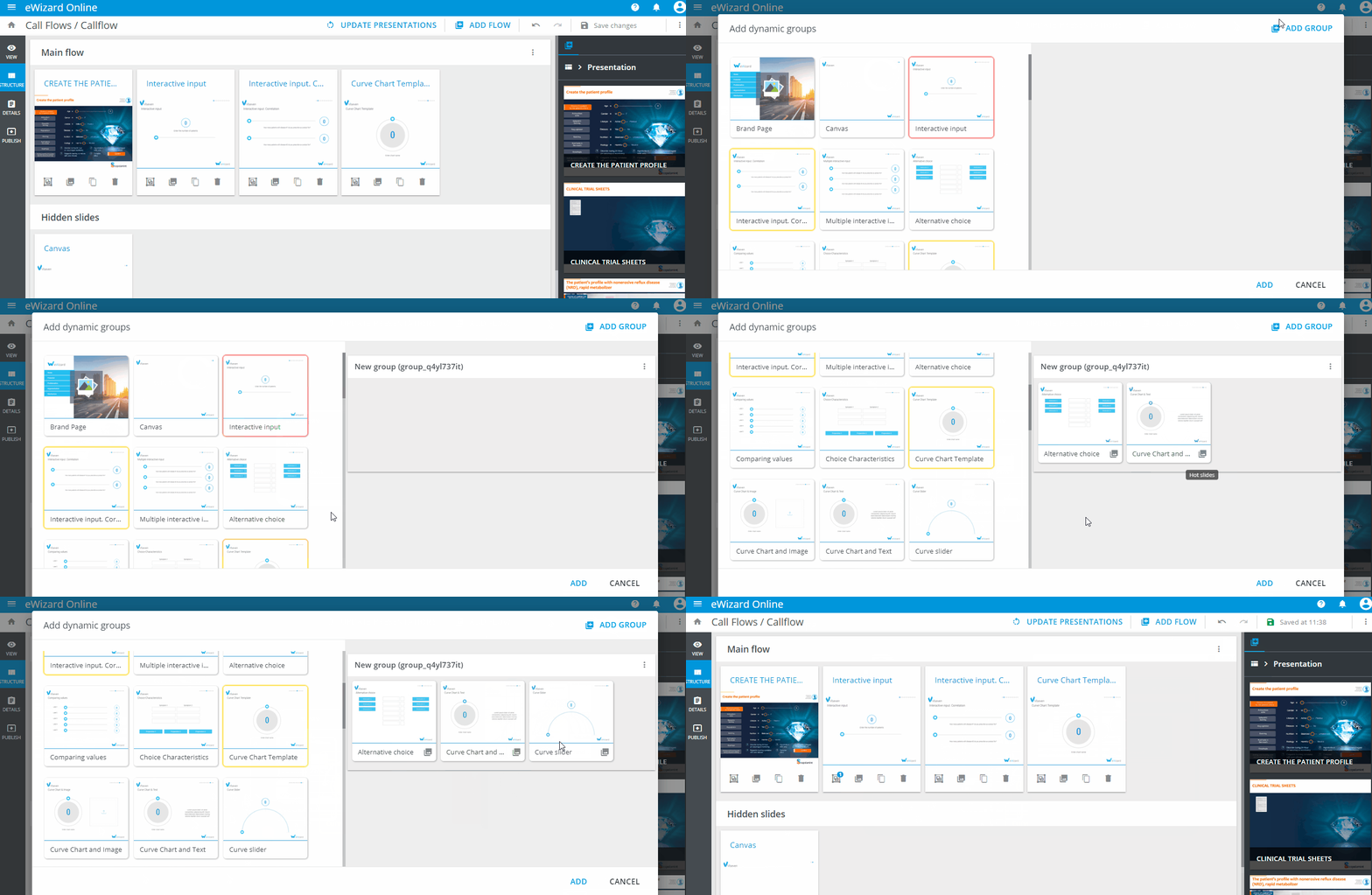
To remove slides, drag them back to the left section of the popup.
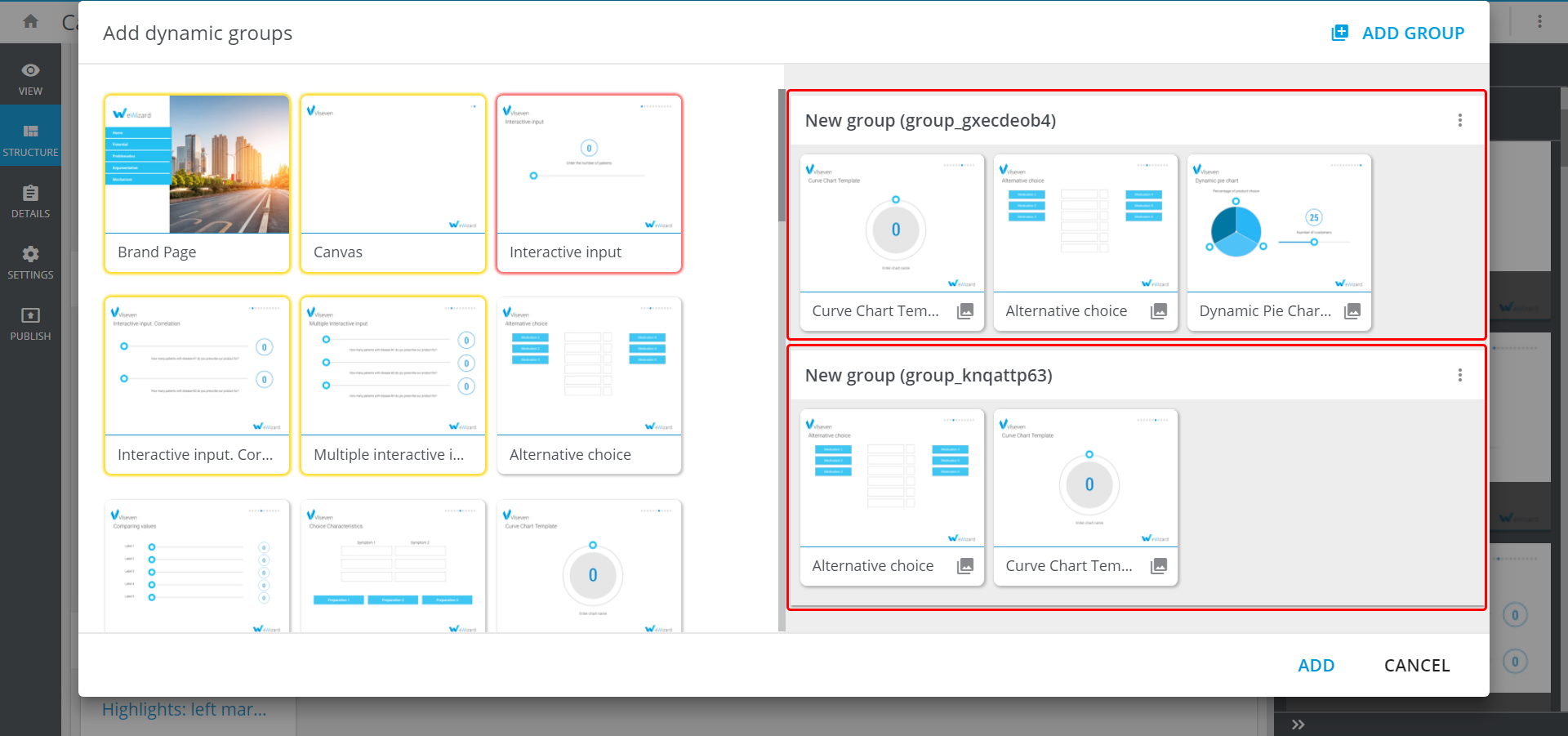
The slides added are highlighted in yellow, and the slide you are adding the dynamic group to is highlighted in red. You can't add them to a dynamic group.
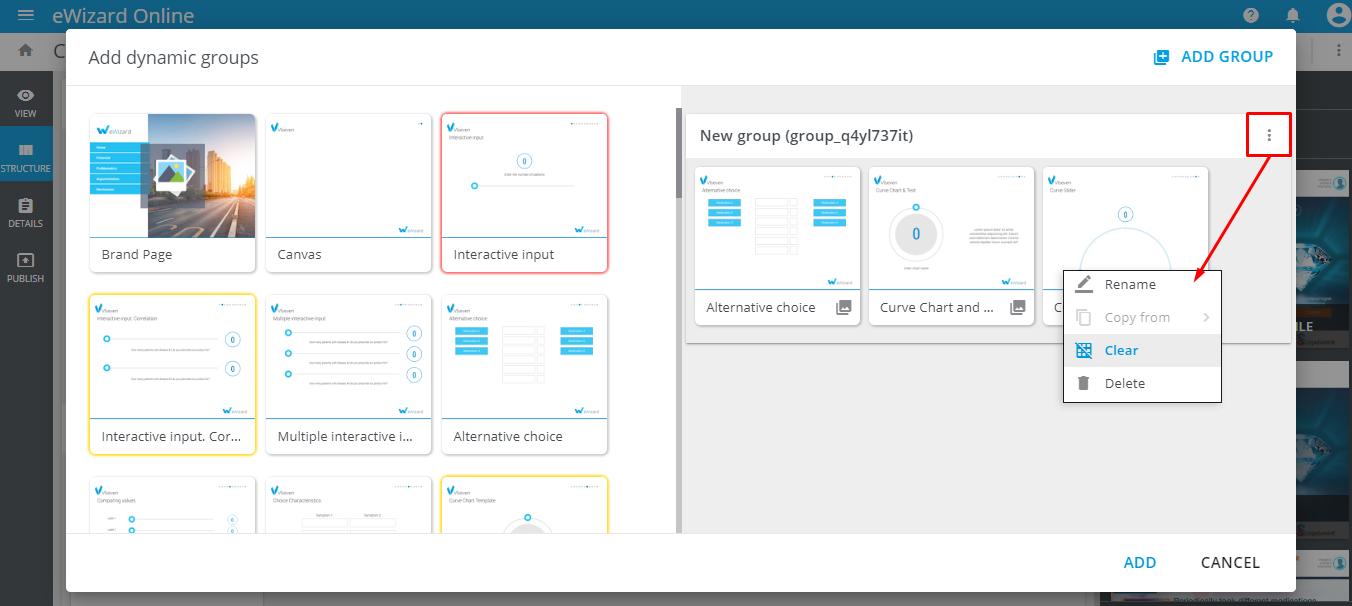
The more options menu of the dynamic group allows to:
Renamethe dynamic group,- remove all the slides from the dynamic group (
Clear), Deletethe whole group,- The
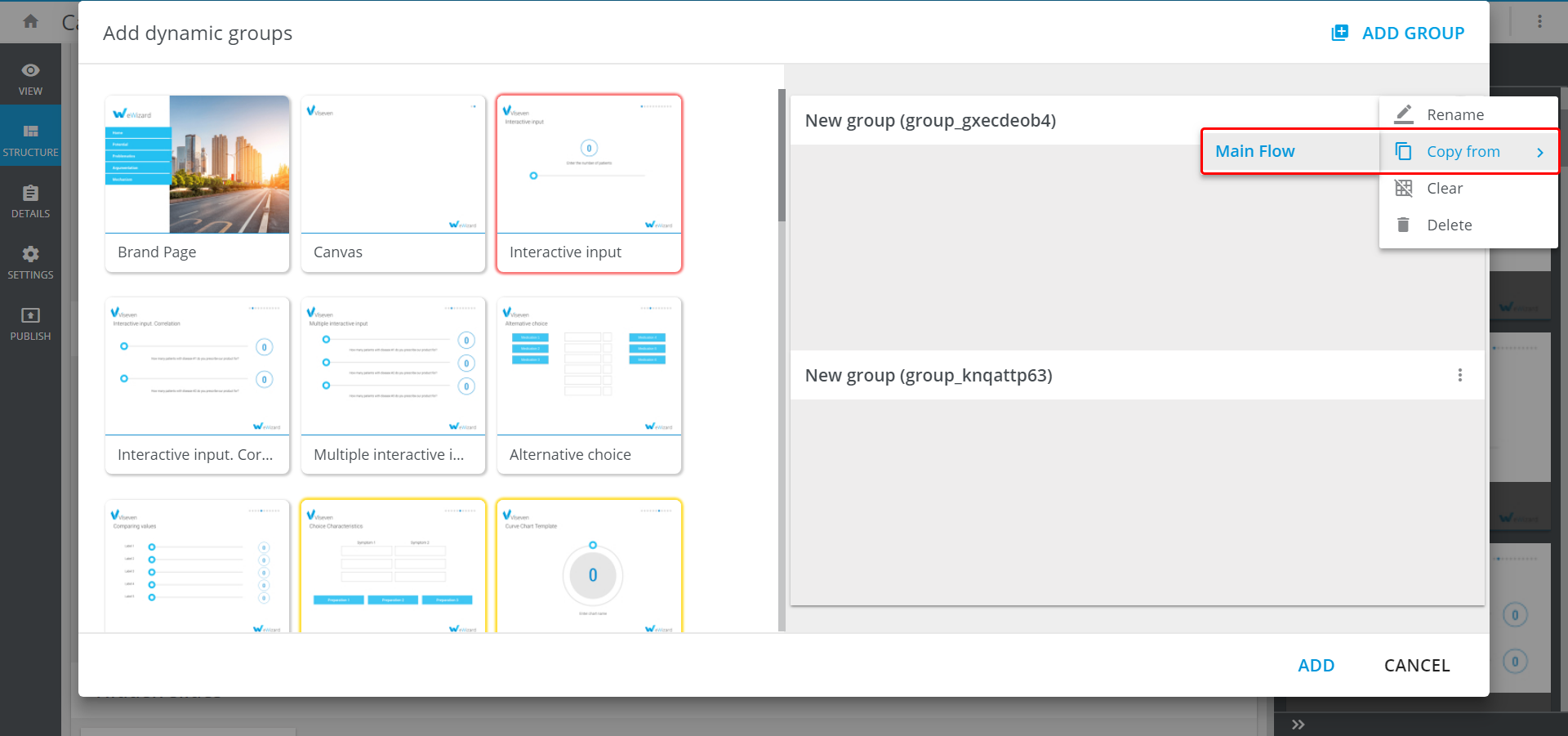
Copy fromoption becomes available when you add a slide with aDynamic groupto another flow.
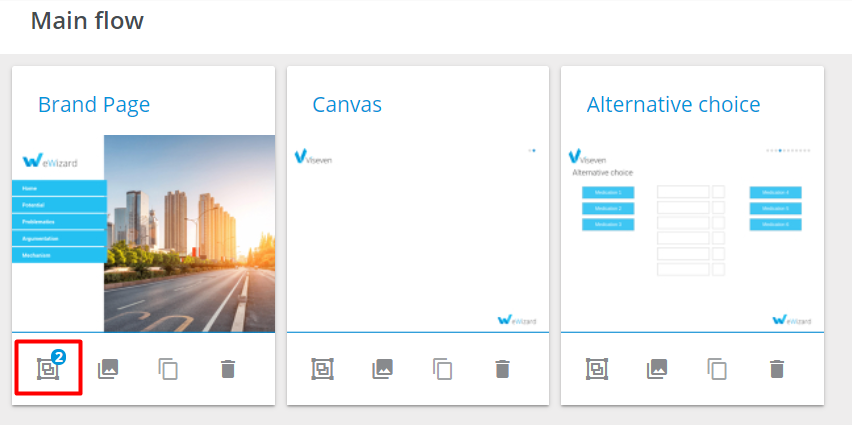
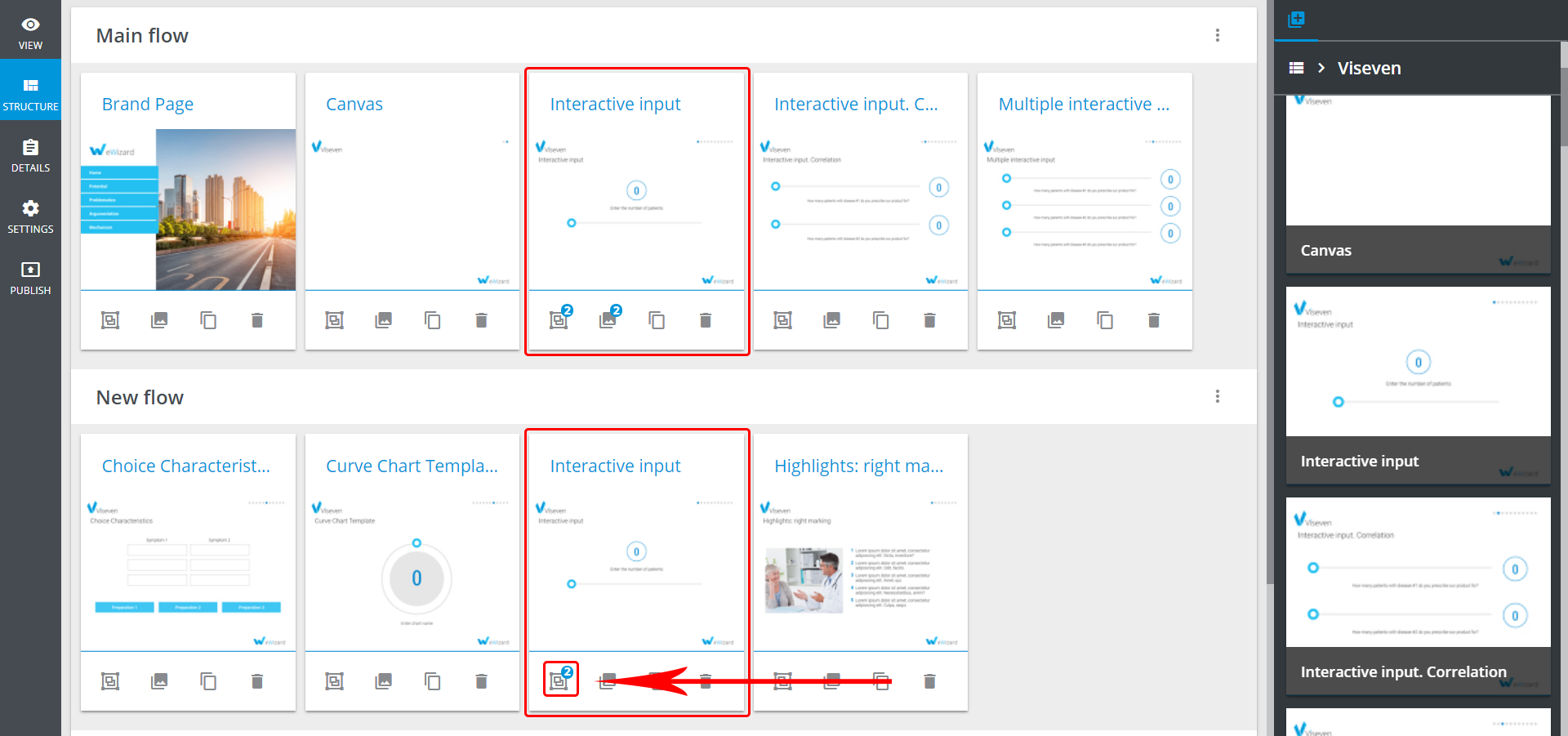
Once the dynamic group is added, you see the indication with the amount of the groups attached to the respective slide:
You cannot make the slides you have added to the dynamic group hidden. If you have added some hidden slides to the dynamic group, they are removed from Hidden slides automatically.
The Copy from option
If one of the slides contains a Dynamic group and you add that slide to another flow, you have an option to quickly copy everything from the Dynamic group of this slide from one flow to the other.
For example, you have the Interactive input slide in the Main flow with two Dynamic groups added. The first group contains three slides, and the second one contains two.
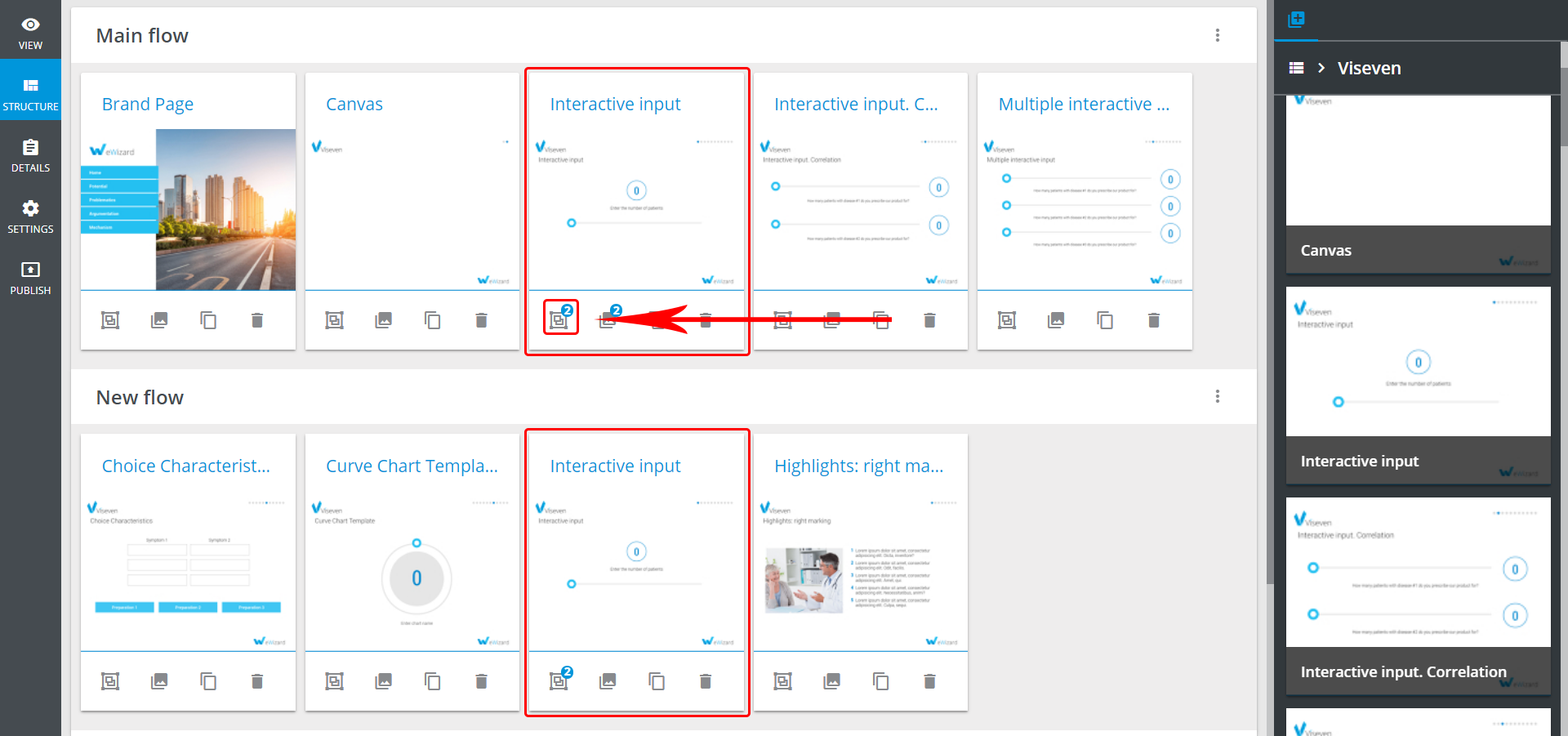
Now you go to the Dynamic groups menu of the Interactive input slide in the New flow:
The two groups are empty. You go to more options menu, click Copy from, select the flow with the non-empty Dynamic group (Main flow in our case), and get all the slides from there.
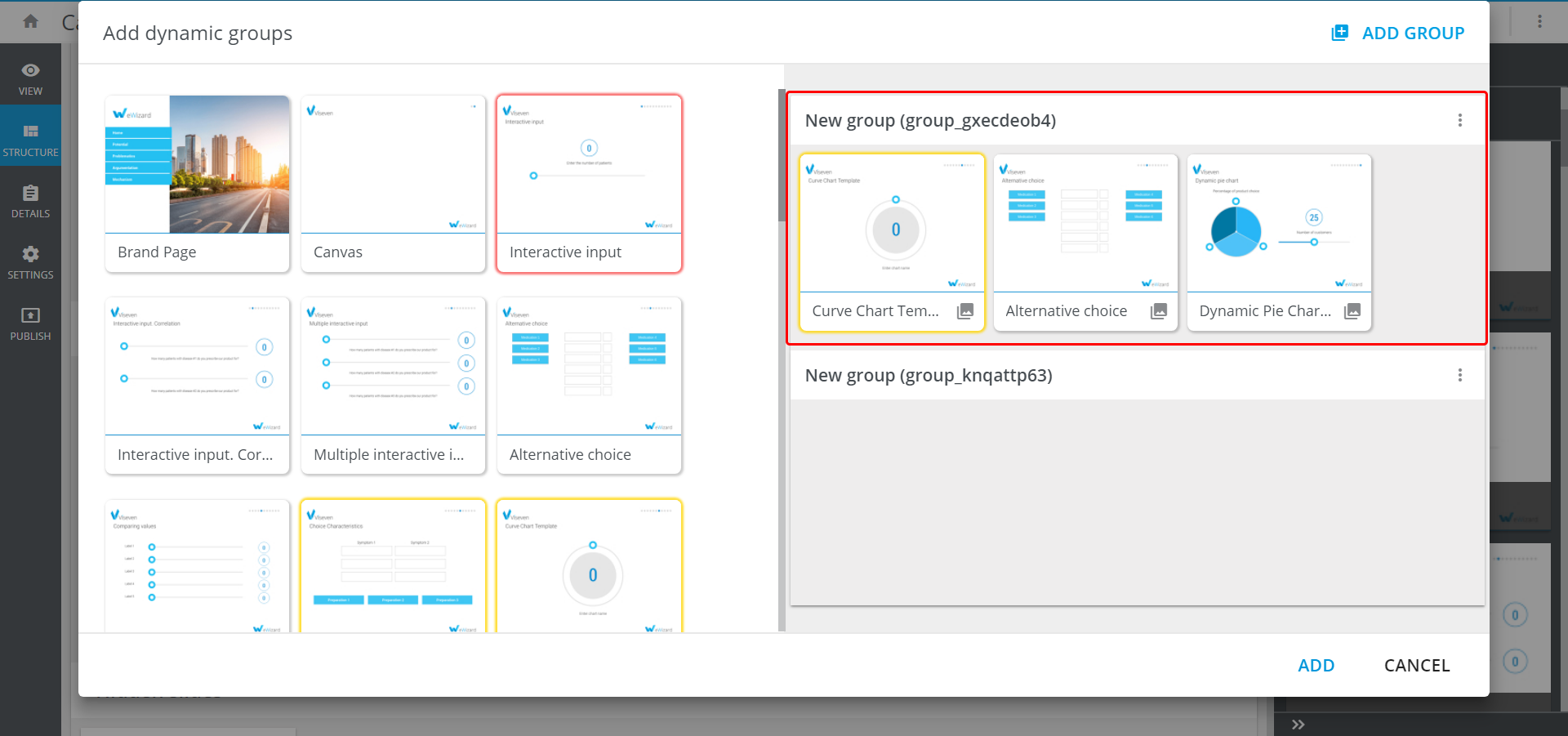
Note that the second Dynamic group remains empty.