Appearance
Presentations in the Global Store
Presentations block in the Global Store displays all the presentations published to the Store and allows adding them to your library (e-Detailers):
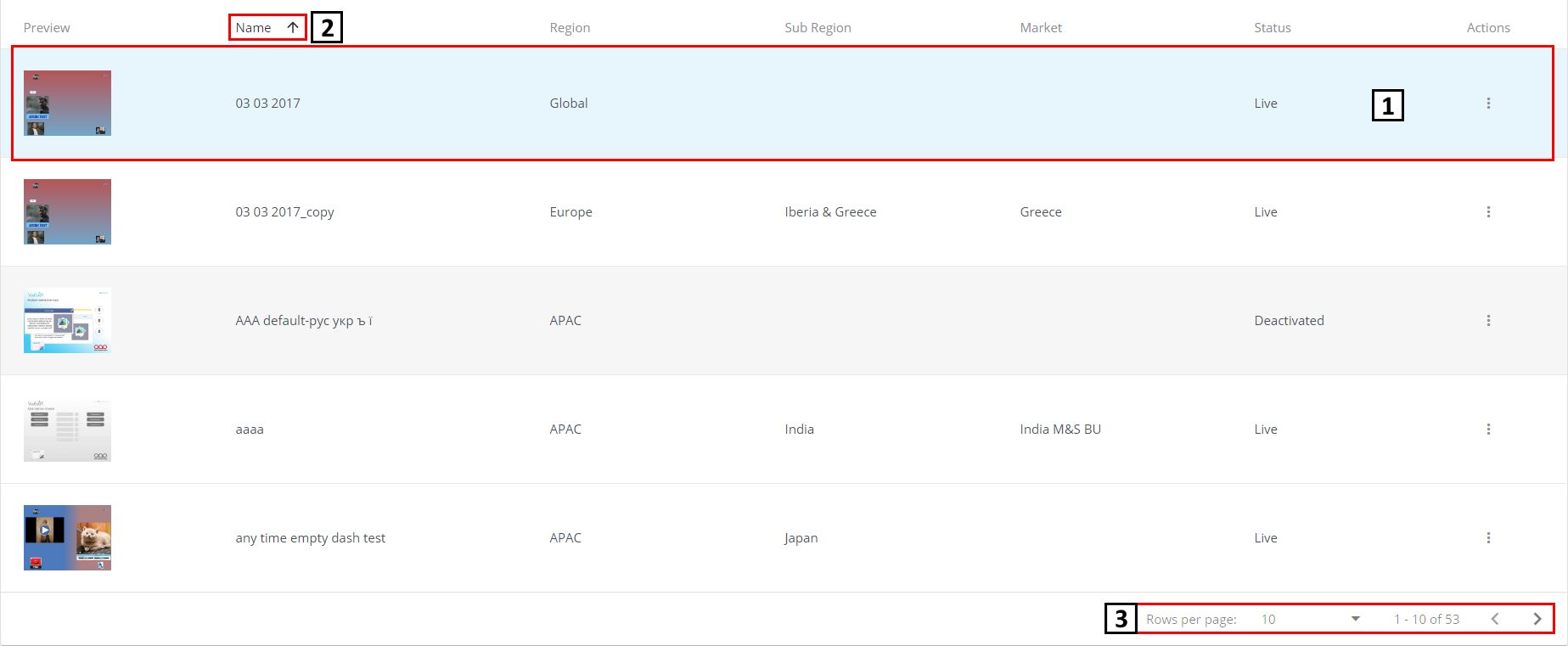
- Short information about the presentation. It contains the presentation's main properties and available
Actions. To open its actions, click in the presentation row.
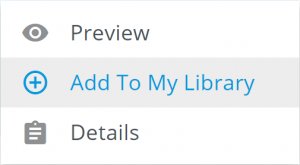
Previewopens the presentation's preview;Add To My Libraryadds the presentation to your presentations list in e-Detailers;
If the presentation has any License Agreement, you'll be notified when adding it:
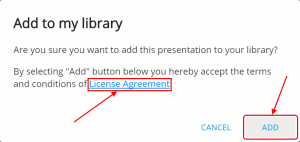
To add the presentation to your e-Detailers, click ADD.
There is no presentation duplication check. So, your e-Detailers will contain as many presentations, as you have added
Detailsopens the presentation details.Files list, alphabetically sorted by
Name. View settings (Rows per page😃 and navigation arrows (previous page – <, next page – >).
Presentation's details in the Global Store
The Presentation details page of the Global Store contains the additional information about the presentation:
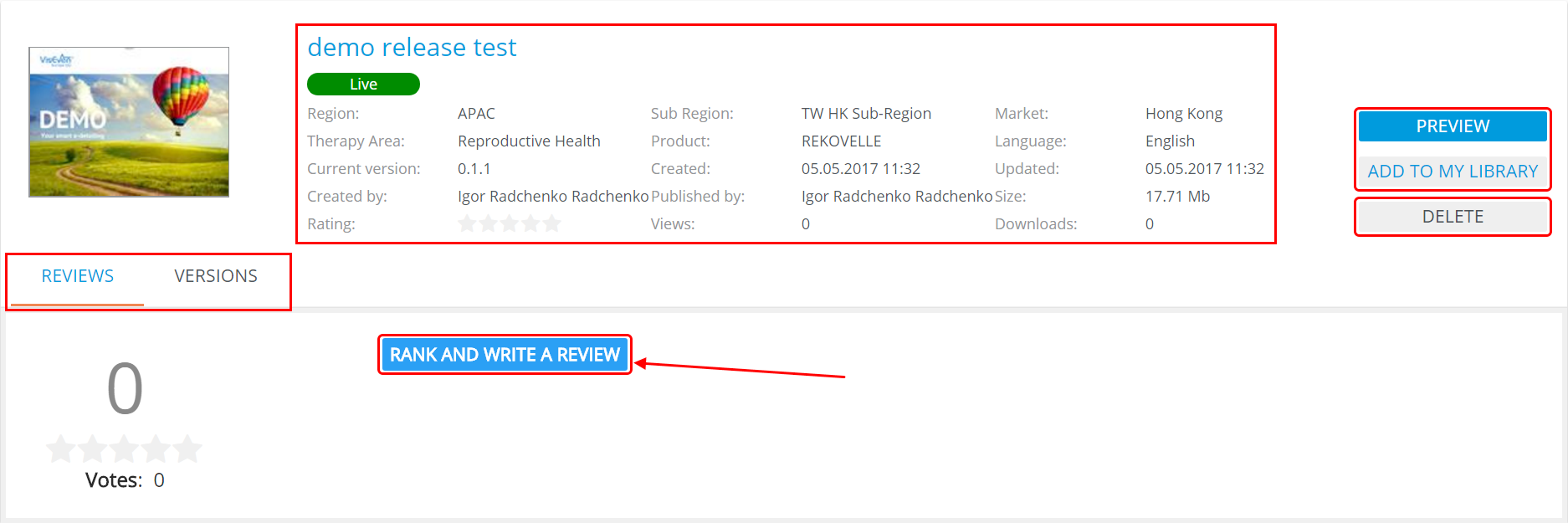
It comprises two tabs: REVIEWS and VERSIONS. DELETE is available only for the presentation owner.
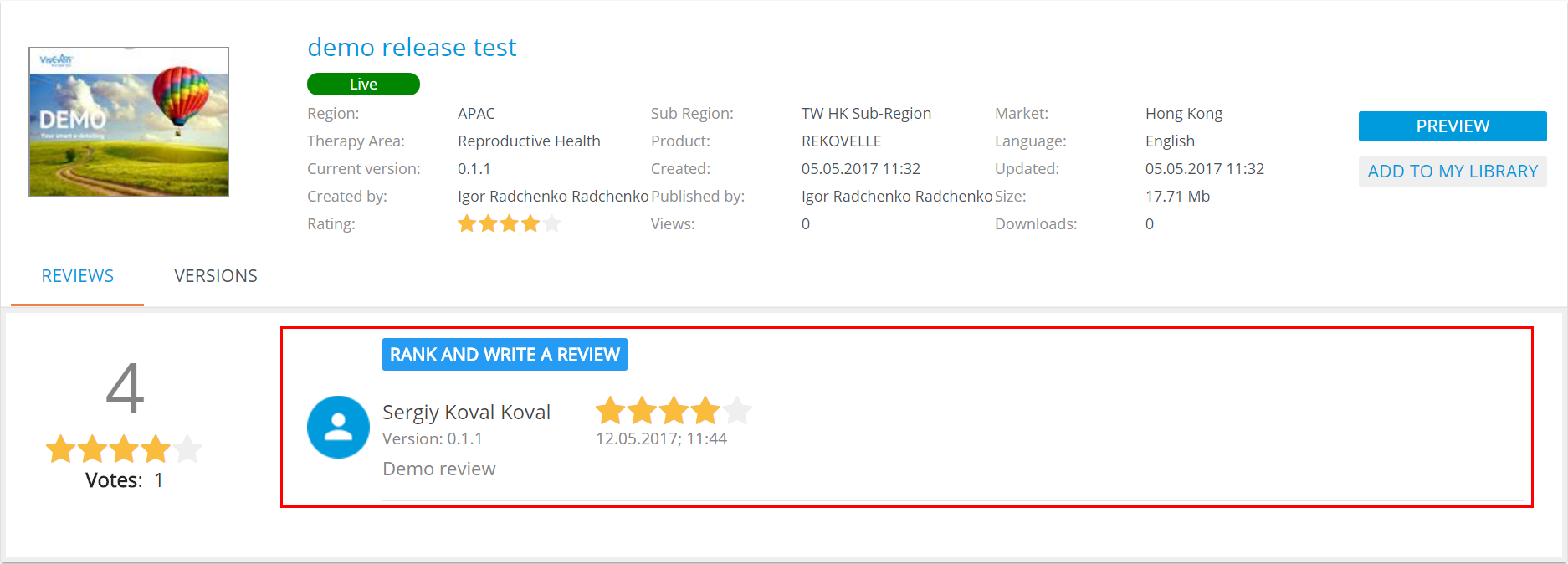
REVIEWS tab contains the presentation reviews and allows adding new.
To add a review, click RANK AND WRITE A REVIEW button. Review adding interface will appear:
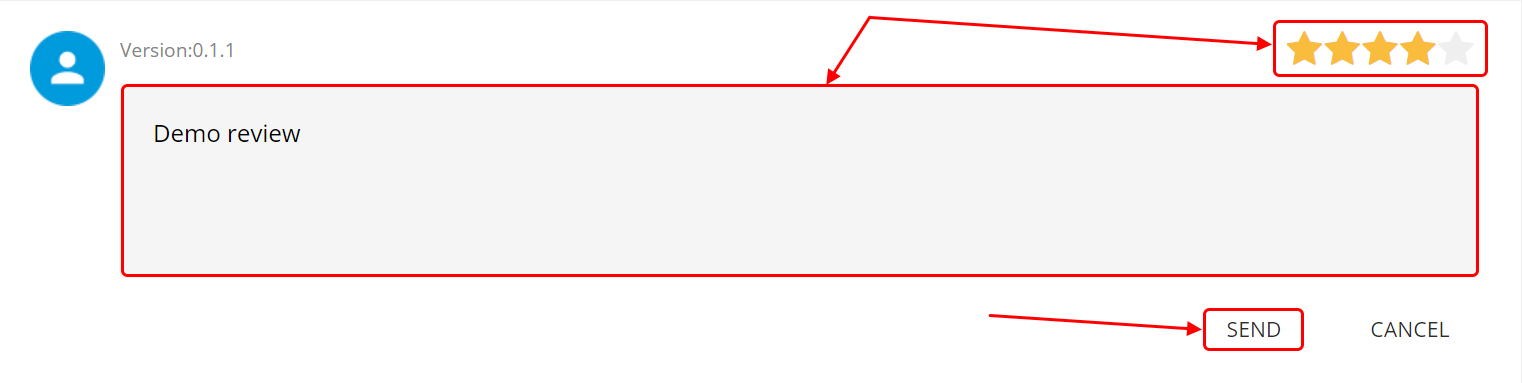
The SEND button will become active after entering the review text and ranking the presentation.
To complete adding your review, click SEND.
The review will be added to the top of the reviews list:
The VERSIONS tab contains versions history:
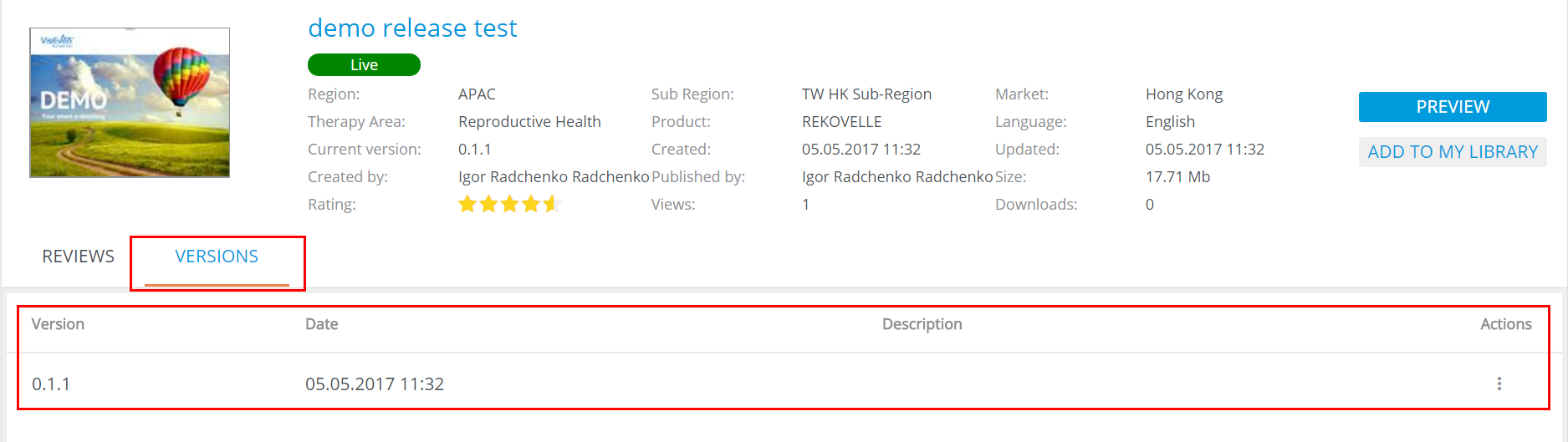
Each record has its Version, Date, Description and Actions.
Actions menu has the following options:
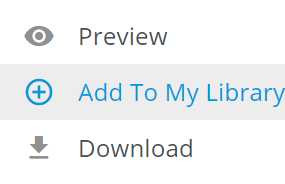
The Download button opens a download dialog of that version of the presentation in ZIP archive. Preview and Add To My Library options work the same way as in Actions menu of the presentations list in main page of the Global Store.
Searching and filtering in the Global Store is similar to filtering in Digital Assets.