Appearance
Call flow Editor
Since every slide in a call flow is located in its e-Detailer, the slides are editable within their hosting presentations.
Editing is applicable only to call flow's structure.
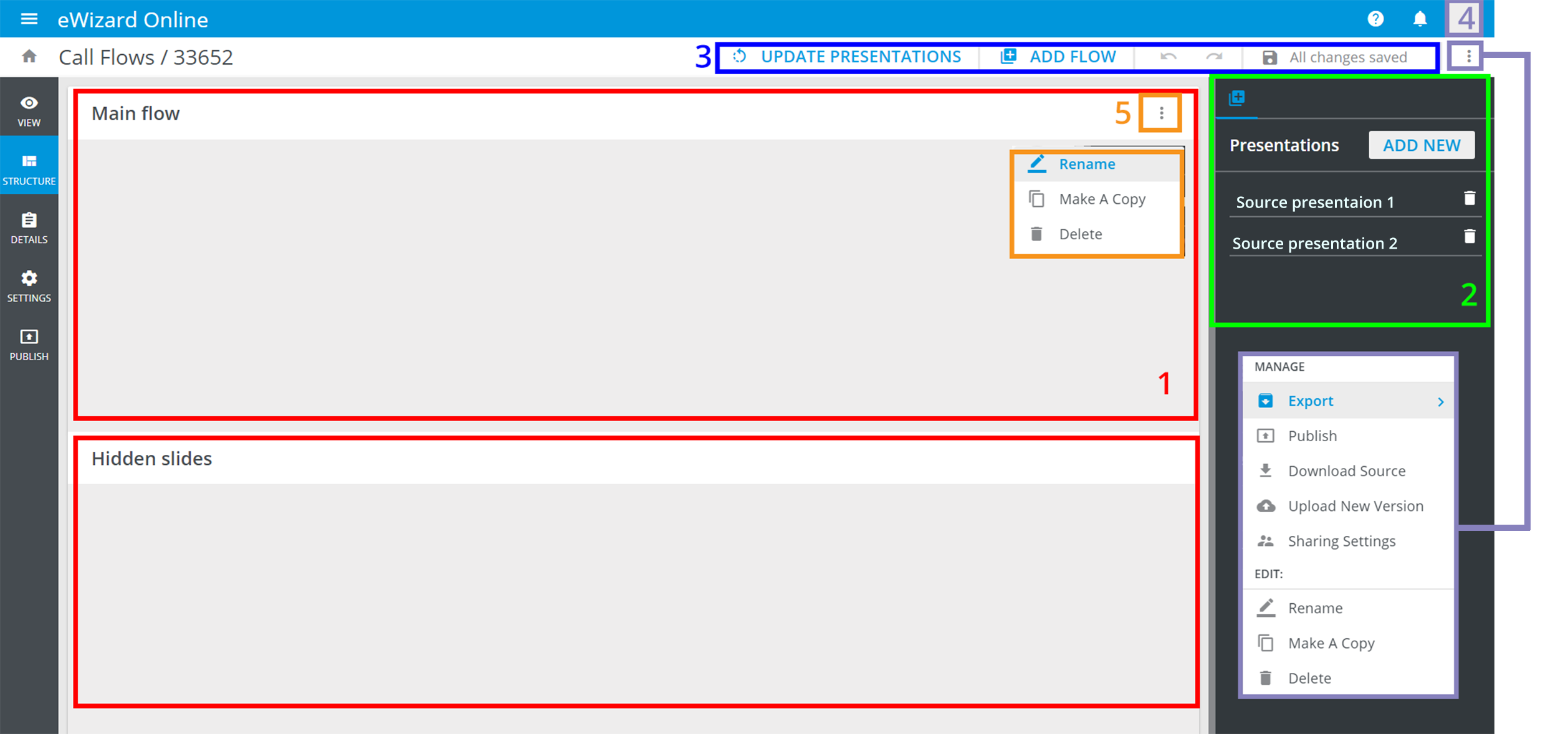
To edit a call flow, click  at the thumbnail of the call flow.
By default, new call flow consists of two flows: main flow and hidden slides. They are empty until you add slides into them.
On the right-hand panel, you can find your source presentations. You can add a new presentation or delete it.
The tools on the top bar allow you:
to
Update the presentationsin your call flow, in case the sources were edited;to
Add a flow, so it appears between theMain flowand theHidden slides;UndoorRedothe actions;to
Save the changes.
There are two more options menus on this page:
for the whole call flow [4] (comprises managing and general editing options)
for each individual flow [5] (unfolds general editing options).
To fill in the call flow with the slides:
Go to the right-hand panel.
Click the required source presentation.
Drag the slides you need.
Drop them into the flow's body:
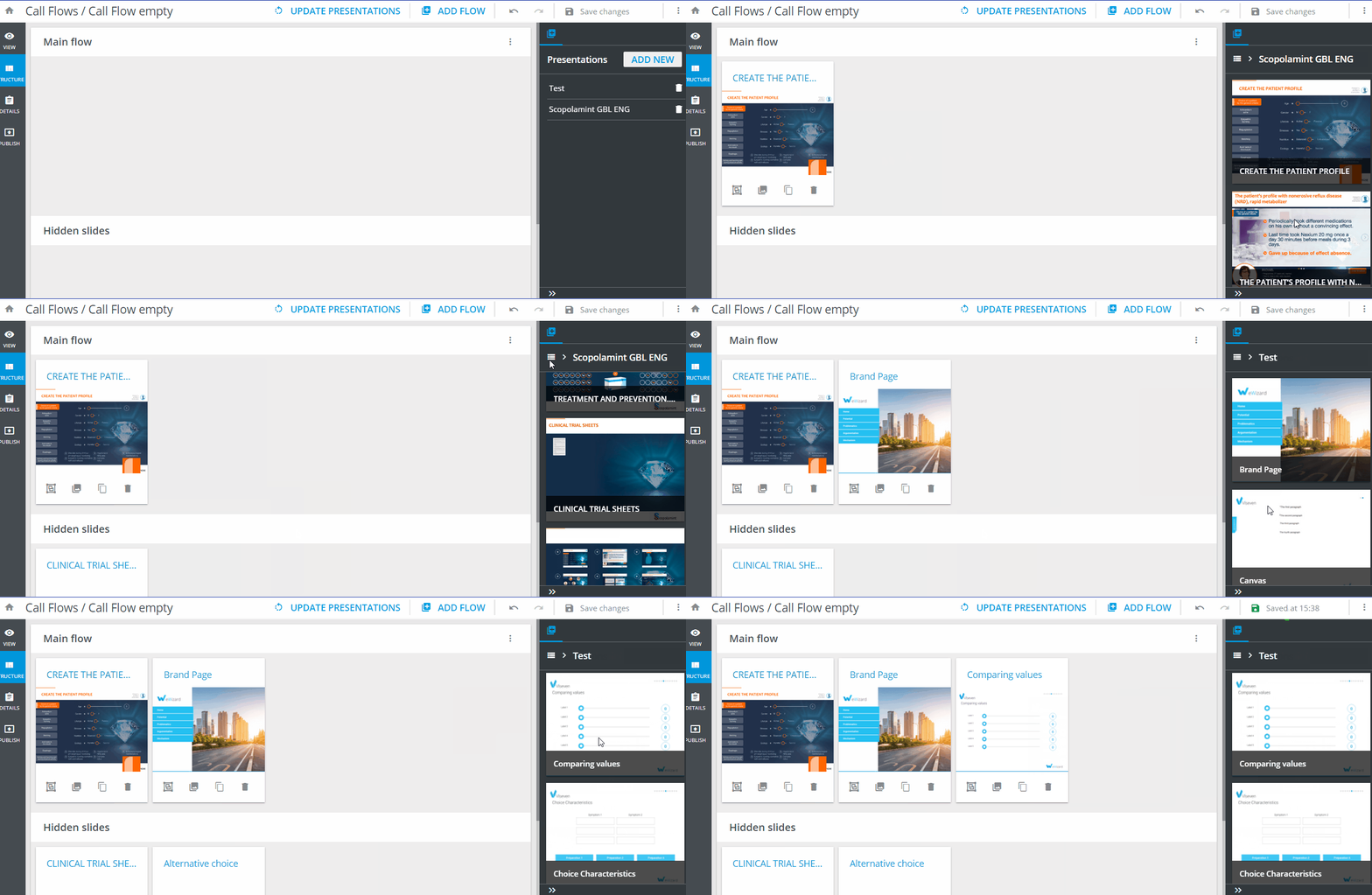
To delete the slide from a call flow, click  in the bottom right corner of its thumbnail.
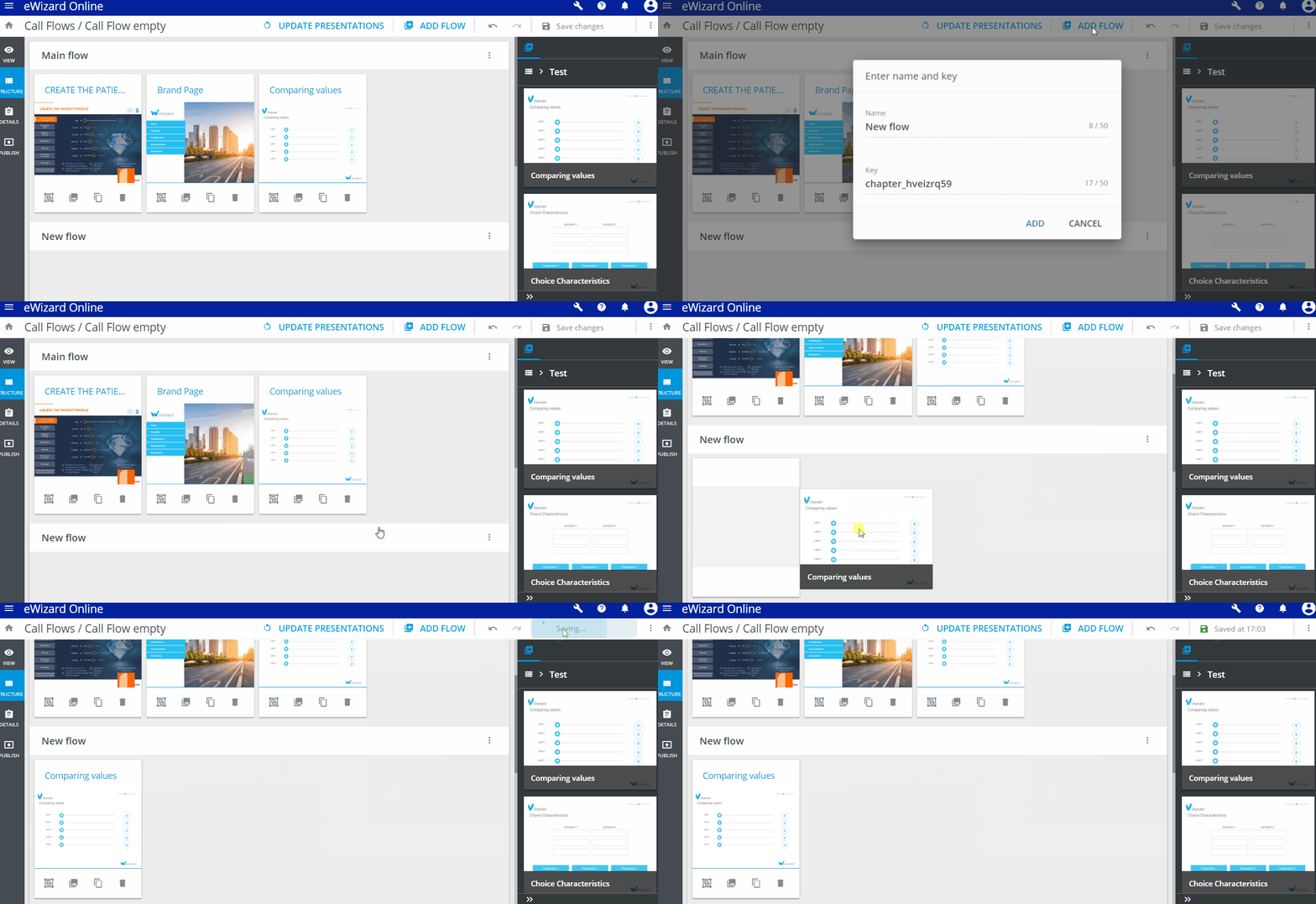
To add flows to your call flow:
Click
Add flowat the right part of the top toolbar.Enter the name of the new call flow.
Click
Add.
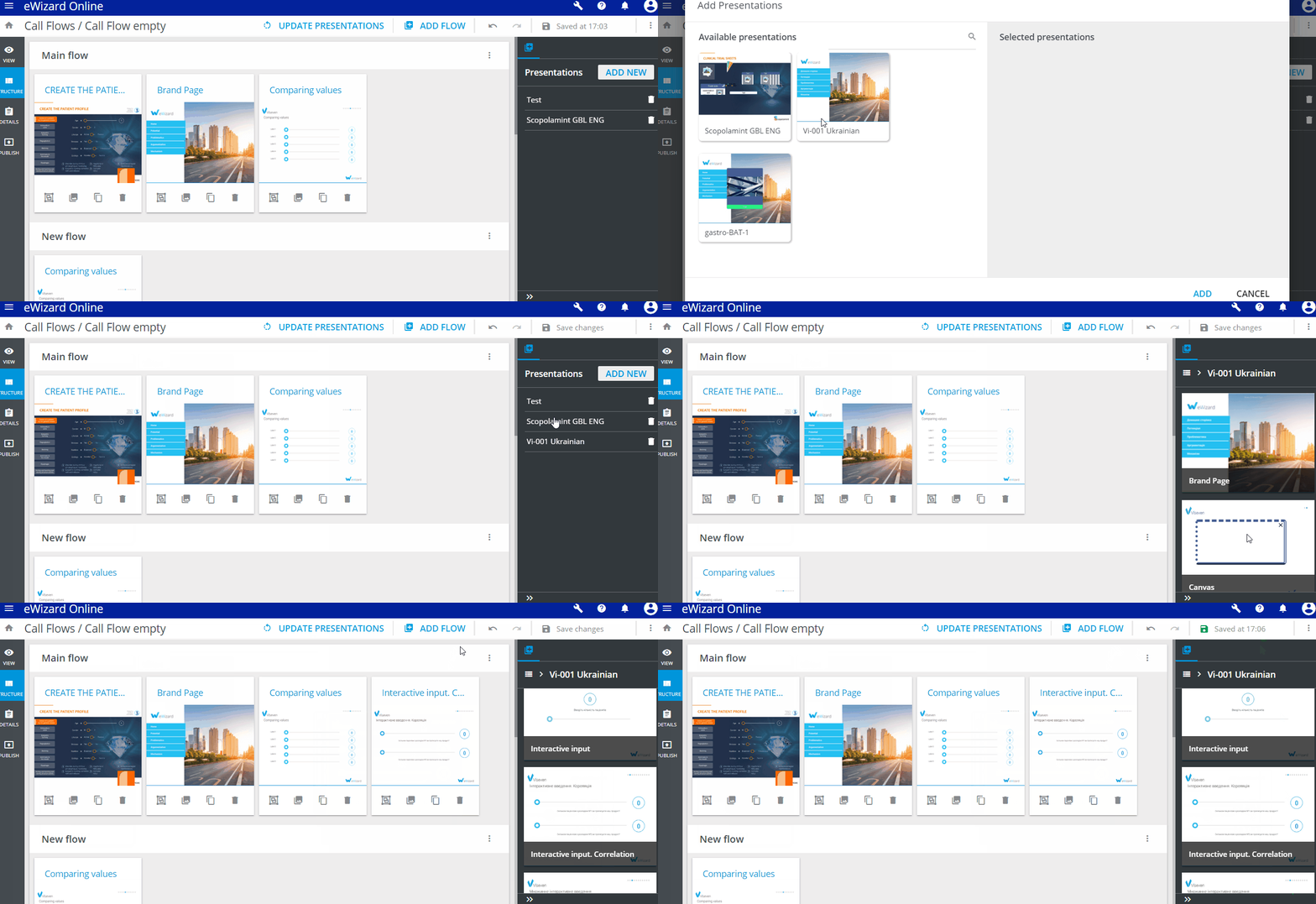
To add new source presentations into a call flow:
Click
ADD NEWat the right sidebar.Select additional source presentations.
Click
Add.
To remove the presentation from the list of sources:
Click
in the presentation's row.Confirm the deletion:
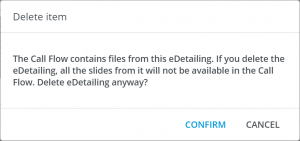
All the slides of the source presentation are deleted, including those you have added to a call flow.
Once you finish editing, click Save changes at the top right of the page.