Appearance
Tree
The TREE tab contains the components of the slide and their management tools (Delete ( ),
), Copy ( ), and
 + Add item):
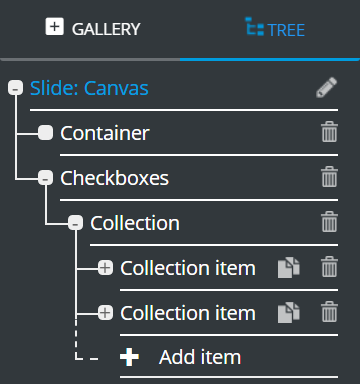
If the Master template switch is available, the TREE contains only the slide components (Master template is inactive) or the components of the Master template (Master template is active).
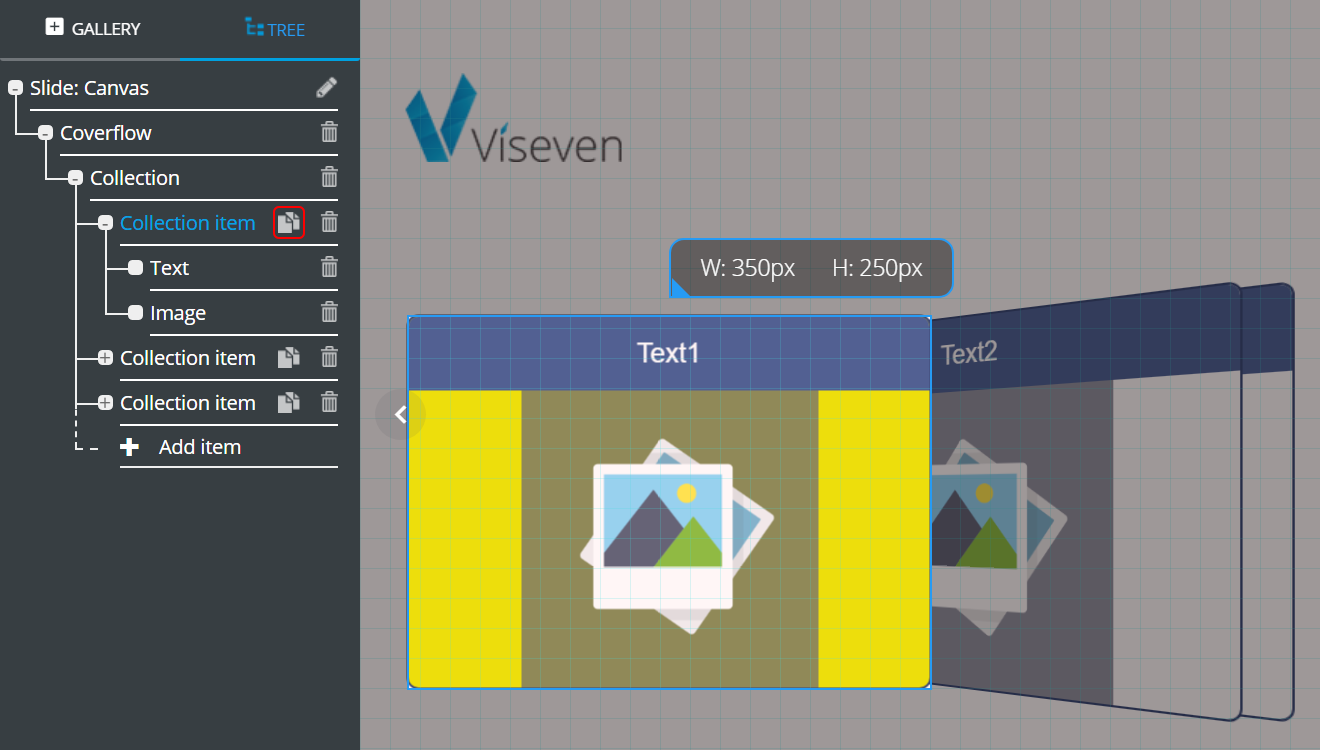
The Copy and + Add item options are available only for Collection items. To copy a Collection item, press the Copy button () next to the desired item:
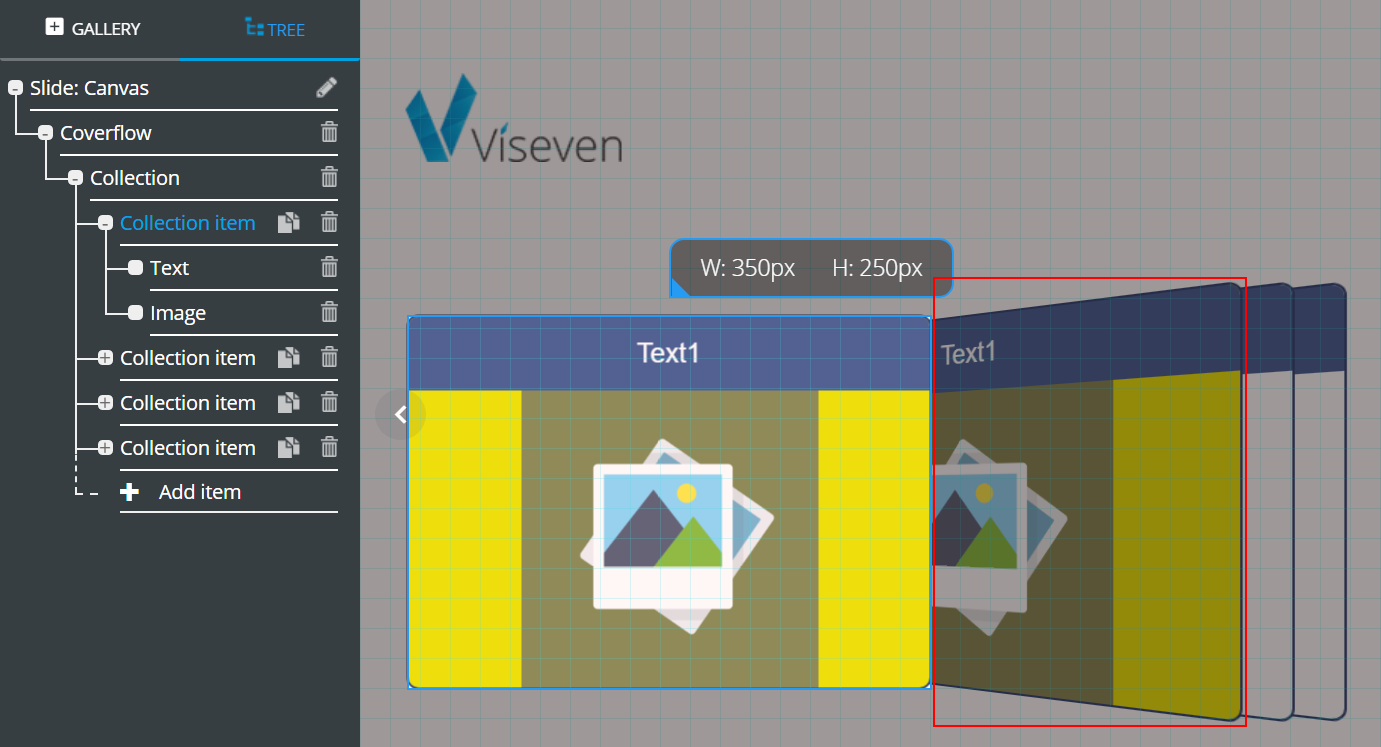
The copy will be identical to the original item and appear next to it:
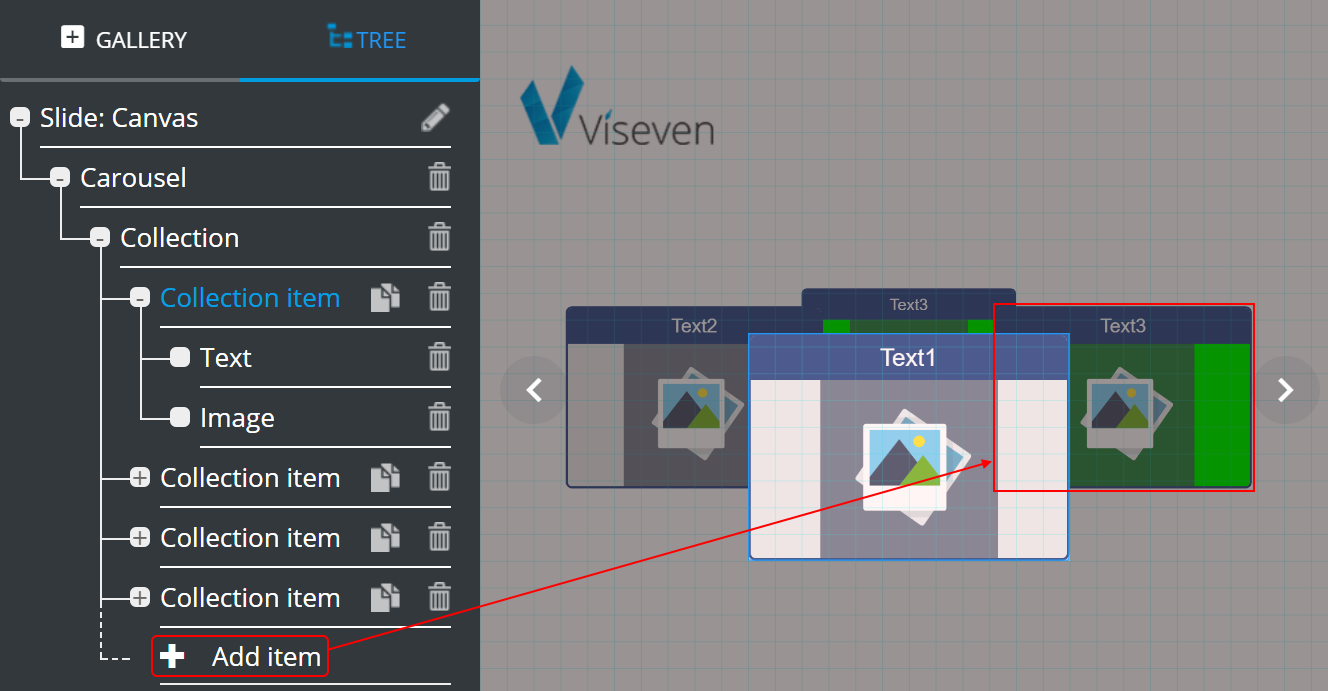
The + Add item copies the last Collection item:
Key messages
To empower you to analyze your content efficiency, eWizard offers the Key message tracking option. It is implemented as a part of the eWizard and Veeva Vault integration.
This option is applicable to slides with modules. To apply key messages to your e-Detailer slides, use the Tree tab.
Go to
Tree[1].Select the slide [2].
Unfold
Properties[3].Click
Select key message[4].Log in to
Veeva Vault.Select a key message from the dropdown list.
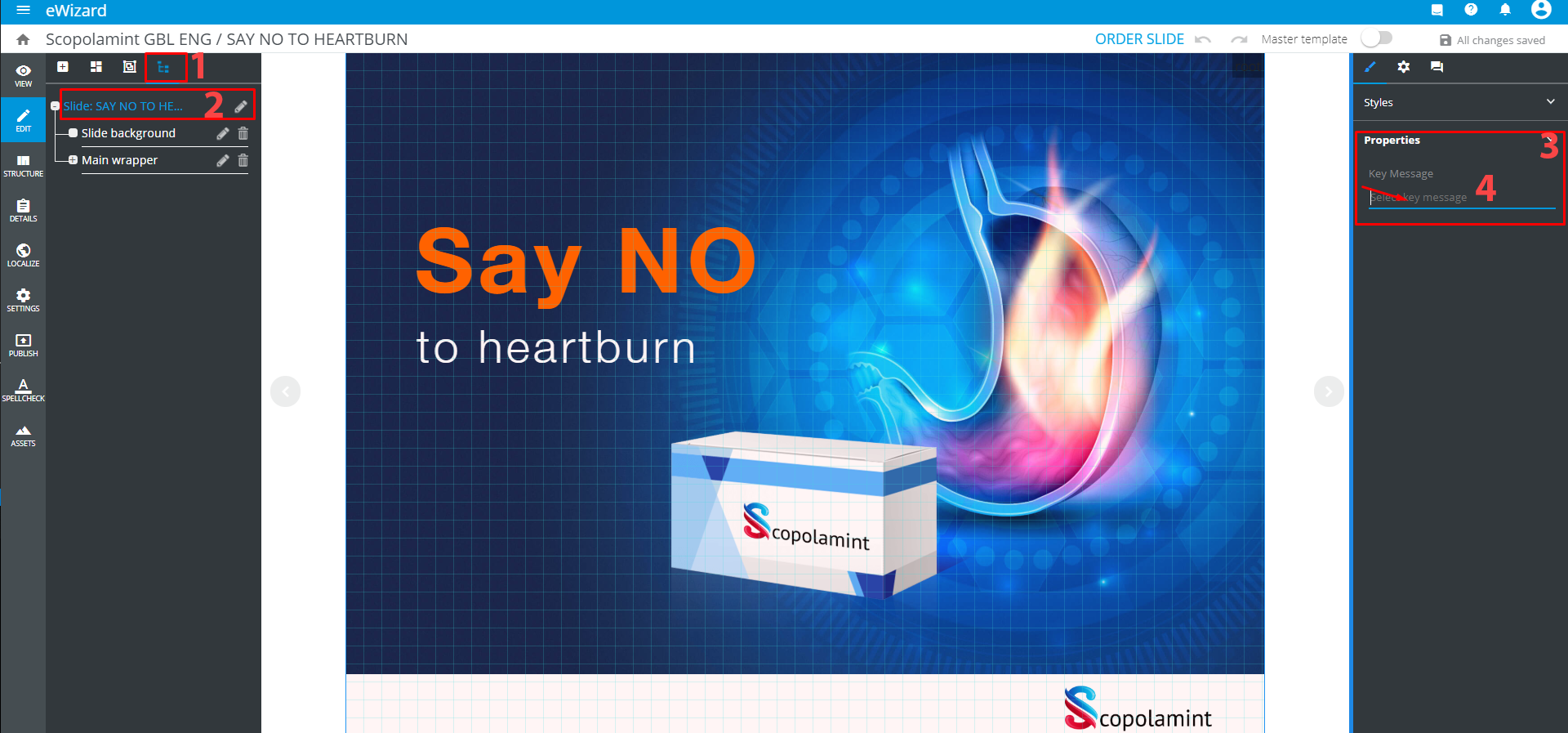
You have just assigned a unique ID to track the slide's performance.
When publishing an e-Detailer as an interactive presentation to Veeva Vault, all slides with their key messages (you can change them at this step) are displayed on the Publishing Summary page.