Appearance
Sending for review
Sending a piece of content for review launches the reviewing process.
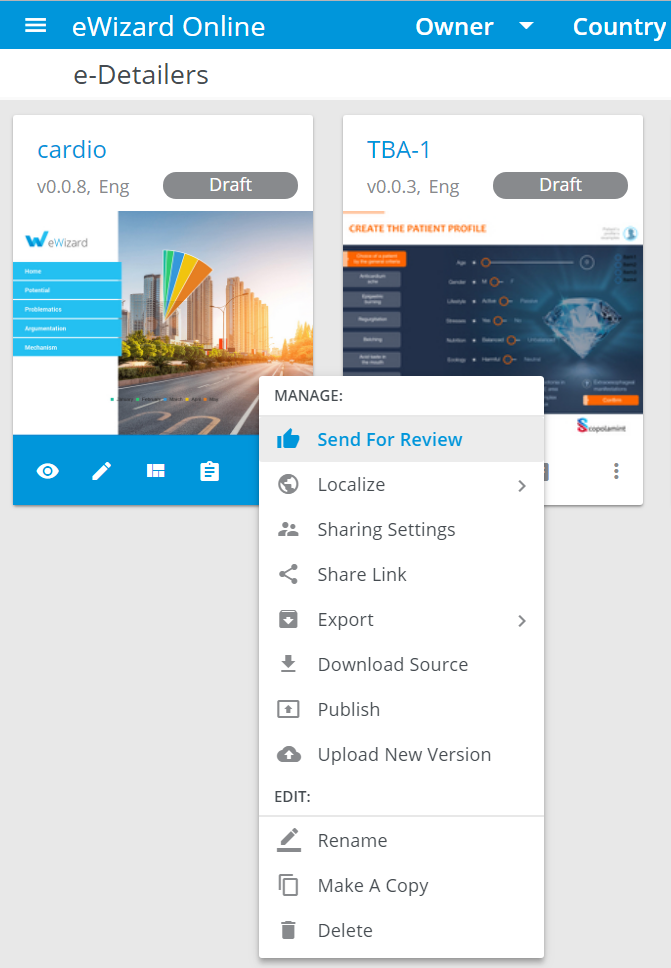
Select Send for Review via the presentation's More options menu:
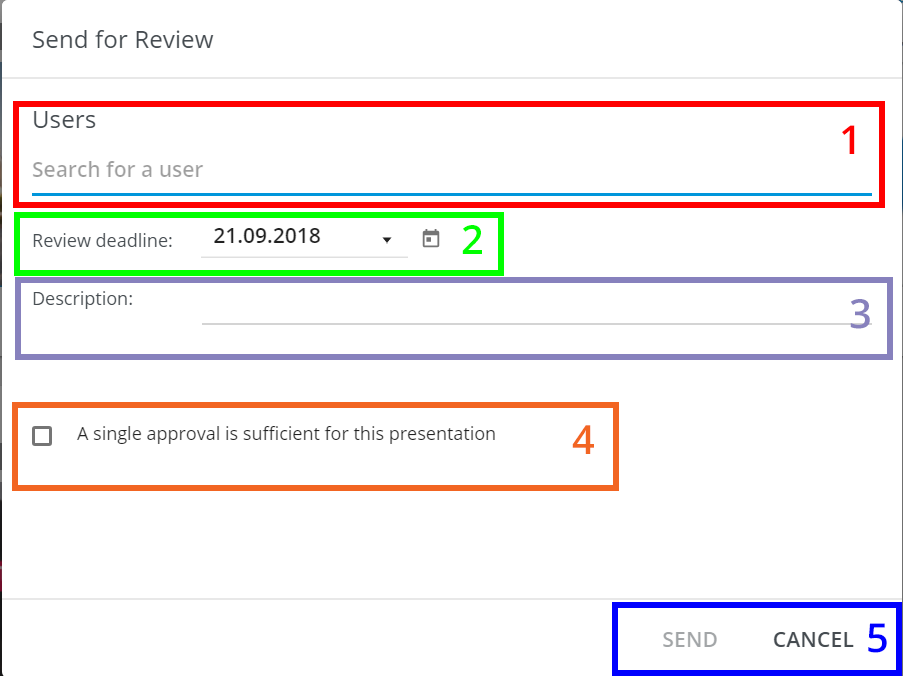
Send for Review interface appears.
In the User field [1] you can search a user to send a presentation or other piece of content to review. This field features suggestions, so as you typing a name, the matches will appear in the drop-down list.
Set the deadline [2]. You can enter the date manually or select it in the calendar.
Describe your piece of content [3].
It is possible to limit the review procedure with a single person approval [4]. If necessary, check the box.
Click Send or Cancel [5].
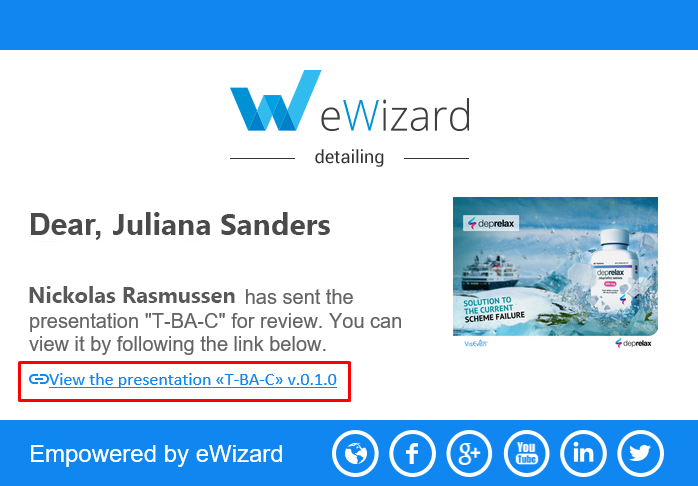
The reviewer will receive the notification containing a link to the presentation or another piece of content. They follow the link, do a review, and approve or decline it:
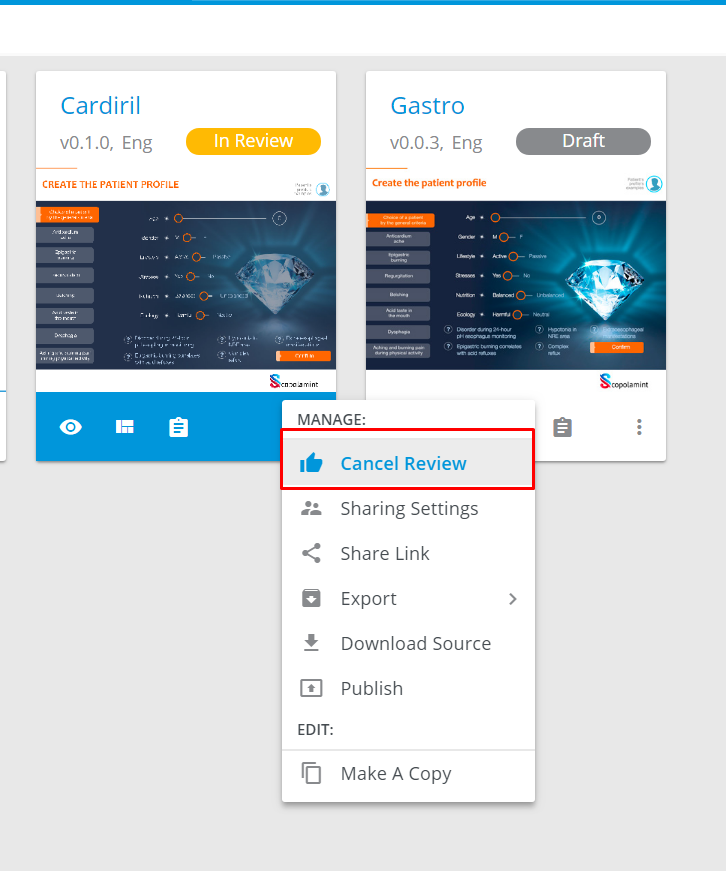
Until it is approved or declined, sent for review content is of In Review status, and its editing will be disabled. Also, you can Cancel review:
If a piece of content is approved or declined in Reviews section, its status in the e-Detailers section will change accordingly.
If you want to edit an approved piece of content, you need to copy it or download and re-upload it back to eWizard. Also you can use the Create draft option via its More options menu. It will void the Reviewed status, however the content will become available for editing.