Appearance
Structure editing
e-Detailer Structure allows you to add/delete/reorder chapters and slides of your item. This functionality is available only for the items in the Draft status.
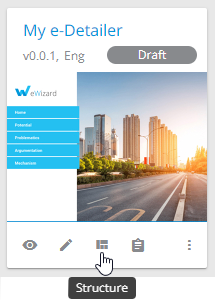
To go to Structure, click the corresponding icon on the item card:
In Structure, all slides are grouped into chapters:
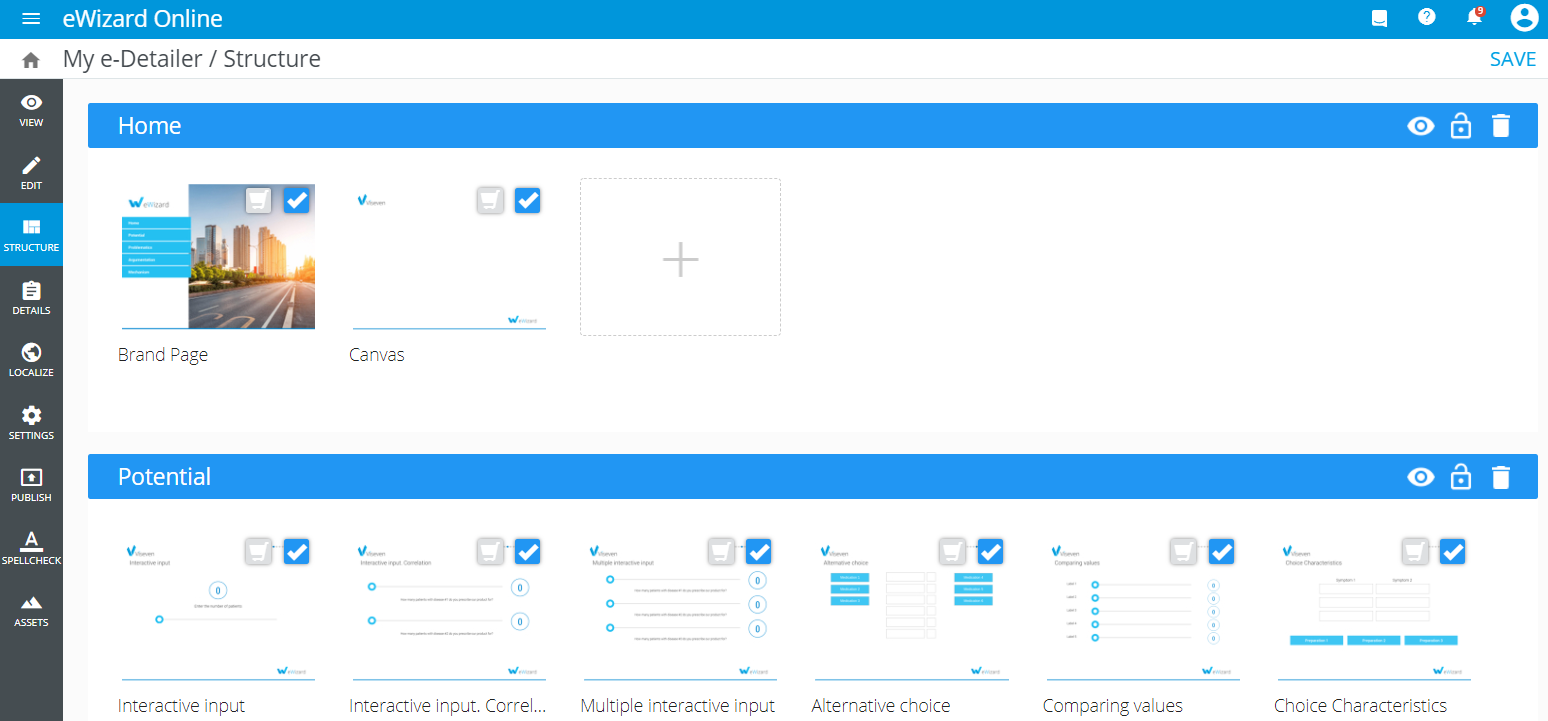
Each chapter ribbon contains the following options:
 – disables the chapter
 – locks the chapter
 – deletes the chapter
 – confirms deletion
 – cancels deletion
To add a new chapter, scroll down and click  . Then enter the name and click
  . You can find the new chapter at the bottom of the list.
To add a hidden chapter, go to the Hidden chapters section and perform the same steps.
The hidden chapters are not shown on the slide-by-slide swipes, they are only accessible by a specifically assigned action like a tap on the icon or down-swipe on the picture (selected in Actions).
To rename the chapter, click its name, enter a new one, and click  .
.
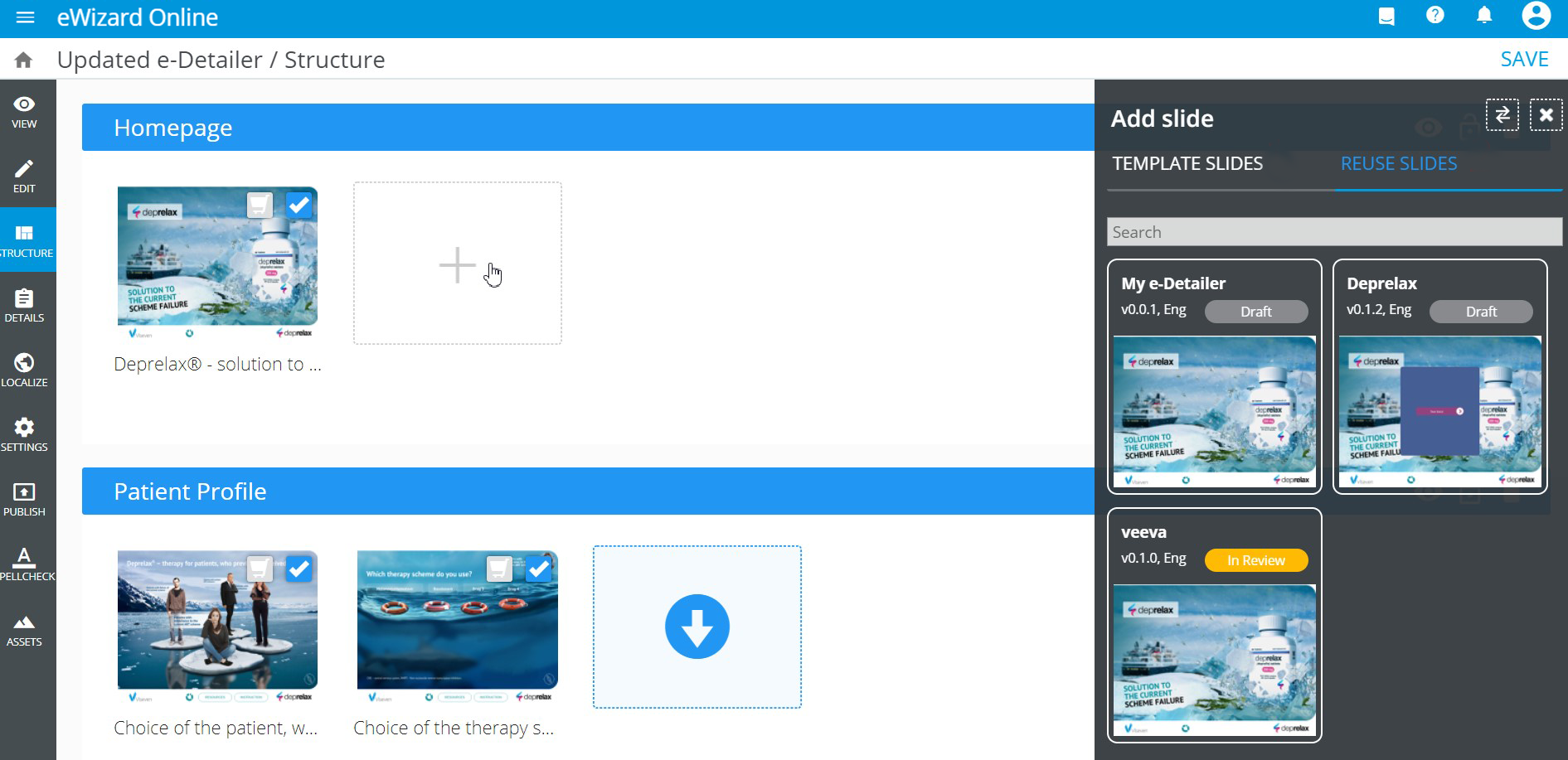
To add a new slide to the chapter:
Click the slide placeholder.
Select the required slide type: blank, template, or reuse.
Reuse slides are the slides from other e-Detailers in your Library based on the same template.
All slides are active by default (marked with  ). To deactivate the slide, clear its checkmark. The unchecked slides stay in the item structure but are not displayed in Viewer.
The slide toolbar allows you to do the following:
Go to Viewer
Go to Editor
Copy the slide
Delete the slide
Move the slide to the required chapter
Go to the
General stylestab in Editor.

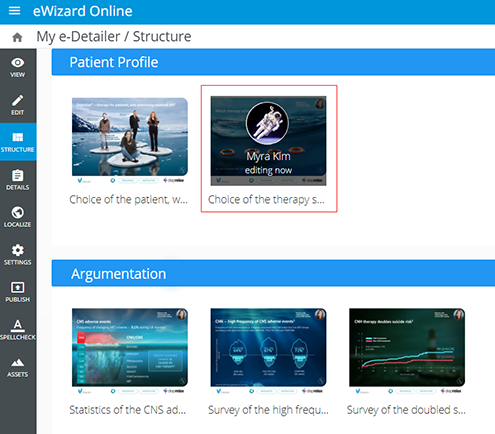
During collaborative editing, the slide is locked and so are the sections in the navigation sidebar: