Appearance
Item details
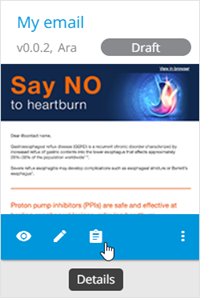
To view the item metadata, go to the Details page from the item card:
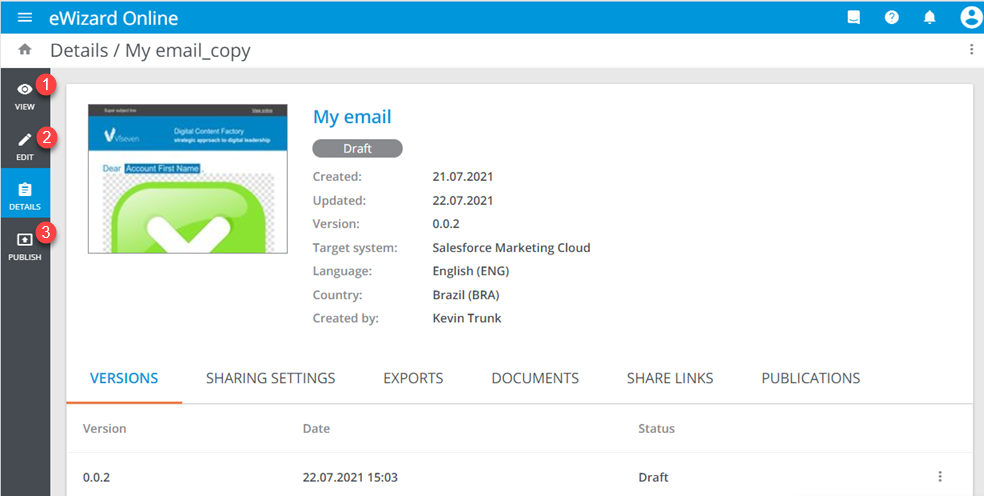
To view, edit, or publish the item, click the View [1], Edit [2], or Publish [3] tabs on the left panel:
Handle the item with its more options in the top right corner.
View all the item changes in versioning, sharing, share links, export operations, and publications on the dedicated tabs.
Versions
On the VERSIONS tab, you can find the list of all versioning changes of the item.
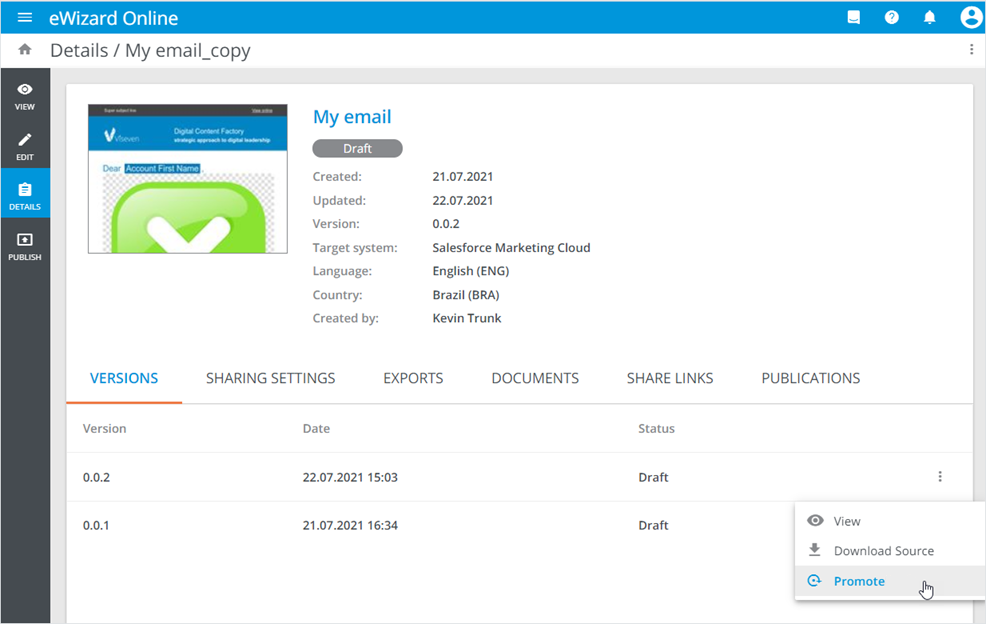
To view any item version or download its source, use the more options menu of the required item version record in the list. To turn any previous version into the item current version, click Promote:
Sharing settings
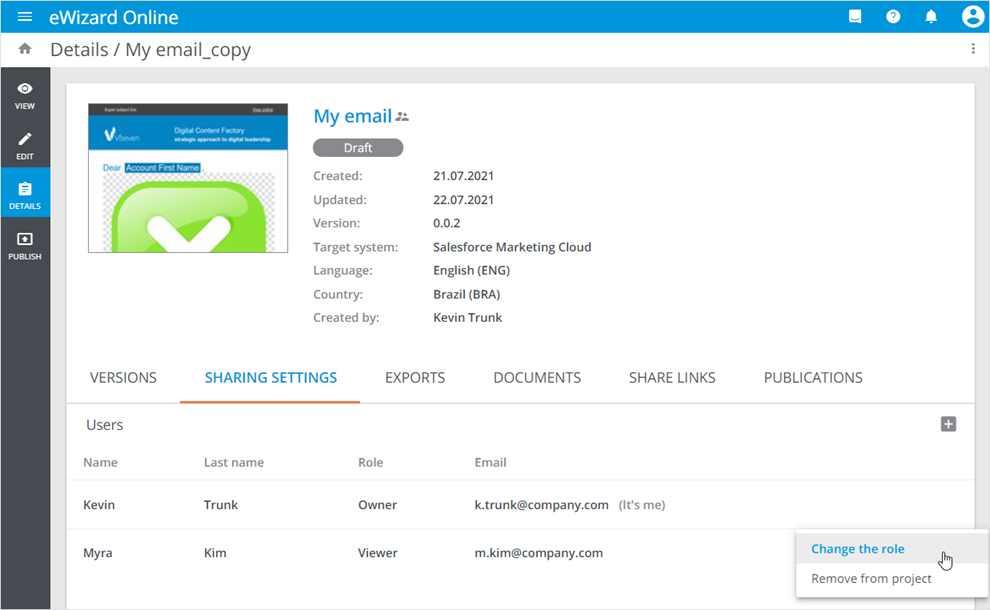
All the collaborators assigned to the current project are displayed on the SHARING SETTINGS tab. Right here, you can add collaborators with  and manage your project collaboration with more options:
Exports
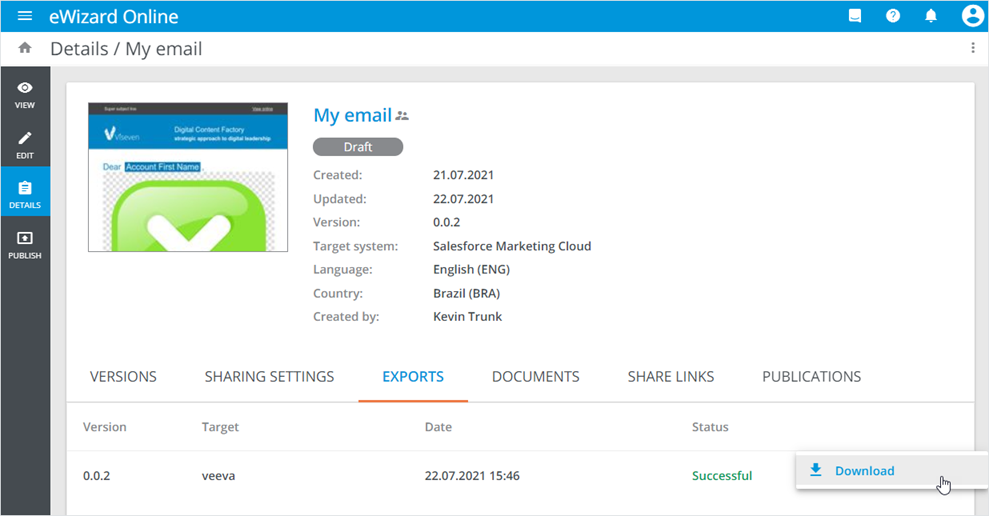
The EXPORTS and DOCUMENTS tabs contain your item export details. To save the resulting ZIP archive or generated document to your device, unfold its more options and click Download:
Share links
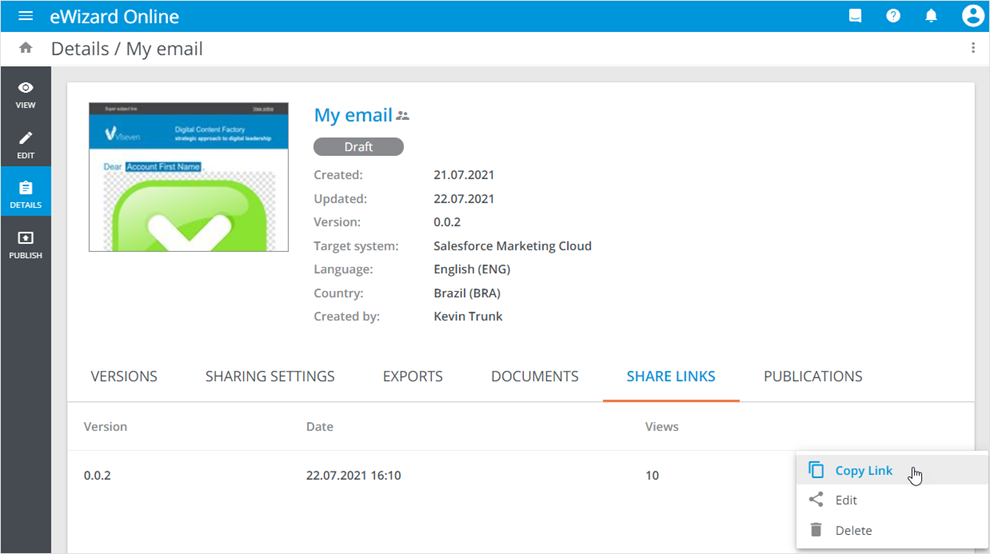
On the SHARE LINKS tab, you can find the share links to the item versions. Handle the share link with its more options menu:
| Option | Action |
|---|---|
Copy link | Copy the direct link to the item version |
Edit | Change the share link metadata in the Share link pop-up |
Delete | Remove the share link from the list |
Publications
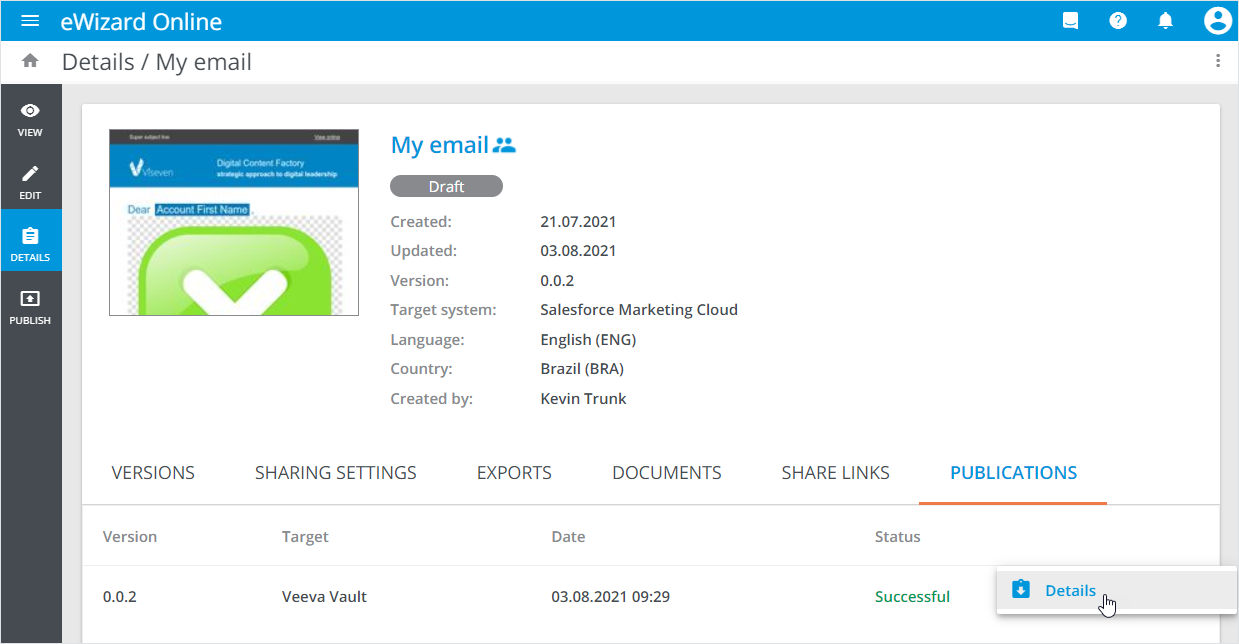
On the PUBLICATIONS tab, you can find the item publication history. To view the summary of the required item publication, unfold its more options and click Details: