Appearance
e-Detailer editor
To edit an e-Detailer, click  on its card.
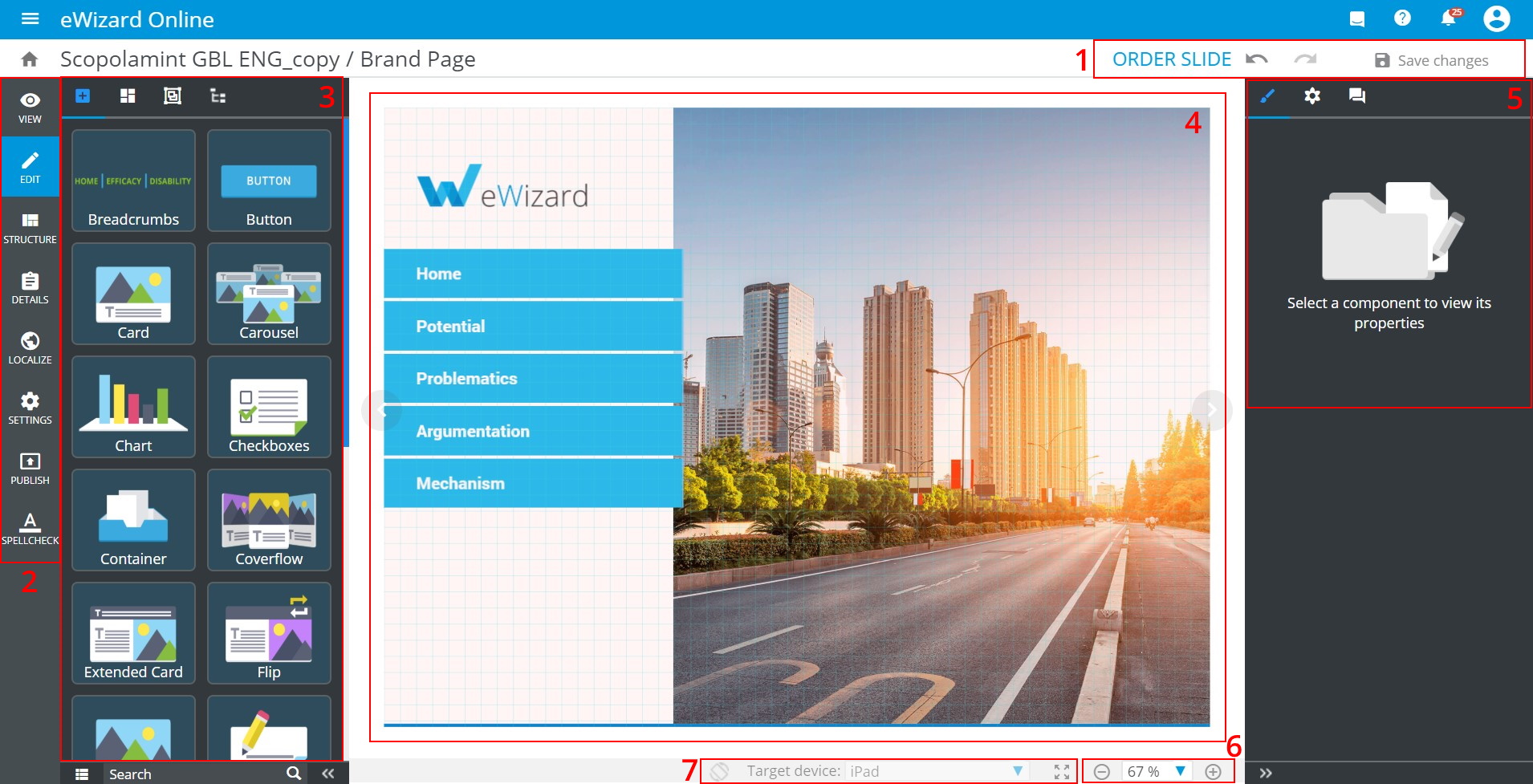
e-Detailer Editor contains the following areas:
The top options bar [1].
The navigation sidebar [2].
The components sidebar [3] that includes components, blocks and modules, and tree.
The e-Detailer layout [4].
The tools sidebar [5] with properties, general styles, and comments.
Scaling [6].
Autoscale and the target device preview [7].
Available collaborative simultaneous e-Detailer editing.
Spellcheck
To spellcheck the texts of your e-Detailer, follow the steps below:
Go to Editor.
Click the
Spellchecktab in the Editor left sidebar:
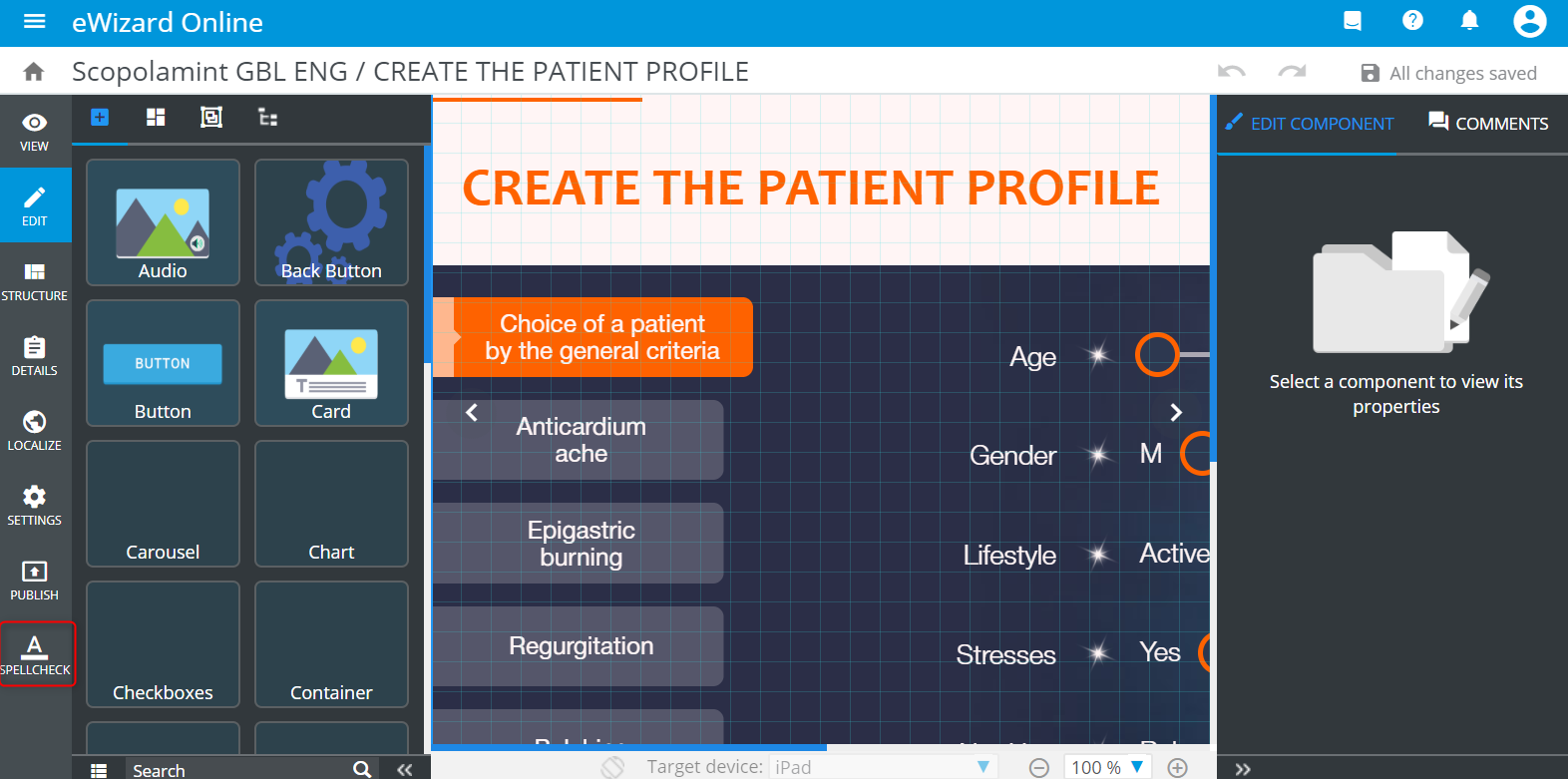
You are redirected to the Spellchecker page.
- Click the blue
Spellcheckin the top-right corner.
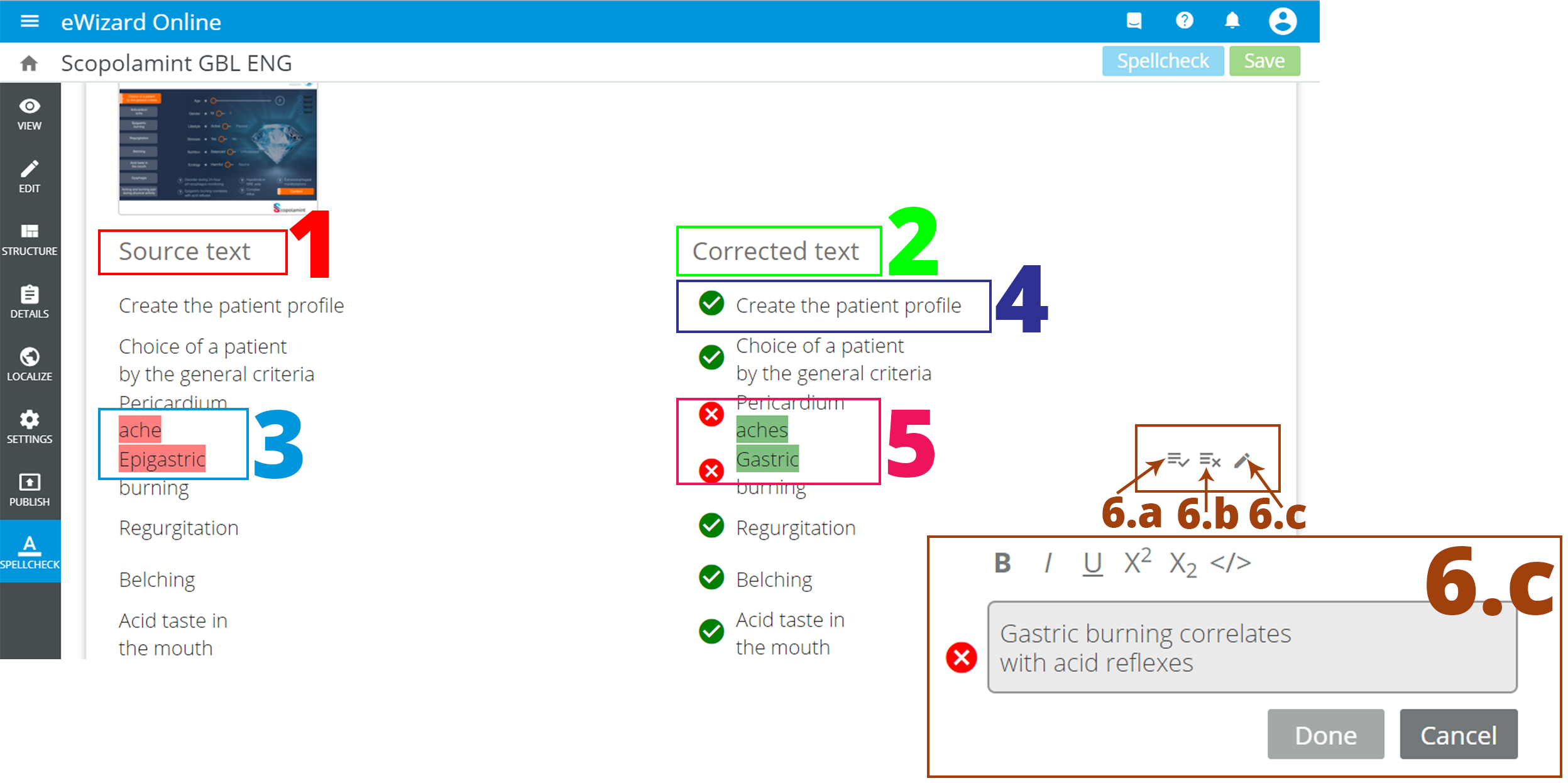
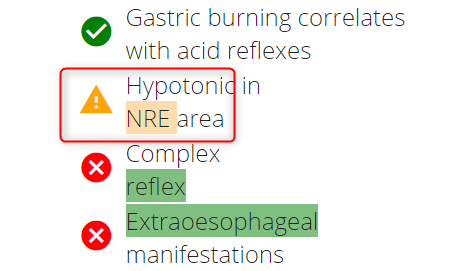
The spellchecker page displays all texts in two columns: The Source text [1] and the Corrected text [2]. The Source text column displays the probable misspelled words highlighted with red [3]. In the Corrected text column you can find the correct words with the green tick before them [4]. The suggestions for the misspelled words are highlighted with green. Also, these words feature the red cross icon in front of them [5].
Hover the mouse over the line's row. The text editing controls appear [6.a-6.c].
To apply the correction, click [6.a].
To decline the correction and leave the highlighted word as it was originally, click [6.b].
To edit the text manually, click [6.c].
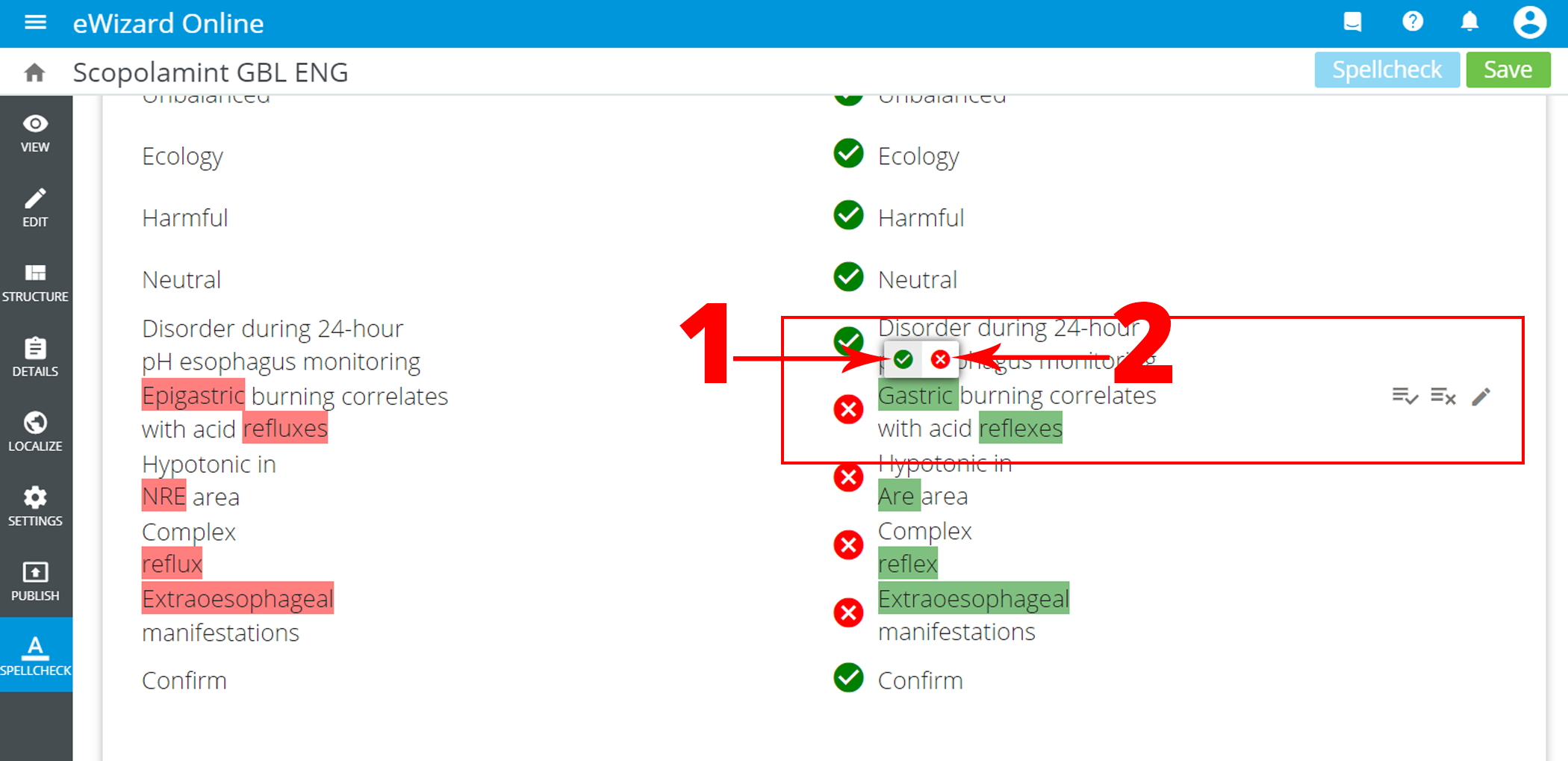
For quick correction, hover the mouse over the exact suggestion. Two controls appear above it: the green tick [1] and red cross [2].
Click the green tick to apply the suggestion. To leave the original word, click the red cross.
Words with original spelling (where you didn't apply the corrections) are tagged with the exclamation mark.
- Once you finish spellchecking, click the green
Savein the top-right corner.