Appearance
View
To open a presentation's preview:
Click the view icon
 on its thumbnail or in the
 DetailsorPublishsections.Click the
Viewoption in the left-side Navigation menu.
You will see the first slide:
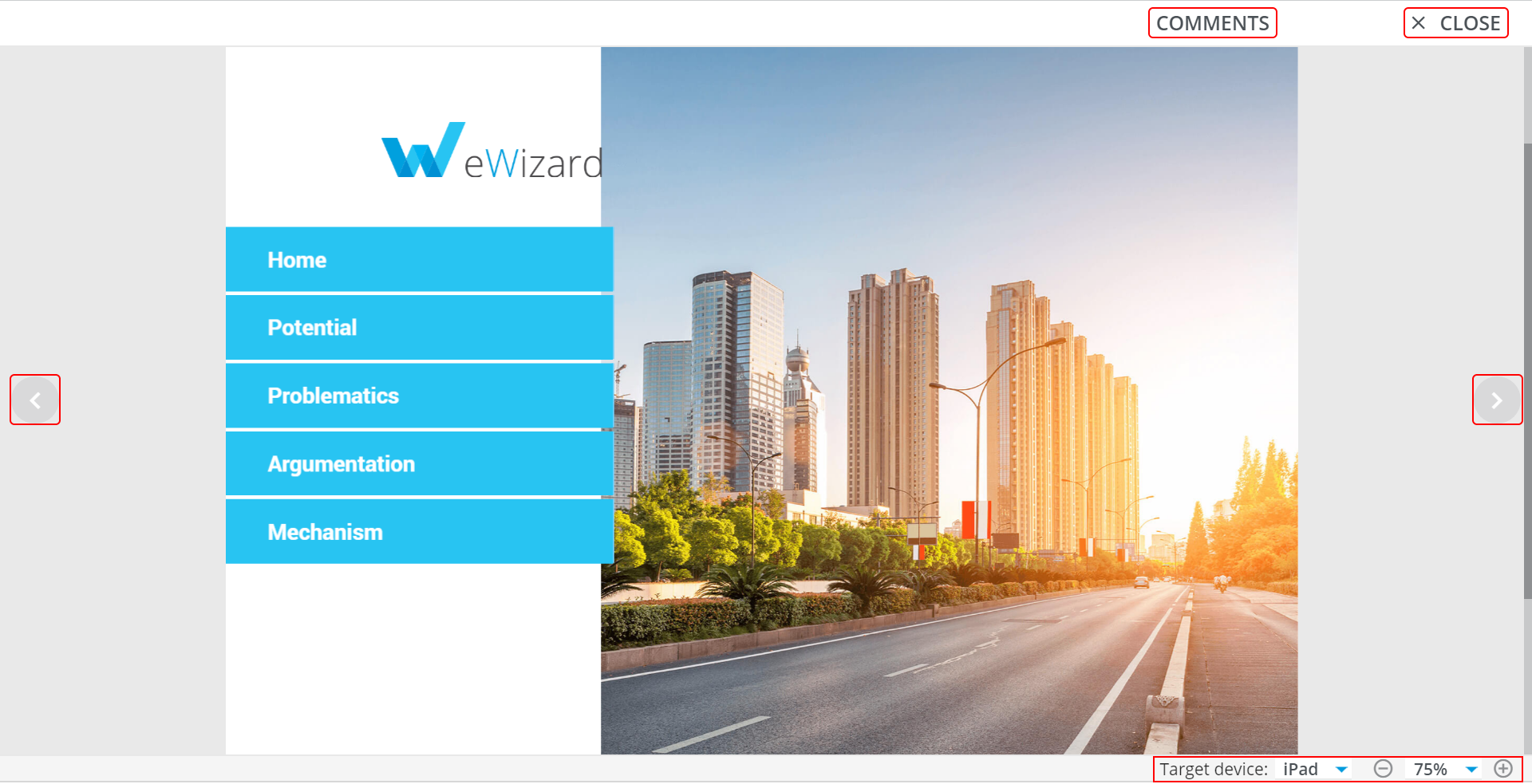
In the View mode there are some options available:
the layout switch (
 ) allows switching the preview to landscape/portrait orientation;
the
Target deviceselection allows viewing the presentation on different target devices;the scaling tool allows changing the scope;
the forward/back arrows allows navigation through the slides.
The presentation resolution can be changed only in the presentation Settings.
Comments
In the View mode, you can access the Comments section.
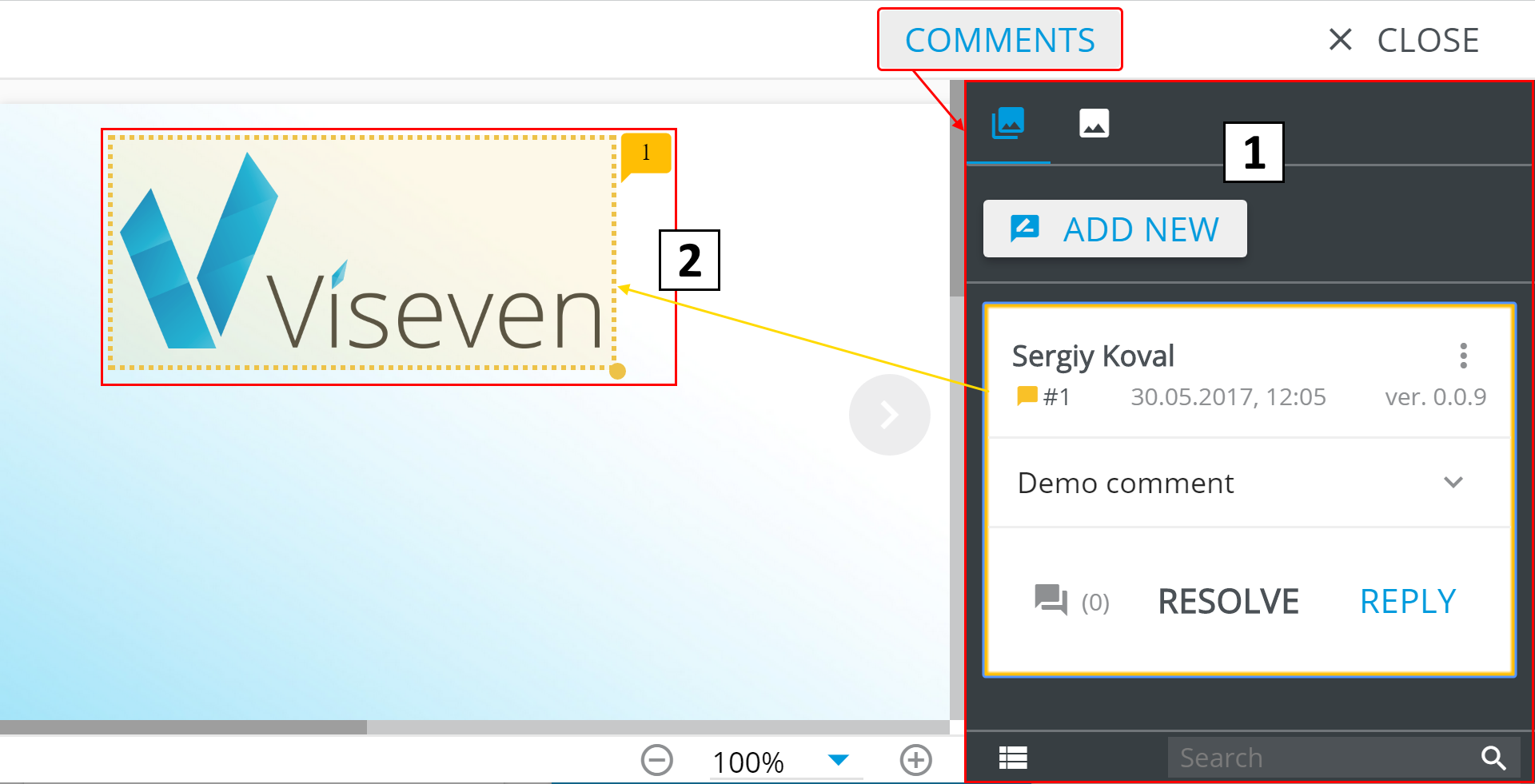
In the comments sidebar you can find:
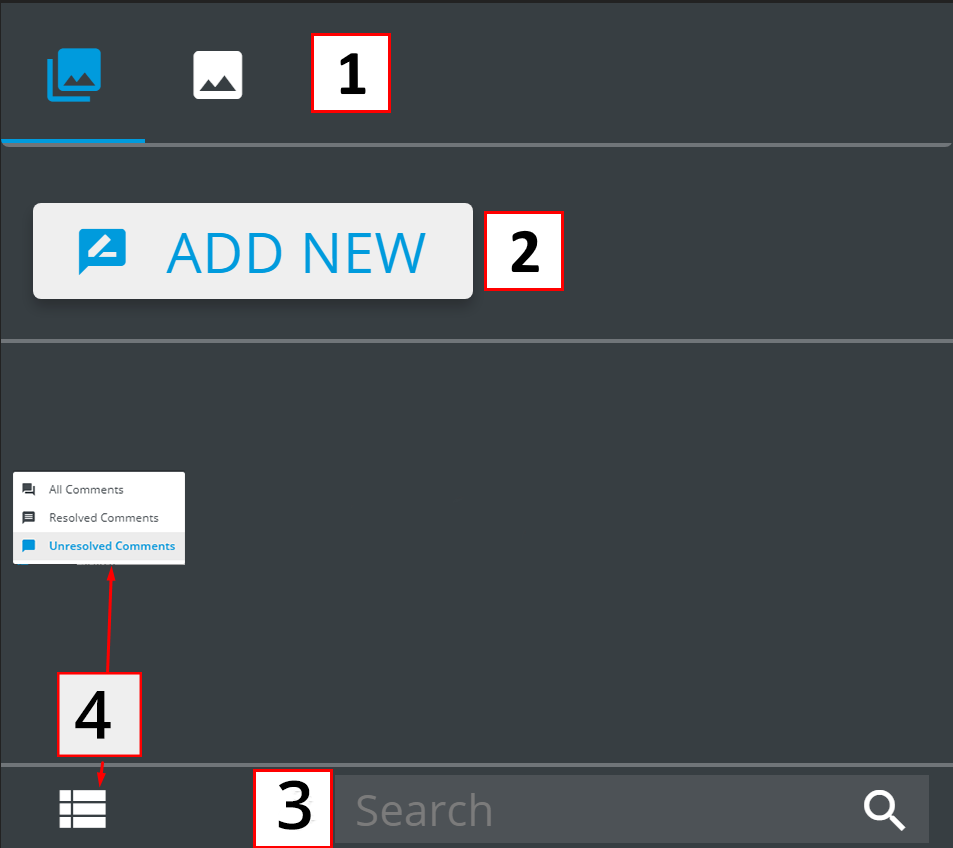
All comments ( ) /
) / Slide comments ( ) tabs (1).
 All comments shows all the comments added to the presentation's slides, while Slide comments shows the comments for the current slide only.
To comment to a slide, Click Add New (2).
In the Search field (3) you can search the specific comment, and the Filter menu (4) that allows filtering the comments displayed.
Slide area commenting
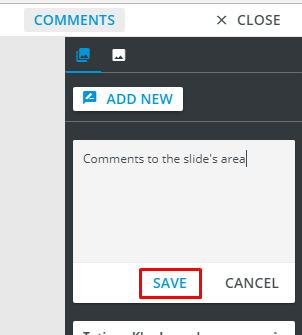
To comment the specific slide area:
- Enter the comment text.
- Click it. The yellow dashed rectangle will be displayed.
- Select the area you intend to comment.
- Click
Save.
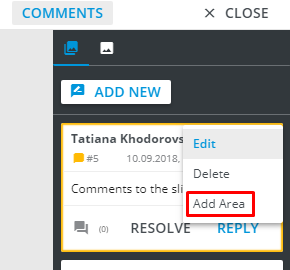
You can add the area to the comment via its More options:
- Unfold
More options. - Click
Add area. - Select the required area.
If the comment is replied, you will see the reply under the original comment:
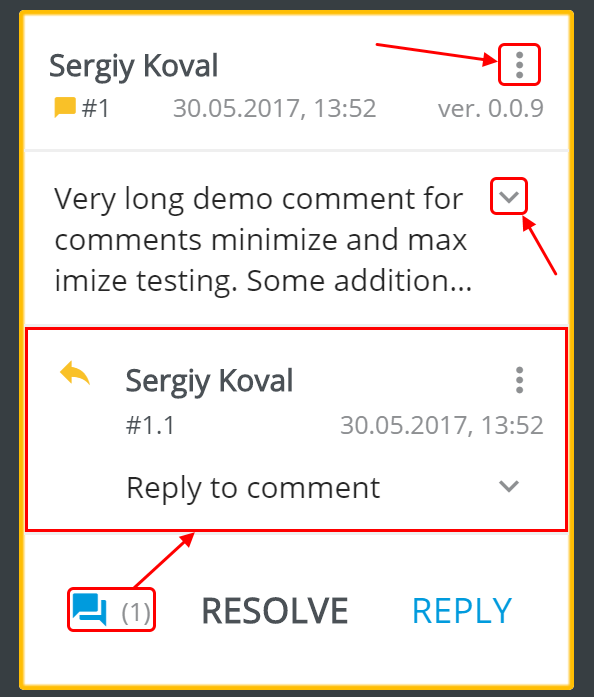
 button aside the comment expands its full text.
To add a reply to the comment, click Reply.
 button hides/opens the all replies of the comment, and the number near it indicates the number of replies to this comment.
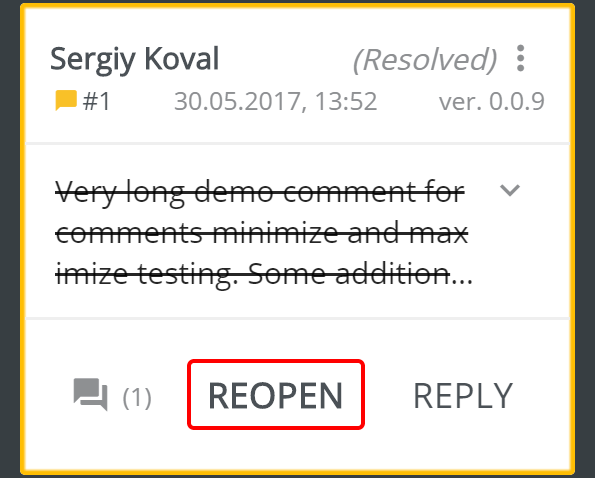
If a comment is no longer live, click Resolve.
You can Reopen it anytime.
More options
More options ( ) menu allows operating with comments or replies:
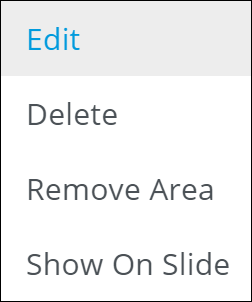
To make changes in the comment or the reply, click Edit.
Delete discards the comment/reply.
Add/Remove Area adds or removes the area related to the given comment (these options appear in More options menu by rotation, based on occurence of such an area on the slide).
Show On Slide redirects to the slide the comment is related to. This option is available only in the All comments tab and only for the comments not related to the current slide.