Appearance
Slide editing
To start editing an e-Detailer, click  on the required e-Detailer.
You can also open the edit mode from the navigation menu and from the Structure section.
The first slide in the presentation opens.
The slide editing interface looks as follows:
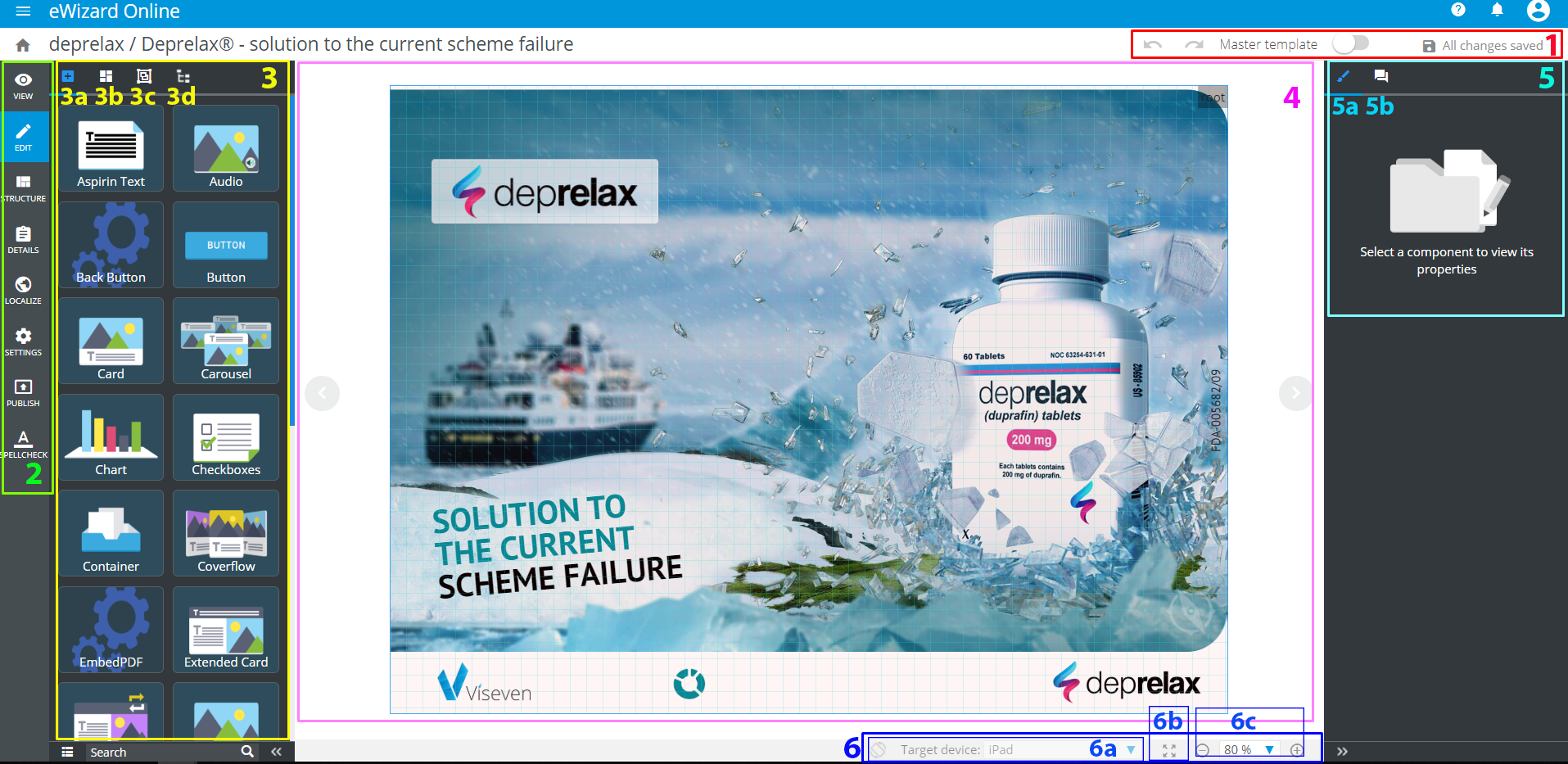
Its main areas are as follows:
- The editing controls [1] field with
Undo, Redo, Master templateswitch, andSave.
All changes are automatically saved every 4 seconds.
Undo ( ) the last action.
Redo ( ) repeats the change discarded.
Clicking Save or the session interruption leads to the presentation's version increment.
The navigation menu [2] provides quick navigation between the presentation management modes. The set of options in the Navigation menu depends on the presentation status.
The left sidebar [3] contains the following tabs:
Components[3a] (the list of elements that can be added to the slide).Blocks[3b] (the list of available blocks).Modules[3c] (the approved Veeva modules).Tree[3d] (the components of the slide).
The slide layout [4] provides quick navigation between neighboring slides via the arrows buttons (
 ) and allows rearranging the slide components via drag&drop.
The right sidebar [5] contains:
Edit Component[5a] (settings of the selected element).Comments[5b] (options of adding, replying to and deleting comments).
When commenting, you can highlight the area in question. The highlighting tool appears once you click Add New.
To comment the current slide, check the Slide comments box. To comment the whole e-Detailer, uncheck this box.
To view the areas that are commented, check the Show areas box.
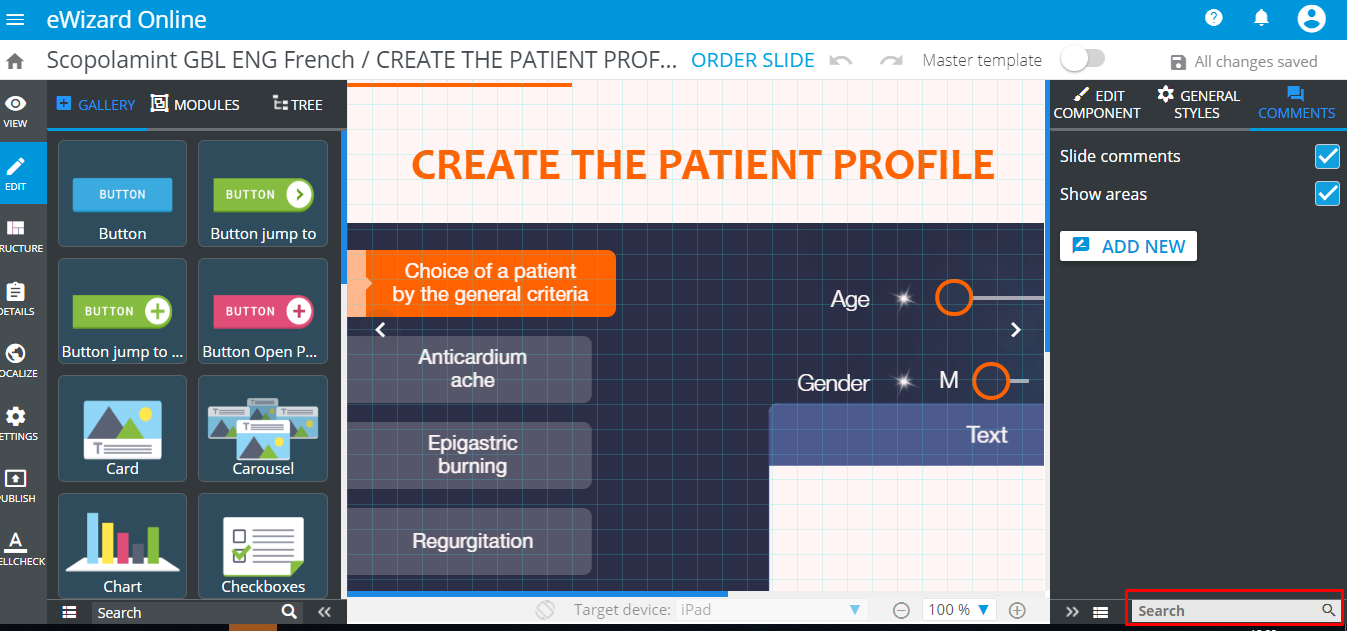
To find a comment, use the Search field at the sidebar bottom.
The settings of the slide layout area [6] contains:
The indication of a selected target device [6a].
The
Fit to screenbutton [6b].Scaling [6c].
You can change your target device (in the View mode) to see how the slide looks in different screen resolutions. Some modes allow orientation change ( ).
).
The permanent orientation and target device change is possible only via Settings.
When commenting an e-Detailer in Editor, the comments become available in the view mode as well.
 –
– My e-Detailers: Redirects to the e-Detailers gallery.
To hide a sidebar, use  at its bottom.
The components sidebar can contain way less components, than it is shown above. This is because certain templates can be adjusted to feature only the appropriate (for example, branded) components. When you need more components, than it is available by default, ask the administrator to enable the required ones.
General Styles
You can set one common style for the entire presentation to keep the original appearance through it. This keeps the consistency of text color, the background, buttons and other constant elements of your presentation throughout the slides.
Find General Styles here:
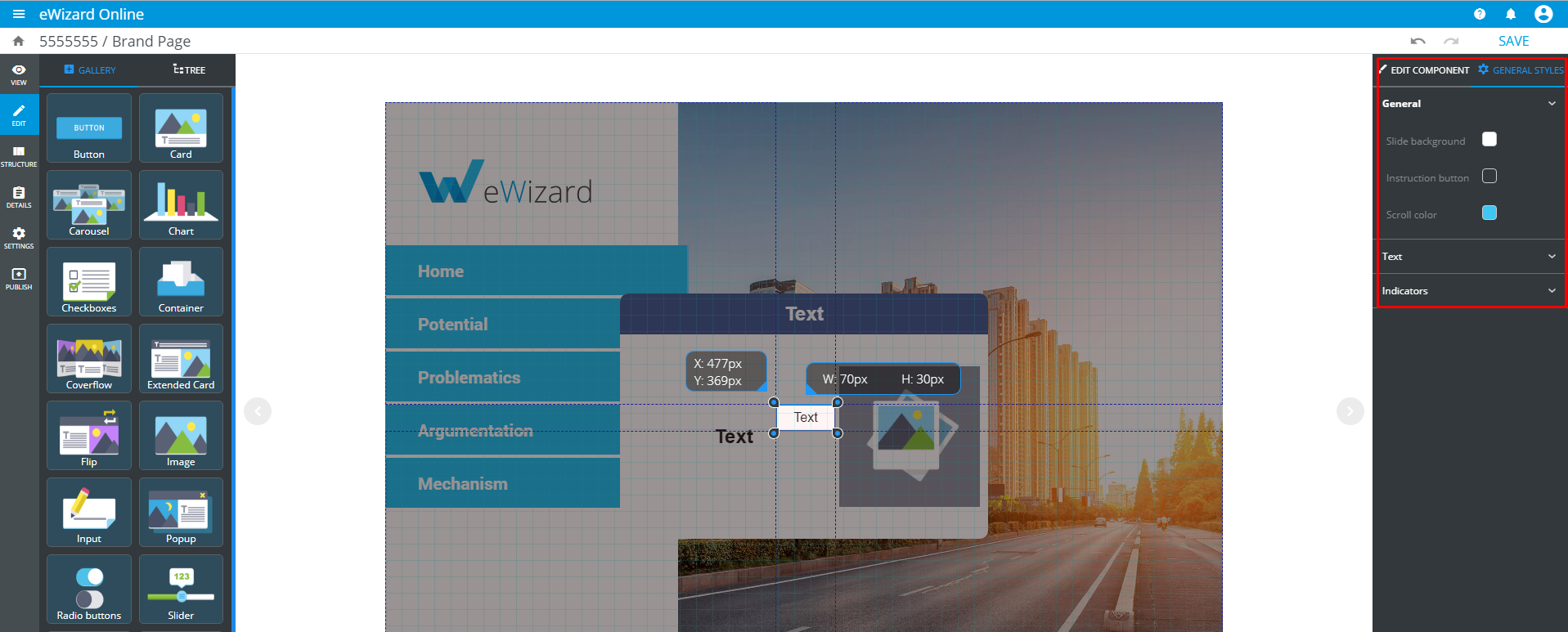
General dropdown contains the basic settings of your presentation: the slides background, instruction button's color, the scroll color, and the border color:
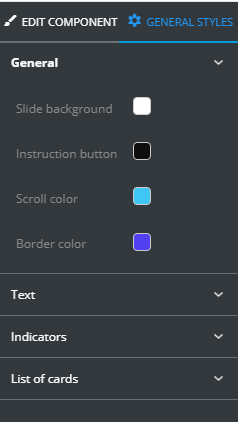
The Text dropdown allows changing the color of the text:

In the Indicators dropdown you can set their background color:

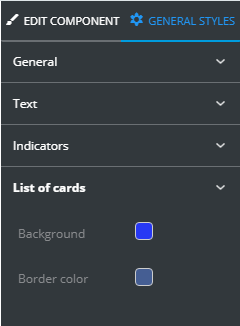
When adding some components to the slide, the extra dropdowns can appear in the General Styles menu:
Comments
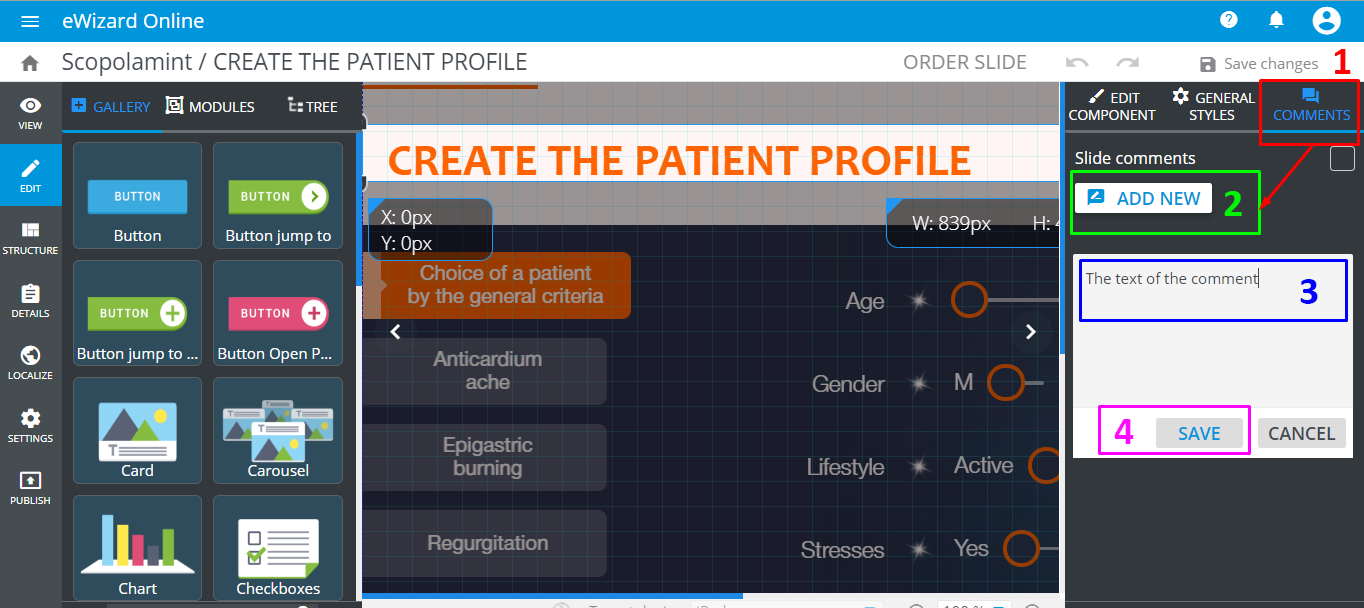
To add a comment to a slide in the editor, do the following:
Go to the
Commentstab [1].Click
ADD NEW[2].Enter the text of the comment [3].
Click
SAVE[4].
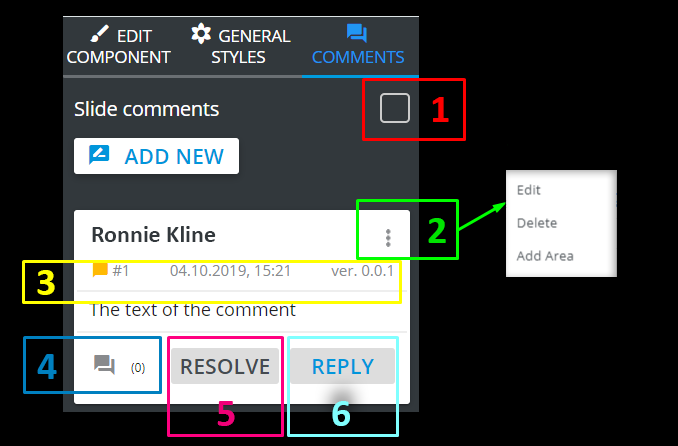
Here are all options available for the comments:
1 - check Slide comments to open the respective slide where the comment is added,
2 - unfold more options of the comment to edit, add the comment are or delete it,
3 - review the number, creation date, and version of the comment,
4 - show/hide all replies to the comment and see how much replies does it contain (the number in the brackets),
5 - resolve the comment,
6 - reply to the comment.
To find a specific comment, enter the keyword into a search field:
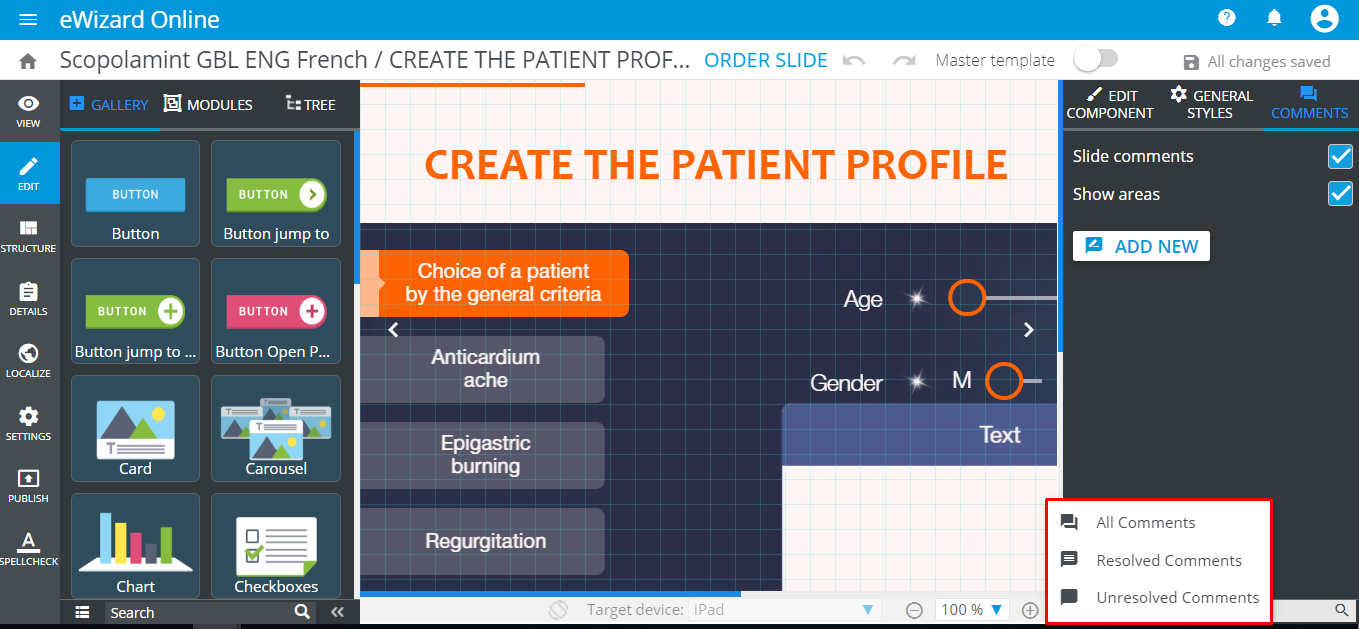
You can also filter comments. To do so:
Click
 .
.Select the required parameter:
Veeva Vault assets
To view the Veeva Vault assets used in your e-Detailer and to check their relevance, follow the steps below:
Go to Editor.
Click the
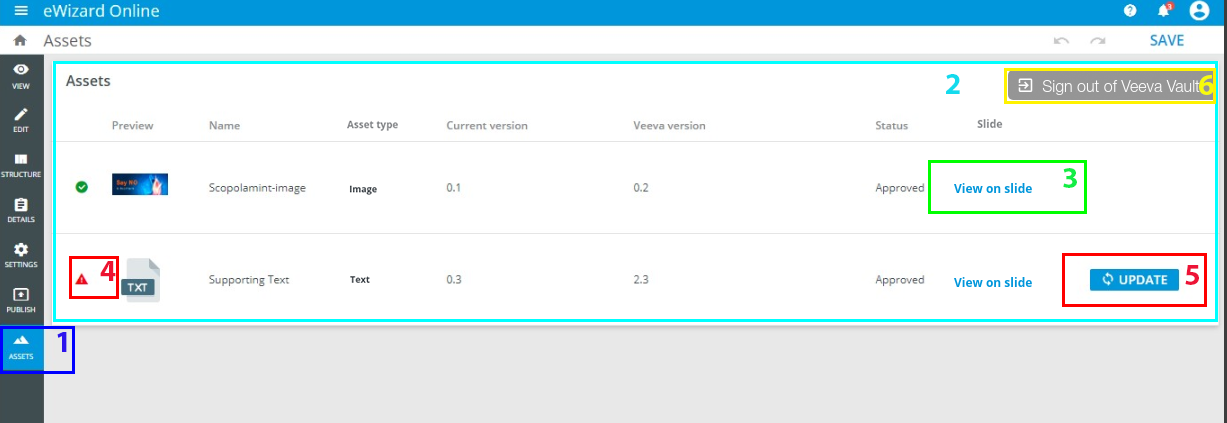
Assetstab in the Editor left bar [1].Log in to
Veeva Vault.
You're redirected to the Assets page displaying the log of all assets used in this e-Detailer [2]. Aside from viewing the asset thumbnail and name, you can get acquainted with:
Asset type (image, text or module).
Asset's current version.
Asset's version in Veeva Vault.
Asset's status in Veeva Vault.
The
View on slide[3] link.
Clicking this link redirects you to the slide containing the selected asset.
Assets marked with the triangle [4] are outdated in Veeva Vault. You can replace these assets with valid by clicking the Update button [5].
Once the status of an asset or its version in Veeva Vault was changed, the Update button is activated for text and image. It is not applicable to modules.
To log in to Veeva Vault with different credentials, click Sign out of Veeva Vault [6].