Appearance
Interface overview
Once signed in to eWizard Classic, you can find the following home page:
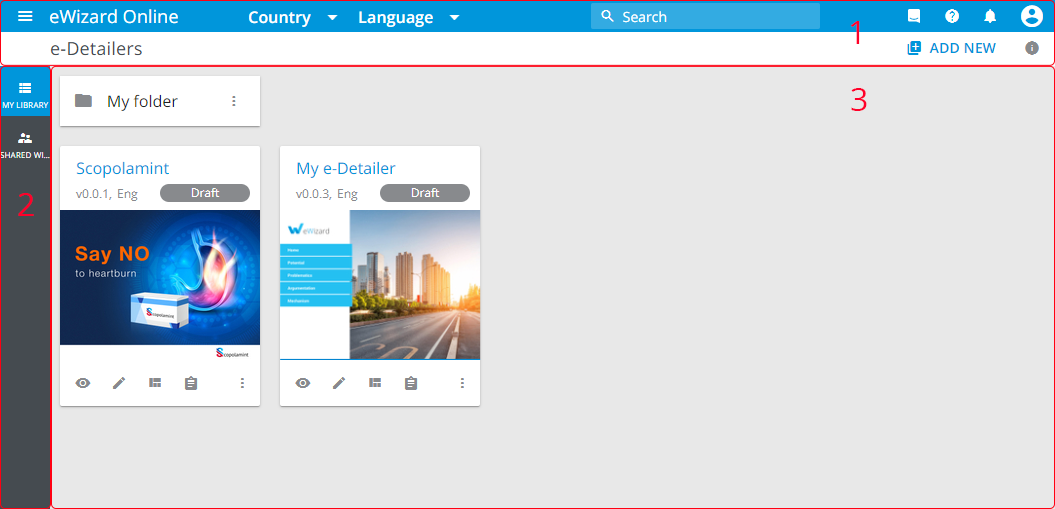
The interface consists of three main sections.
[1] The top panel, including:
 – the main menu button;
 – item filtering menus to focus on the required content;
Emails
For emails / fragments additional email type filtering menu is available on this panel.
 – the search field to find the required item faster;
 – the live chat service button;
The live chat has access to the eWizard knowledge base articles, i.e. providing you with the answer or the link to the information you need. Also, you can read the corresponding user guide article directly in the chat.
 – the Help menu (
User guide, Knowledge base, Service desk);
 – the notifications button;
 – your profile menu;
 – the item creation drop-down button;
 – the info button to display the selected item details.
[2] The navigation bar that comprises the Library spaces available for the currently open content section.
[3] The main area, where eWizard items of the defined type are displayed.
Main menu
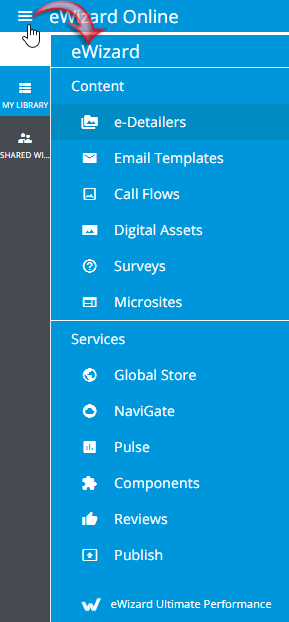
The main menu allows you to go to the following sections:
Item card
Once the item is created, it appears in your Library within the corresponding content type section:
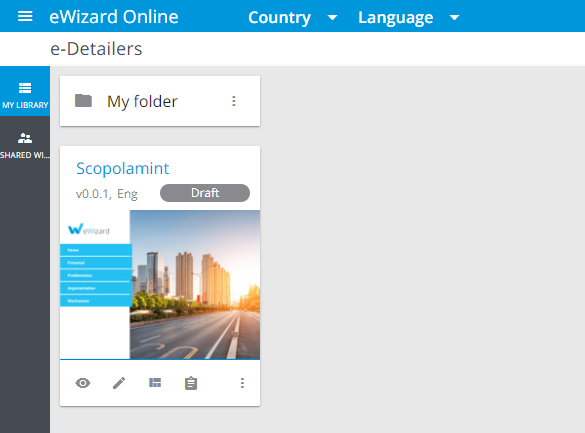
Each card features the item preview and the following elements:
| Click | Result |
|---|---|
 | item status |
 | item version and language |
 | item options |
 | item more options |