Appearance
References and design
References and Design provide the additional information on the text content of your e-Detailer. When you add these components to the layout, they appear under the corresponding tabs:
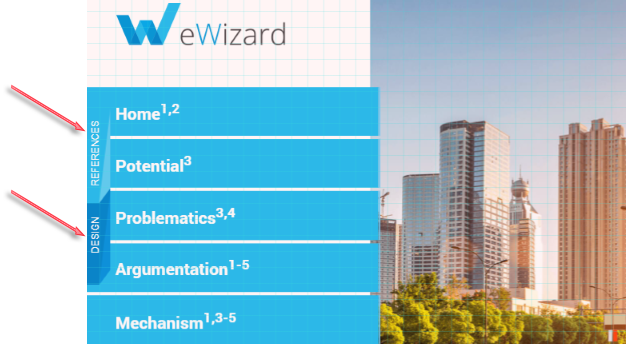
Each slide contains a list of references and design records attached to the text components on this slide:
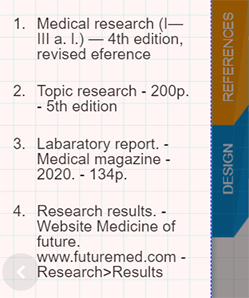
Available only for default templates.
References
To support the information provided in your e-Detailer with reference sources, you can create a list of references and attach them to the required text components.
So, one text component can contain any number of references as well as one reference can be attached to several text components.
If you edit or delete the reference on one slide, the changes automatically affect all slides containing this reference.
To arrange your reference list, follow the steps below:
Select the text component on the layout.
Click
 and unfold
 Properties.Click
R:
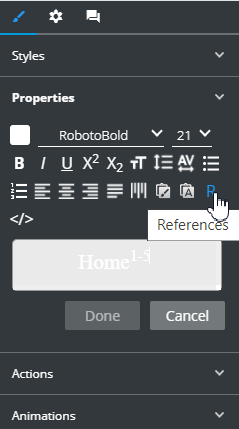
Inline editing also supports this feature.
- Activate the
Referencessection with the checkbox in the pop-up that appears:
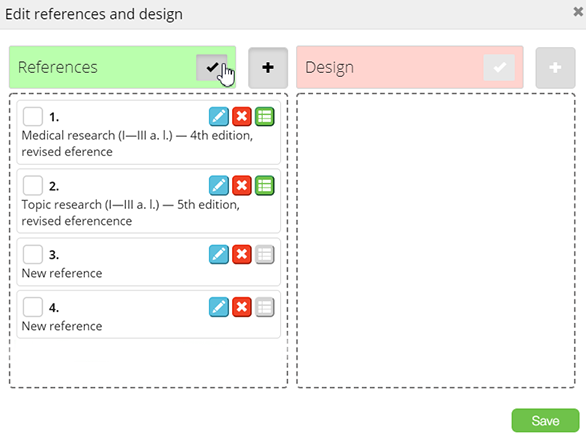
- Create the list of references, using the following buttons:
 – to add the reference.
 – to edit the reference text.
 – to delete the record.
 – to view the list of slides with a specific reference.
Add the reference to the layout by selecting its checkbox in the
Edit references and designpop-up.Click
Saveto apply your changes.Click
Donein the text editor.
The text component with the references now contains superscript figures indicating reference numbers in the list:
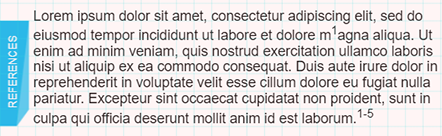
Please note that when you move references in the list, their numerical order is updated automatically as well.
Reference properties
Available for e-Detailers in master template
Under the Tree tab, you can find the following references models and customize their properties:
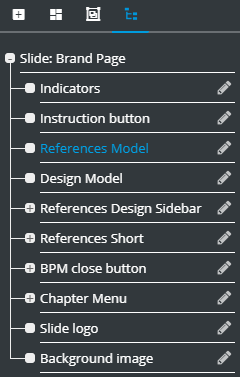
References modelallows you to set enumeration parameters:
The checked
Absolutebox orders the numbers over the whole e-Detailer. Uncheck it to order the numbers over the individual slide only.Splitterseparates the numbers.Group indexesorganizes the successive numbers.
The numbers are added to the text as a superscript automatically.
References design sidebar: references output with customizable font size, font color, and animation.References short: short references output with customizable font size, font color, and alignment.
Each module can be moved and resized like any regular component.
Design
On the Design tab, you can enter the required information to complement the text on the slide.
The information on the Design tab is applied to the entire slide. All the Design texts must be assigned to the same text element.
To add the text on the Design tab, do the following:
Open the slide in Editor.
Remove all extra components that contain texts (like pop-ups, buttons, etc.) from the slides where you're attaching the designs.
Unfold the Tree tab.
Click
Text.Activate the text editor:
- Unfold Edit component →
Propertieson the tool panel,
OR
- Double-click the text field on the slide.
- Click
Rto enter theReferences and designedit field:
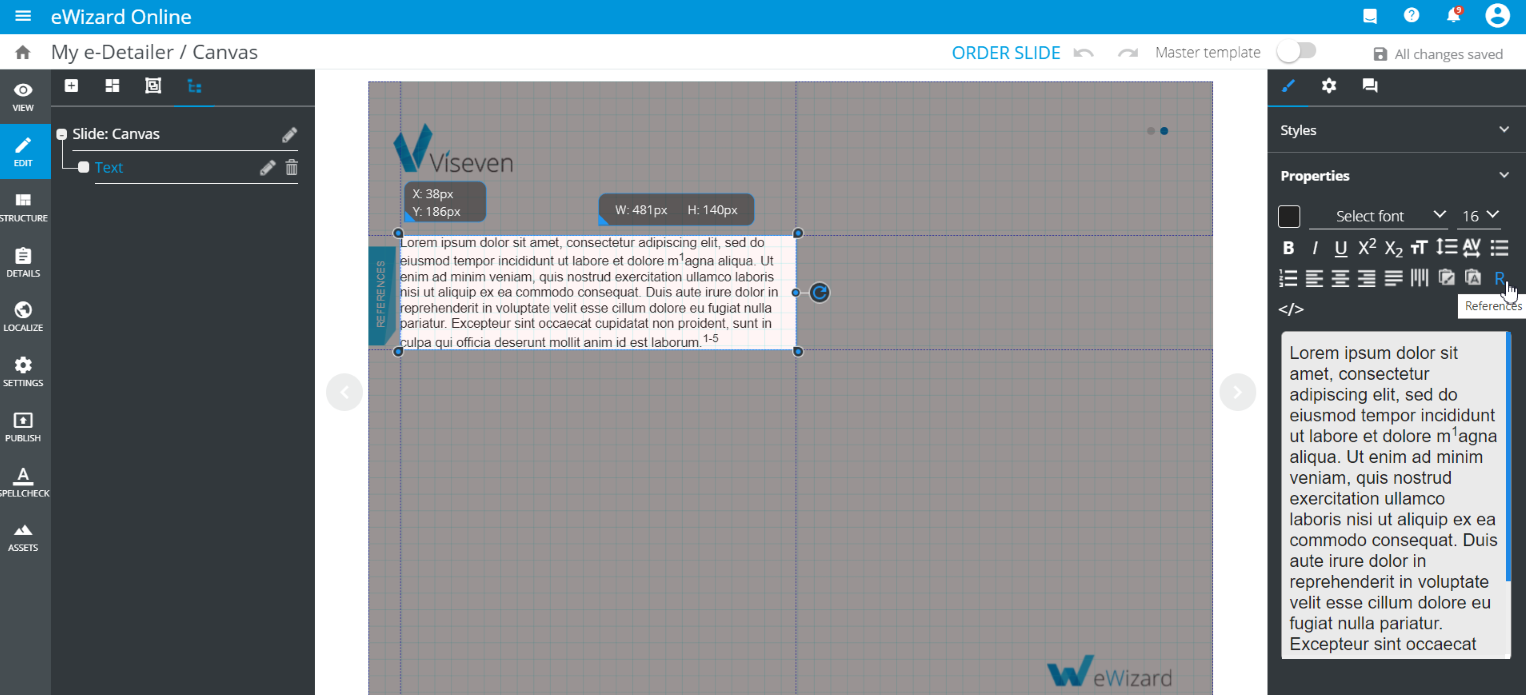
- Create your
Designlist following the steps below:
Select the checkbox on the
Designtab.Click
to add a new design.Click
to edit the design text.Click
to delete the record.Select the new
Designbox to enable it.
- Click
Saveto apply your changes.
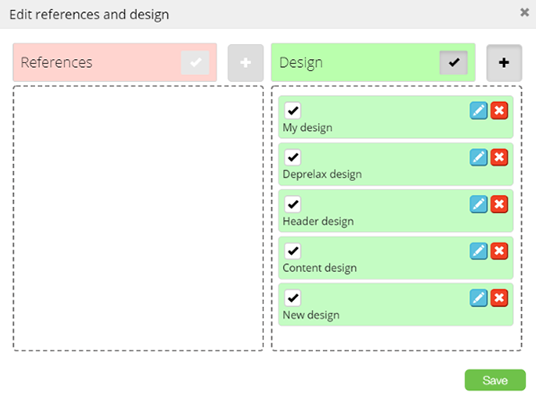
- Click
Donein the text editor.
You might need to reload the page to see the changes on the tab.