Appearance
Veeva Vault (PDF)
You can send your eWizard emails and email fragments to Veeva Vault for approval. The resulting PDF document in Veeva Vault contains all the required metadata and linked assets.
To publish your item to Veeva Vault as PDF:
Perform the common steps first.
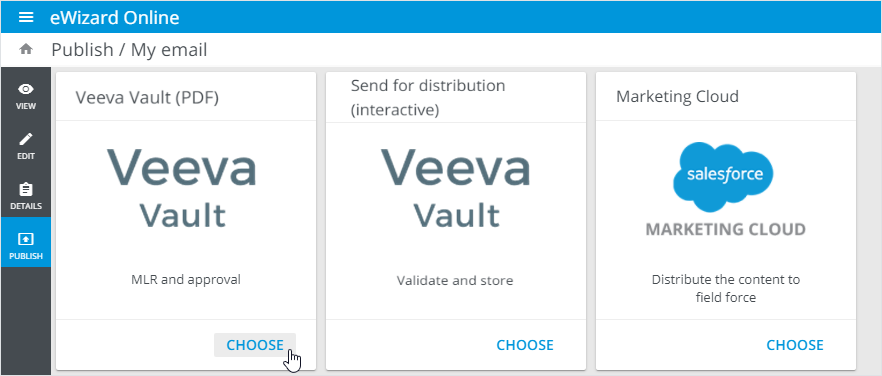
Choose
Veeva Vault (PDF)on the target system selection page.
- to your Veeva Vault account and select the environment in the pop-up that appears.
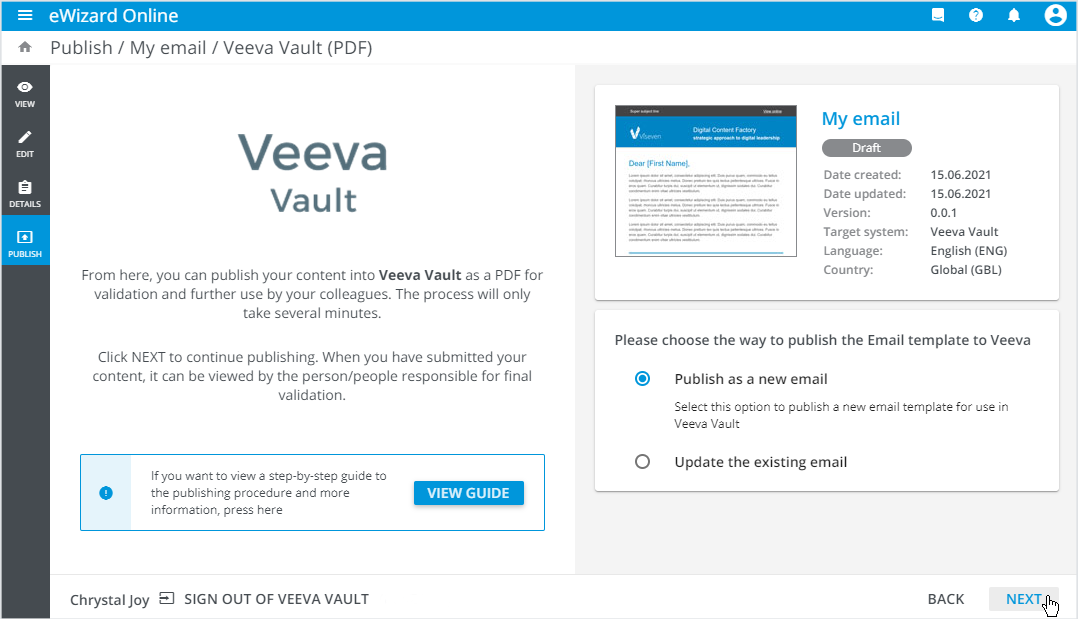
The publishing preparation page opens.
- Select to
Publish as a new emailor .
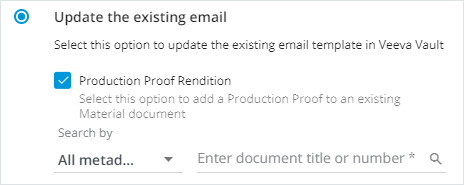
To add your item as a Production proof to an existing Veeva Vault document, select the Production proof rendition checkbox. In this case, you can't change the metadata of the existing document. Your item serves as a reference. Once published, you can find your item under the Renditions section in Veeva Vault.
Click
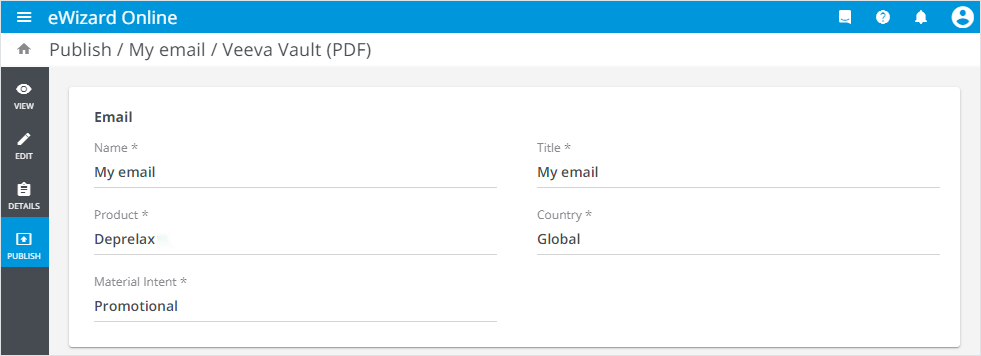
NEXT.Fill in the required metadata fields.
If your email contains modules, you can find them all on the Tracking modules page.
To publish the required module, select the checkbox next to it. Then, fill in the metadata fields and select the Core message ID to track this module in the target system.
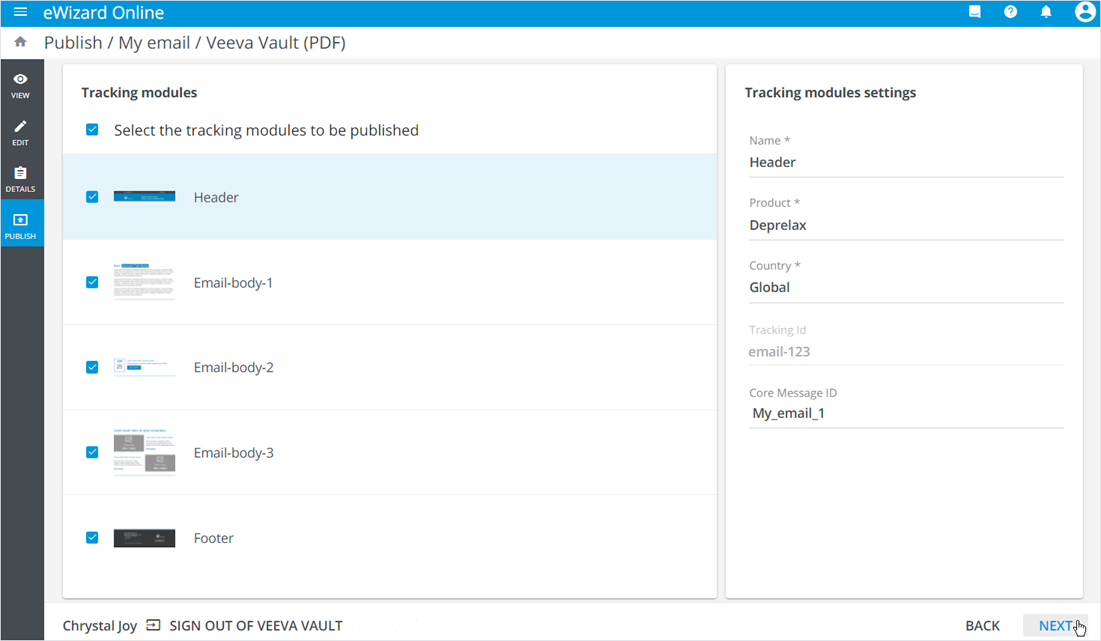
Click
NEXT.Check the publishing summary and click
PUBLISH.
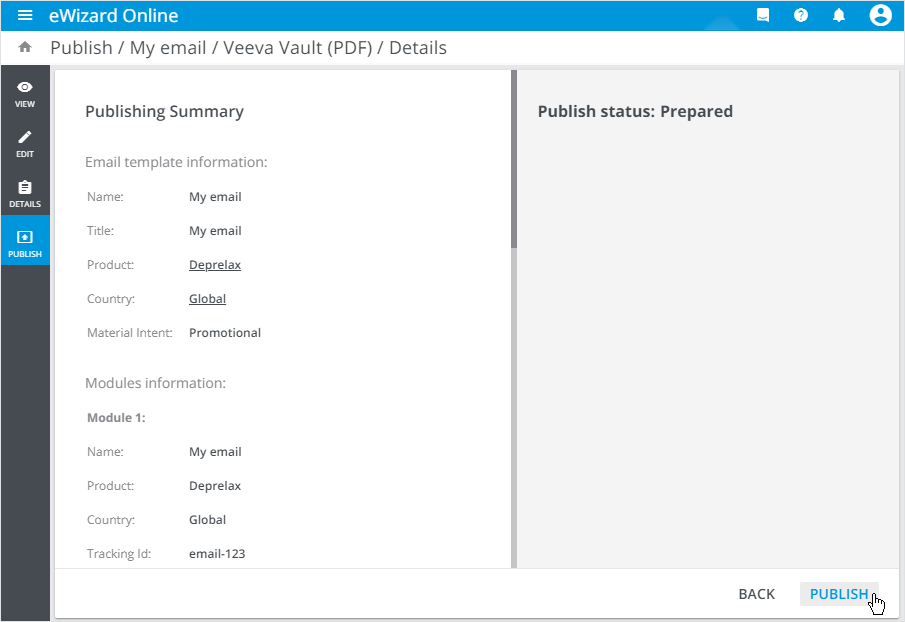
Once the publishing is complete:
Click
Show in Veeva Vaultto open the published item in Veeva Vault.Follow the link to the published item in the follow-up notification email.
Upon successful publication, you can find your published modules on the Modules tab under the General information bar in Veeva Vault. The modules are in the Draft status. Now, you can collect the data about these modules.
When you update the email to the new version, all the related modules are updated as well. Also, the modules' IDs are generated for each new version.