Appearance
Device simulator
You can check out how your email or email fragment is displayed on various devices and in email clients with the Simulate option.
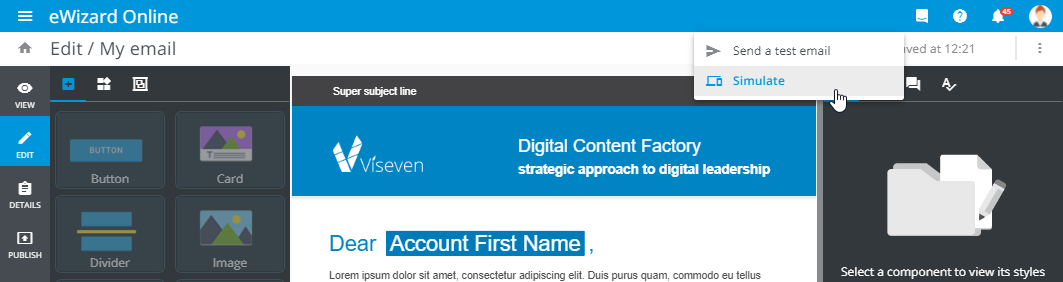
To simulate email rendering, do the following:
Click
 on the email or email fragment card to open Editor.
On the top options panel, click
TESTand selectSimulate:
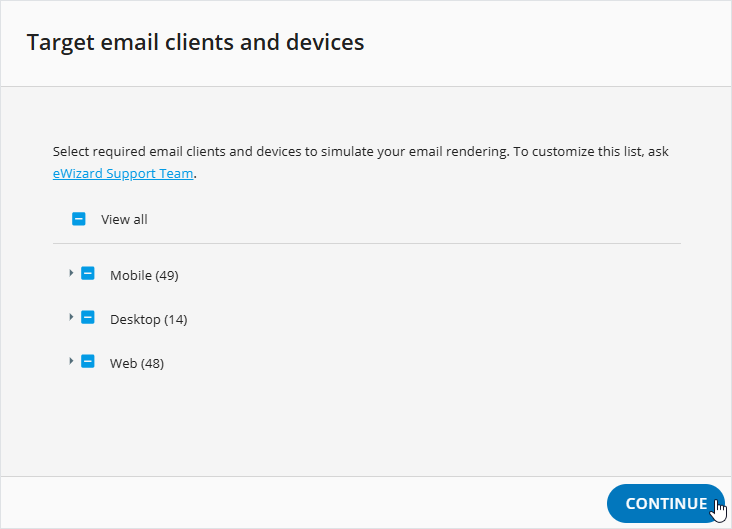
When you use Device simulator for the first time, the Target email clients and devices pops up. By default, all available devices and email clients are selected. To narrow the list, you can clear the unnecessary boxes.
- Click
CONTINUE:
Every next simulation involves the previously selected email clients and devices. To choose other options for email rendering, launch the Target email clients and devices pop-up. For this, click  on the top panel.
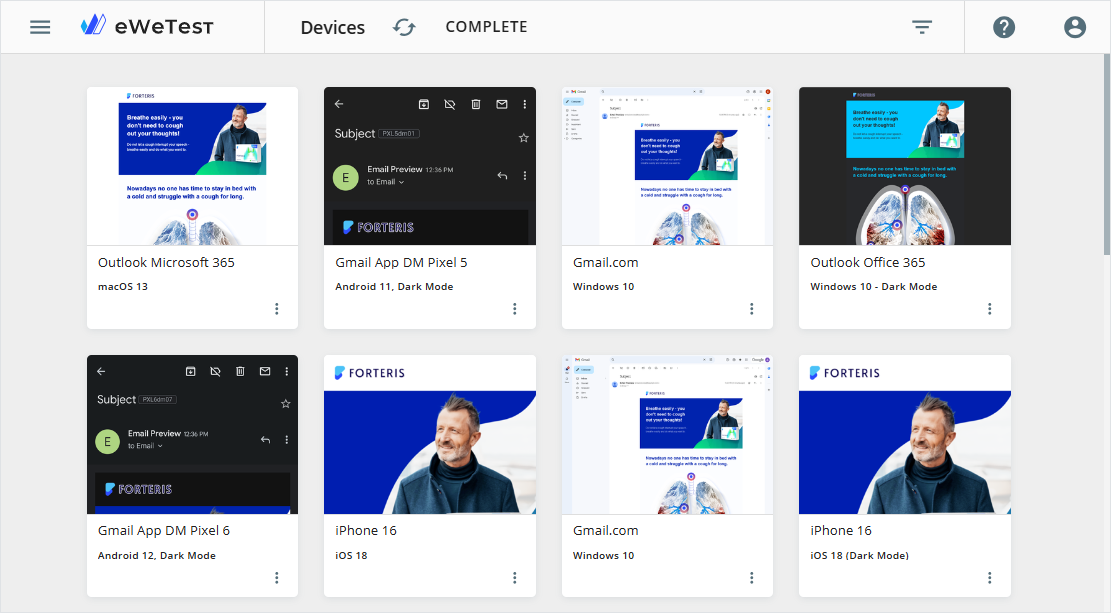
Device simulator starts generating cards in the RUNNING status. Having reached 100%, Device simulator displays the resulting cards. The simulation status changes to SUCCESS:
If the simulation process fails, click  to re-run Simulator.
Use the controls on the top panel to do the following:
| Control | Action |
|---|---|
| Refresh the display of email cards |
| Open the pop-up for the email client and device selection |
 | Check the simulation status log |
Every email card features its more options. Use them to control the individual card:
| Control | Action | Note |
|---|---|---|
 | Open the item in Viewer | Viewer also opens when you double-click the email card |
| Refresh the email card display | Device simulator re-runs for this card only |
 | Hide the email card | The associated device or email client won't be shown in future simulations until you check it again on the Target email clients and devices pop-up |
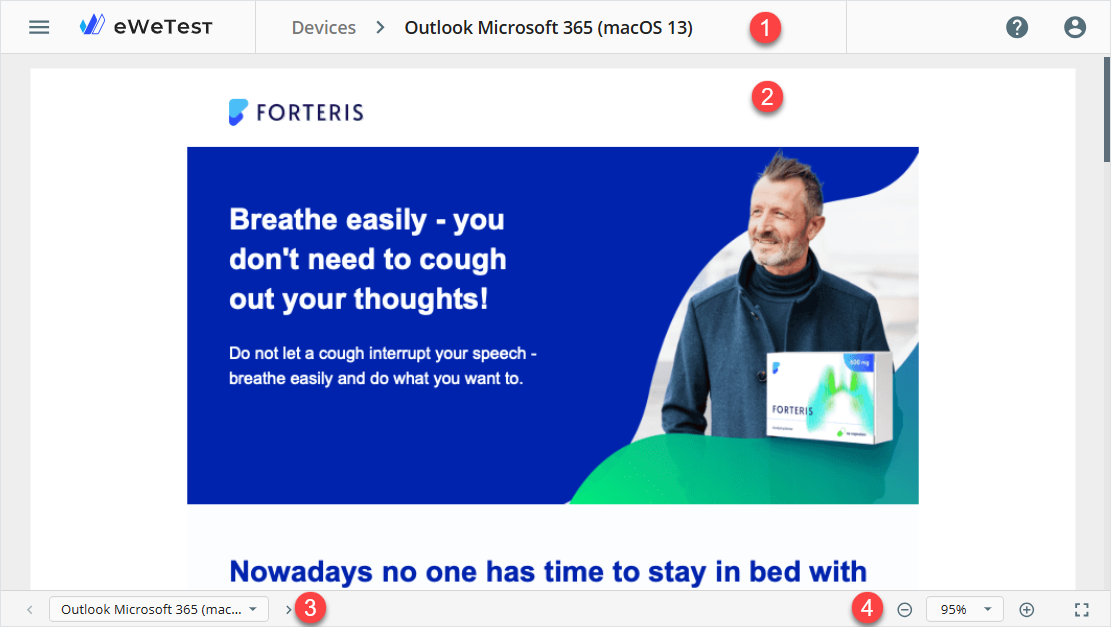
The processed item Viewer consists of the following areas:
[1]: The top panel with the current device or email client details
[2]: The simulated item preview
[3]: The controls for navigation between devices and email clients
[4]: The scaling and fullscreen mode buttons