Appearance
April 2024
Centralized tagging solution
Configuration required
Meet Centralized tagging solution—a dedicated service designed to streamline content tagging with strategic metadata. Managing content across multiple systems can be challenging, leading to inefficiencies and inconsistencies. This centralized approach provides visibility into the tagging process, making tracking progress and managing tags easier.
The eWizard service allows you to tag several structural elements separately and in bulk with the required number of metadata sets and key messages. You can also save the tagging progress and create a copy of the tagged content item to rationalize tag changes.
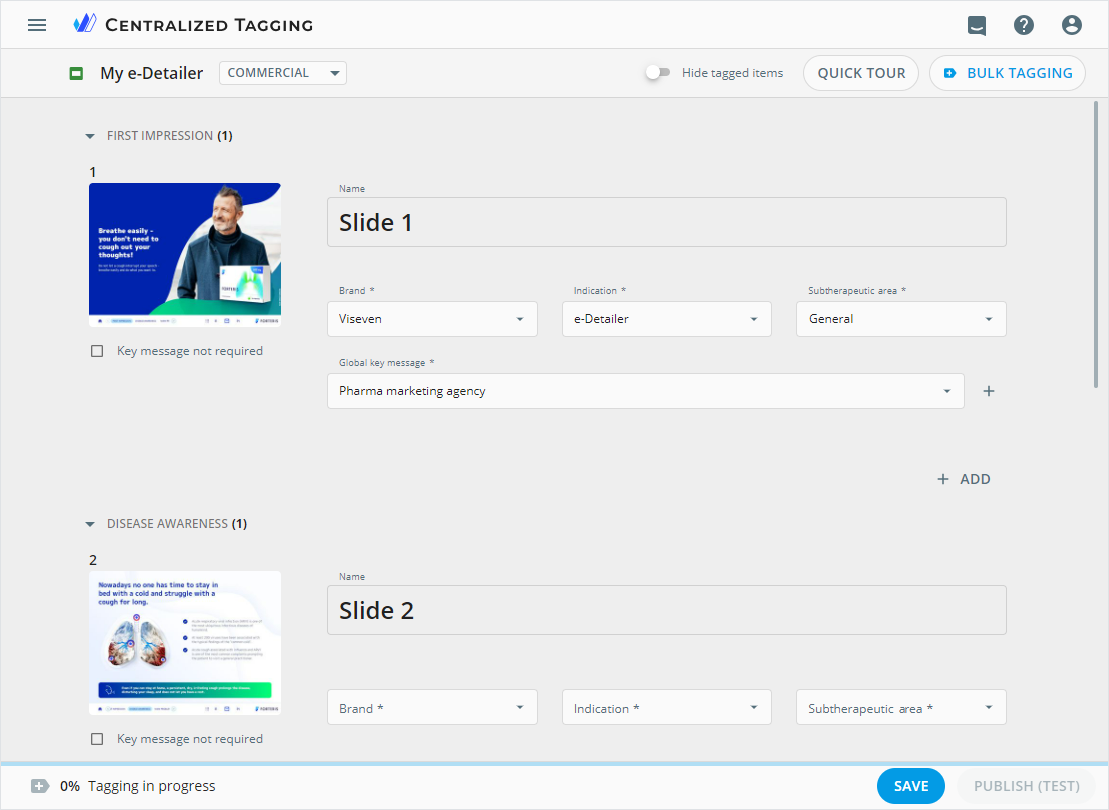
Publish the tagged content item to the target system for automatic sending of metadata to the repository for analysis.
Website anchors
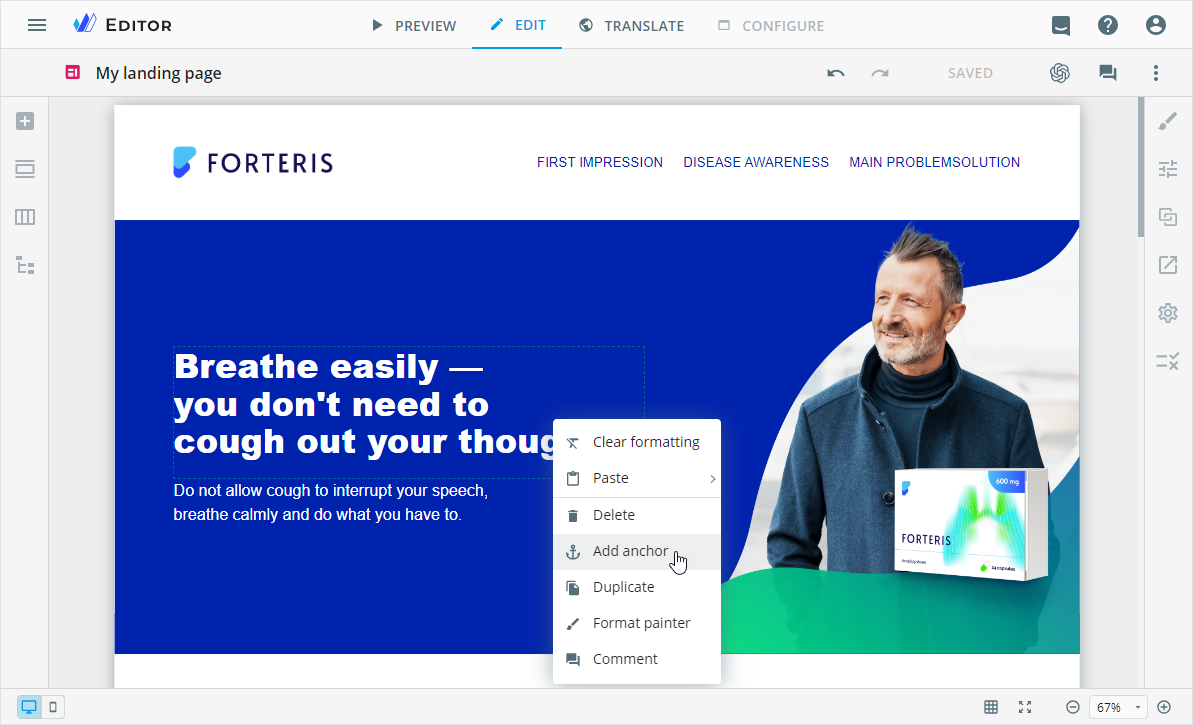
Add anchors to your website blocks and components. Anchors allow target users to navigate to specific website sections or pages.
Improvements
Modular approach
Module highlights are now available for messenger ads in the Editor PREVIEW mode and the resulting PDF files.
Editor
The messenger ad opens for editing in the desktop view by default to reduce the risks of inconsistency and confusion.
The Tree tab is now available for emails, landing pages, their briefs, and multipage sites.
Improved text scaling when resizing a popup component in an e-Detailer.
You can now add SVG images from Veeva Vault in the Assets popup.
Publisher
To Veeva Vault as interactive: When publishing the tagged content items, the
Productfield is automatically filled in with the metadata mapped to theBrand,Indication, andSubtherapeutic areavalues. Configured for theDETAILS,SLIDES, andFRAGMENTSpublication steps.To Veeva Vault as PDF for approval and interactive: When searching for the existing Veeva Vault document to update, you can enter not only the document number but also its name.
Planner
You can now upload a ZIP archive with the InDesign package on the new LAYOUTS tab. Available for tasks within the Campaign planning and Operations & delivery widgets. After the publication of the ZIP archive with the InDesign package to Veeva Vault, the status of the ZIP archive added in Planner is synced with the related Veeva Vault document.
Administrator panel
From this version on, the administrator can do the following configurations.
In the
USER MANAGEMENT→PUBLISH MANAGERsection:Configure the
contentTaggingobject to automatically fill in theProductfield with metadata mapped to theBrand,Indication, andSubtherapeutic areavalues. Available on theDETAILS,SLIDES, andFRAGMENTSsteps for the tagged item publication to Veeva Vault as interactive.Adjust the
restrictedVisibilityobject to hide theLocal key messagemetadata field on theDETAILS,SLIDES, andFRAGMENTSsteps. Available for the tagged item publication to Veeva Vault as interactive.Customize the
filterarray to search for the available document types on thePREPARATIONstep. Available for content items republished to Veeva Vault as PDF and interactive.Configure the
showOnlyandexcludearrays to customize list values for thepick-listfield types. Available for content items published to Veeva Vault as interactive.Set the alphabetical sorting of metadata values in the
pick-listfield type for thesortingOptionsobject. Available for content items published to Veeva Vault as interactive.
Create workflows for the ZIP archive with the InDesign package added to tasks on the
LAYOUTStab in Planner. Available in theUSER MANAGEMENT→WORKFLOWS→Manage workflows→Workflowssection.Turn on/off the following permissions:
Tag assetsin theUSER MANAGEMENT→Permission sets→SERVICES→Taggingsection. Available also in theApplication roles→SERVICES→Taggingsection.Add anchorsin theUSER MANAGEMENT→Permission sets→System→UP EDITORsection.
Configure data extraction from the database file to automatically tag content items.