Appearance
Configure trigger email popup
The Trigger email popup component allows you to send an email directly from Veeva CLM while presenting the e-Detailer content. Having this component in the e-Detailer provides you with quick access to relevant email content without leaving the e-Detailer presentation.
You can link the following to an e-Detailer:
One main email for the entire presentation.
Slide-specific email fragments, allowing each slide to display its own targeted content.
The component consists of two sub-components:
Button that opens the
Send emailpopup.Popup that displays the email and slide-specific fragments available for mailout.
To configure the Trigger email popup component, turn on the Master template toggle [1] on the quick access toolbar and select this component on the Tree tab [2].
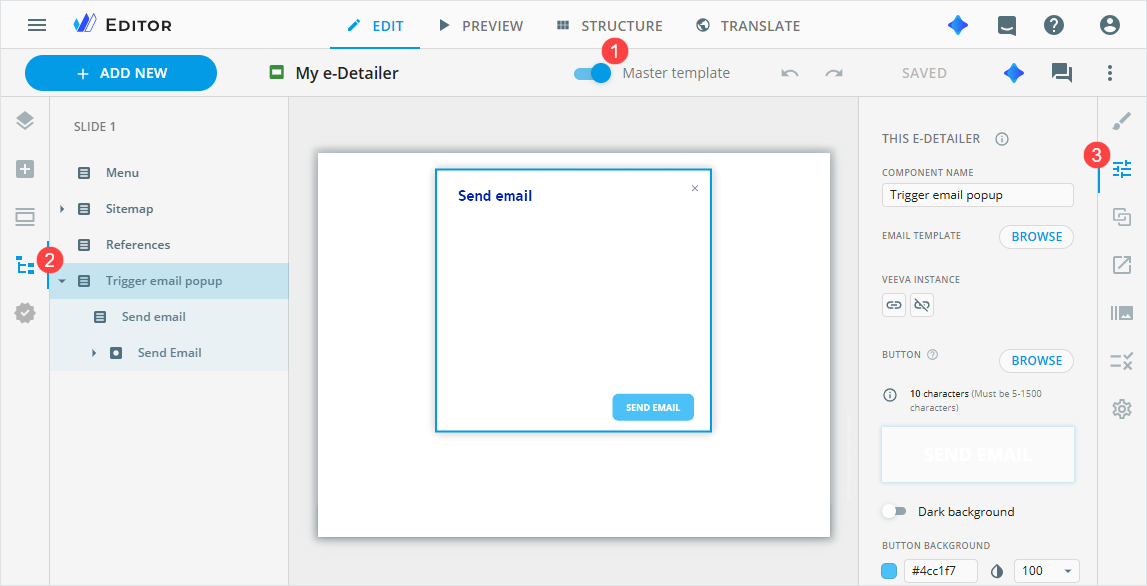
Go to the Properties tab [3] to customize the following:
COMPONENT NAME—the name displayed for the component on the Tree tab. You can change the defaultTrigger email popupname. Your update immediately appears in the component tree, making the component easier to identify within the e-Detailer structure.EMAIL TEMPLATE—the main email template to be used for the entire e-Detailer. You can attach only one email template to the e-Detailer. For this, clickBROWSE, sign in to Veeva Vault PromoMats, and select an approved email.VEEVA INSTANCE—the Veeva Vault environment that stores email templates and fragments. This path is used to locate the target content. Use the button to customize the VVPM link.
If the
VEEVA INSTANCEvalue is missing or incorrect, you can't send the email.BUTTON—the button name text field with the WYSIWYG editor for styling. Enter the trigger email button text or browse for the required one in the Assets popup and add it.Improve the visibility of light-colored text in the text input area with the
Dark backgroundtoggle.BUTTON BACKGROUND—color settings for the trigger email button in the popup. You can set its background color and opacity.CLOSE BUTTON ICON—the image of the close popup button. Change the default close button icon by selecting the required one in the Assets popup. You can edit the icon image, its text if needed, and save the added image to your Library.SELECTED ICON/NON SELECTED ICON—the images of the selected/non-selected email fragments. Change the default icons by selecting the required ones in the Assets popup with theBROWSEbuttons. You can edit each icon image and text if needed, and save the added images to your Library.EMAIL FRAGMENTS—section for linking email fragments to specific slides. Each fragment must be selected from Veeva Vault using theBROWSEbutton. You can add several fragments to a single slide.
Each element of Trigger email popup—including the popup itself, its title, and the popup button text—can be configured independently on the Properties tab. For this, select the required component element on the Tree tab.
Once all the configurations are made, publish your e-Detailer to Veeva Vault PromoMats. Email sending and fragment delivery are only available in Veeva CRM.
To ensure email sending and fragment delivery work correctly, the approved email must contain proper eWizard token configured for email fragments.